

Applications
HTTP traffic
A HAR (HTTP Archive) file is a recording of the requests a browser made and the responses it got. Attach one to an application and its scans replay those requests as a starting point, then test them like anything else they find.
In the dashboard: Applications
Open Applications (opens in a new tab)You do not need HTTP traffic for a scan to work. It helps when a scan cannot get somewhere by itself:
- A page or endpoint sits behind a multi-step flow, such as a checkout or a wizard, where each step needs valid data from the one before.
- A request needs a real identifier, such as an order ID, that cannot be guessed and is not in the API spec.
- A form accepts only values that pass a business rule.
Record the flow once. The file stays attached to the application, and every later scan uses it. HTTP traffic works on web and API applications.
Record traffic with the CLI
Section titled “Record traffic with the CLI”The CLI opens a browser, records what you do and uploads the result in one step.
-
Run
traffic recordwith a name for the recording, the URL to start from and the application to attach it to:Terminal window # nightvision traffic record [name] [url] --target [application]nightvision traffic record checkout-flow https://portal.example.com/cart \--target customer-portal -p "Customer" -
A Chrome window opens in incognito mode. Walk through the flow you want scans to cover: fill in the forms, submit them, follow the steps to the end.
-
Close the Chrome window. The CLI uploads the recording to the application.
Useful flags:
| Flag | What it does |
|---|---|
--target, -t |
The application to attach the recording to. Required |
--project, -p |
The project the application is in. Leave it out to use your current project |
--description, -d |
A note about what the recording covers |
--output, -o |
Also save the recording to a local file, for example traffic.har |
If a recording with the same name already exists on the application, the CLI asks before it overwrites it.
You need the CLI for this. See Install the CLI.
Upload a HAR file in the dashboard
Section titled “Upload a HAR file in the dashboard”If you already have a HAR file, for example one saved from your browser’s developer tools, upload it directly.
- Open the application, then More settings and HTTP traffic.
- Select Upload files.
- Choose one or more
.haror.jsonfiles.
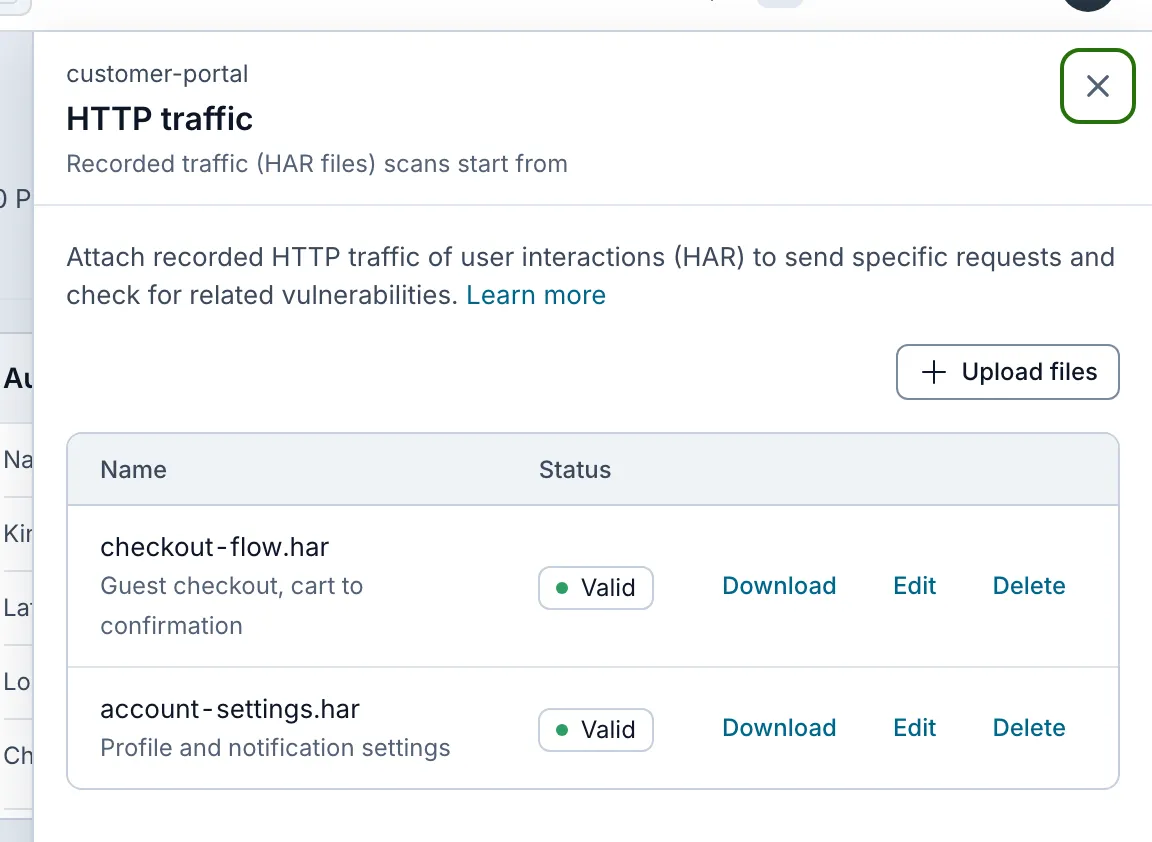
Each file shows a status. Valid means scans use it. Waiting for upload means the file is still arriving.
To save a HAR file from a browser, open its developer tools, go to the Network tab, walk through the flow, then export the requests as HAR.
Manage attached traffic
Section titled “Manage attached traffic”In the HTTP traffic panel, each file has three actions:
- Download saves the file to your machine.
- Edit changes its name and description. Names are unique within an application.
- Delete removes it. Later scans no longer use it.
A description is worth the few seconds. “Guest checkout, cart to confirmation” tells the next person why the file is there.
When the application changes enough that the recorded requests no longer match it, record the flow again and delete the old file.
From the CLI
Section titled “From the CLI”The CLI calls an application a target.
# Upload a HAR file you already havenightvision traffic upload checkout-flow ./checkout.har \  --target customer-portal --description "Guest checkout, cart to confirmation"
# List the recordings on an applicationnightvision traffic list customer-portal
# Download a recording by namenightvision traffic download checkout-flow --target customer-portal
Every command takes -p to name the project.
From the API
Section titled “From the API”Base URL: https://api.nightviz.ai/api/v1/. See the API overview for authentication.
| Method and path | What it does |
|---|---|
GET /targets/{id}/har-files/ |
List an application’s HAR files |
POST /targets/{id}/har-files/ |
Register a new HAR file |
POST /targets/{id}/har-files/{har_file_id}/get-upload-url/ |
Get a link to upload the file’s contents to |
GET /targets/{id}/har-files/{har_file_id}/download-url/ |
Get a link to download the file |
PUT /targets/{id}/har-files/{har_file_id}/ |
Change its name or description |
DELETE /targets/{id}/har-files/{har_file_id}/ |
Delete it |
The API reference lists every field.