

Scans
Troubleshoot scans
When a scan does not go as planned, NightVision tells you why in the place you are already looking: on the run, in New scan, or on the Overview. This page lists what you can see and what to do about each.
Start here
Section titled “Start here”- Open the run from the Scans page.
- Read the header. The status, a Signed out chip, and any banner under the header tell you most of what you need.
- If the run completed but the results look thin, open Coverage and select What this scan did not test. See Coverage.
| What you see | Go to |
|---|---|
| Status Failed or Timed out | A scan failed or timed out |
| A Scan problem block on the Findings tab | Scan problems |
| A banner about the login, or a Signed out chip | The login failed |
| The scan completed with few or no findings | A scan found little |
| Start scan is disabled, or the scan did not start | A scan would not start |
| A private application cannot be reached | Private applications |
A scan failed or timed out
Section titled “A scan failed or timed out”A run ends in one of these states:
| Status | Meaning |
|---|---|
| Completed | The scan finished its work. |
| Failed | The scan could not continue. |
| Timed out | The scan reached its duration limit before it finished. |
| Aborted | Someone stopped it. |
Failed, timed out and aborted runs keep the findings they reported before they stopped.
When NightVision knows why a run failed or timed out, a banner under the header says so and links to the evidence.
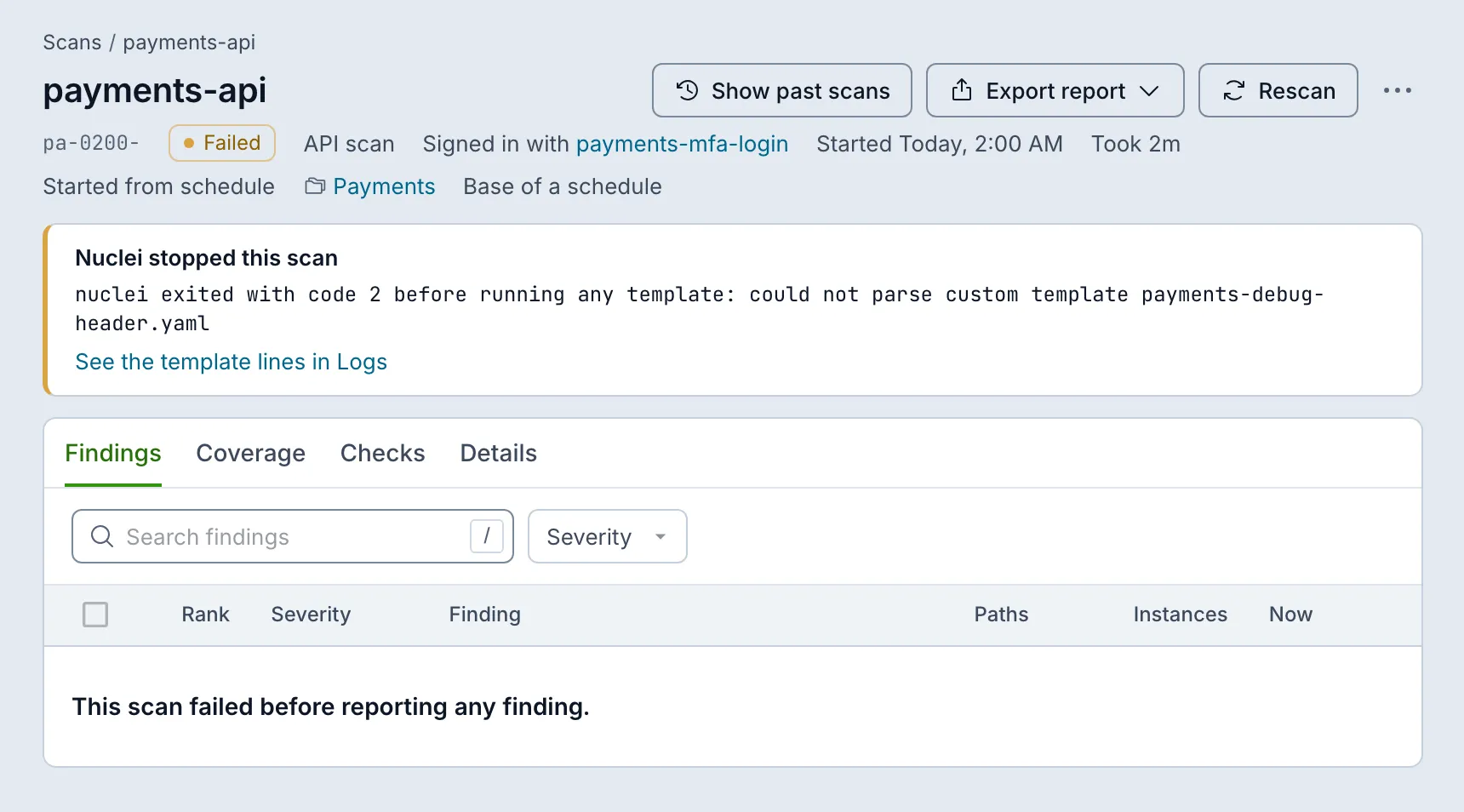
| Banner | Cause | Fix |
|---|---|---|
| The login failed, so this scan stopped | The authentication did not sign in. | Select See what happened on Login status, then see The login failed. |
| The login could not be confirmed, so this scan stopped | The login ran, but NightVision could not confirm that the session was signed in. | Check the validation settings on Login status. See Login check. |
| Excluded by its own exclusion pattern | An exclusion pattern matches the application’s own address. The scanner skips every URL that matches an exclusion, so nothing could be scanned. | Select Review the application’s exclusions and remove or narrow the pattern. See Scope and exclusions. |
| Nuclei stopped this scan | A template could not be loaded or run, usually a custom template that does not parse. | Select See the template lines in Logs. Fix the template, or untick it for the next scan. See Nuclei templates. |
| Nuclei reported an error | Nuclei reported an error while it ran the templates. | Read the template lines in Logs. |
A failed run with no banner opens its log at the first critical line. Open Details, then Logs, and turn on Warnings and errors.
Timed out
Section titled “Timed out”A timed out scan did not finish inside its duration. Coverage says what it had reached by then.
- Start the next scan with a longer duration. See Start a scan.
- Exclude parts of the application that do not need testing, such as large static sections. See Scope and exclusions.
Scan problems
Section titled “Scan problems”A scan problem is a note about the scan itself, not a vulnerability in your application. NightVision posts one when the application blocks, drops or rejects the scan’s requests. It means the scan may have missed parts of the application, so read a low finding count with care.
Scan problems appear in a Scan problem block at the top of the run’s Findings tab, and as findings named Scan Disrupted followed by the reason. They are rated Informational, and the dashboard leaves them out of its counts of open findings.
| Scan problem | What happened | What to do |
|---|---|---|
| Scan Disrupted - Target is Unresponsive | The application did not respond when the scan started. | Check that the application is online and that the URL on the application is right. If it is private, see Private applications. |
| Scan Disrupted - Connection Timeout | The application did not answer, and the connection timed out. | Check that the application is up and reachable. A firewall that silently drops NightVision’s traffic looks like this. |
| Scan Disrupted - 400-Level HTTP Client Error | The start page answered with a client error. | Open the finding and read the request and response. The URL may be wrong, or the application may need a header. See Extra headers. Web applications only. |
| Scan Disrupted - 401 Authorization Failed | The start page answered 401 Unauthorized. | The scan needs an authentication, or the one it used did not work. See The login failed. |
| Scan Disrupted - 403 Forbidden Response | The start page answered 403 Forbidden. | The authentication may lack access, or a web application firewall or bot protection is blocking the scan. Allow NightVision’s traffic, or scan from inside your network with the CLI. |
| Scan Disrupted - 500-Level HTTP Server Error | The start page answered with a server error. | Read the response on the finding, then check your application’s logs for the cause. |
| Scan Disrupted - 503 Service Unavailable | The start page answered 503. | The application is down, overloaded or in maintenance. Scan again when it is back. |
After you fix the cause, rescan. The scan problem is gone when a run reaches the application.
On the Overview, applications whose latest scan was blocked are counted in Scan health as blocked by the server.
The login failed
Section titled “The login failed”A scan that cannot sign in can only test what an anonymous visitor sees. NightVision makes that visible in several places:
- A banner on the run: The login failed, so this scan stopped.
- A Signed out chip in the run header, when a scan started with no authentication.
- A sentence on the Coverage tab, such as Login stopped at step 2 of 4, so most of this scan ran signed out.
- A failing-login alert on the application and in Scan health on the Overview.
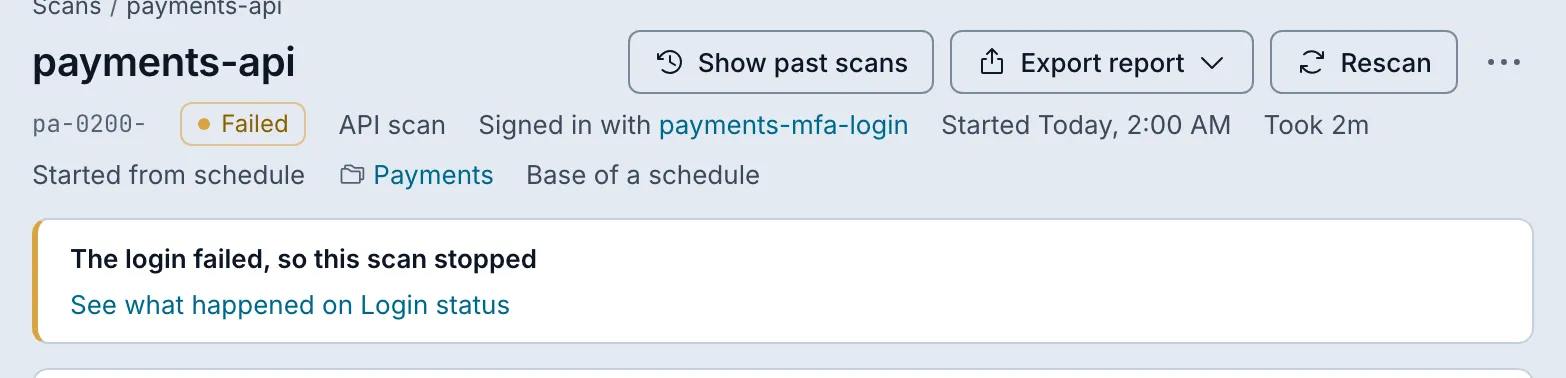
To find the cause:
- Open the run, select Details, then Login status.
- Read the Login status and Login verification lines. They name what happened, for example Not logged in, Two-factor prompt, CAPTCHA or Bot detected.
- Step through the screenshots to see the page where the login stopped.
- Read What was checked to see which validation rule failed, if you set any.
Authentication explains each login status. The usual fixes are:
| Cause | Fix |
|---|---|
| The login page changed, so the recorded steps no longer match. | Re-record the login. See Recorded logins. |
| The password changed or the account is locked. | Update the authentication with working credentials. |
| The login asks for a one-time code. | Add the TOTP seed to the authentication. See MFA and TOTP. |
| A header or cookie value expired. | Update the value. Tokens with a short life are better replaced by a recorded login. See Headers and cookies. |
| The session expires during a long scan. | Turn on Re-authenticate before the active scan in New scan. |
| The application shows a CAPTCHA or blocks automated browsers. | Use a test account or environment where that protection is off for NightVision’s traffic. |
Before you spend a full scan on it, run a login check. It replays only the login and tells you whether it works. See Login check.
A scan found little
Section titled “A scan found little”A completed scan with few findings is either a secure application or a scan that did not get far. Coverage tells you which.
Open the run, select Coverage, then What this scan did not test. Common causes:
| Coverage says | Fix |
|---|---|
| Scanned signed out: no authentication is assigned | Create an authentication and assign it. See Authentication. |
| Login stopped after step | See The login failed. |
| Stopped at its time limit | Scan with a longer duration. |
| Declared endpoints were not requested | Add them to the next scan from the Coverage table. |
| Paths only answered 401 or 403 | The account the scan signs in with lacks access to those paths. Use an account that has it. |
| URL patterns were excluded | Check that the exclusions are not wider than you meant. |
Other things to check:
- The Checks tab. Could not complete and Not tested (0 requests) name the checks that did not get to do their work. See Read a scan.
- For a web application that renders in the browser, use a scan of 2 hours or more so intelligent page load handling is available. See Crawler settings.
- For an API, make sure the spec describes the real API. An API scan requests only what the spec declares. See API specs.
- Give the scan more to start from. Upload recorded traffic or add paths the crawler cannot discover. See HTTP traffic and Scope and exclusions.
A scan would not start
Section titled “A scan would not start”New scan says why next to the Start scan button. The full list is in Start a scan. The most common:
| Message | Fix |
|---|---|
| Your trial has used all its scans. Upgrade to run more. | Upgrade the plan. |
| Your role does not allow starting scans in this project. | Ask an Org Admin or the project’s owner for access. |
| The specification is not valid, or The specification could not be downloaded | Fix the API spec on the application. |
| Nothing would run | Turn at least one set of checks back on under Advanced. |
| We could not confirm whether the scan started. | Check the Scans page before you start another one. |
| Rescan unavailable: the authentication used against this scan has been deleted. | Start a new scan and pick another authentication. |
A run that shows Queued or Not started belongs to a schedule and is waiting for its first run. See Schedule scans.
A scheduled scan that did not run may have fallen inside a freeze window, or its schedule may be disabled. See Freeze windows.
Private applications
Section titled “Private applications”NightVision Cloud cannot reach an application that is not on the internet. Scans of a private application run through the NightVision CLI on a machine that can reach it, such as your laptop, a pipeline runner, or a host in your network.
- In New scan, choose CLI helper (private network) and run the command it gives you.
- In Rescan, a private application shows the CLI command instead of a start button.
- If the CLI cannot reach the application either, check DNS, VPN and firewall rules from that machine first, for example with
curl. - If the CLI stops at startup with
error getting configurations from apiService, it cannot reach the NightVision API. Allow the hosts in Network access.
Scan health on the Overview
Section titled “Scan health on the Overview”The Scan health card on the Overview shows, across your applications, where scans are not doing their job.
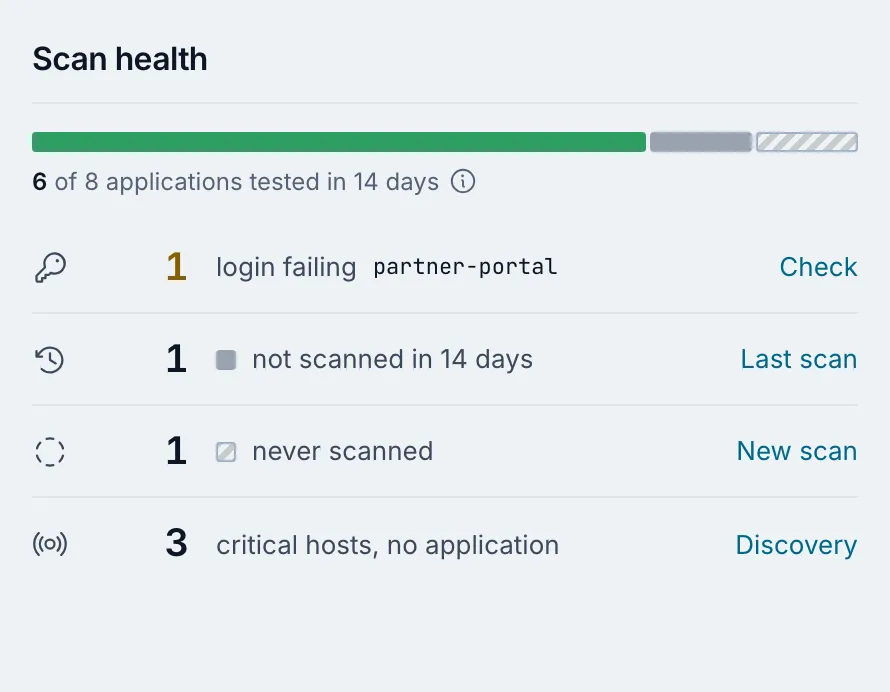
Each row links to where you fix it: a failing login, a last scan that failed, a scan blocked by the server, an application that ran signed out on its latest scan, and applications that have not been scanned recently or at all. See The Overview page.
Get help
Section titled “Get help”If you cannot find the cause, email support@nightviz.ai. Include the scan ID. To copy it, open the run, then select Copy scan ID in the … menu.