

Running a Discovery
A discovery run takes a domain and produces an inventory of the applications behind it. Runs happen in NightVision’s cloud, so nothing needs to be installed and you can close the tab while one is working.
Before you start
Section titled “Before you start”- Discovery must appear in the left sidebar of the portal. If it does not, see Availability.
- Starting a run on a new domain needs Organization Admin or Project Manager; re-running a tracked domain needs Scan Operator or above.
- You must be authorized to assess the domain. A run contacts the estate’s own infrastructure.
Starting a run on a new domain
Section titled “Starting a run on a new domain”- Click Discovery in the left sidebar.
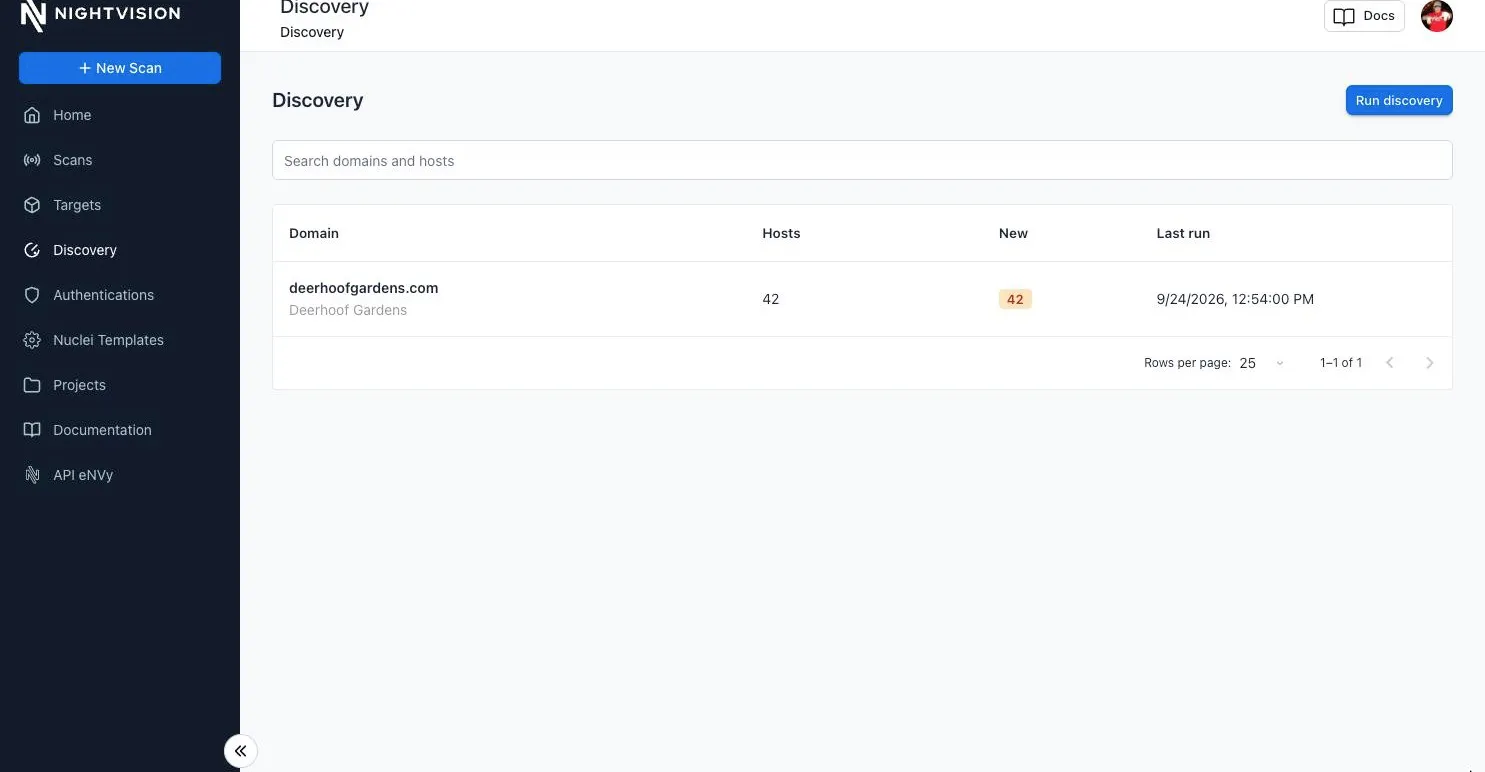
- Click Run discovery.
- Fill in the dialog:
| Field | Notes |
|---|---|
| Domain | The domain to start from, such as example.com. A domain name, not a URL. |
| Company name | Optional. Used to find related domains such as subsidiaries and acquisitions. Leave blank to detect it from the domain. |
| Project | Which project the resulting inventory belongs to. Only projects you can change are offered. |
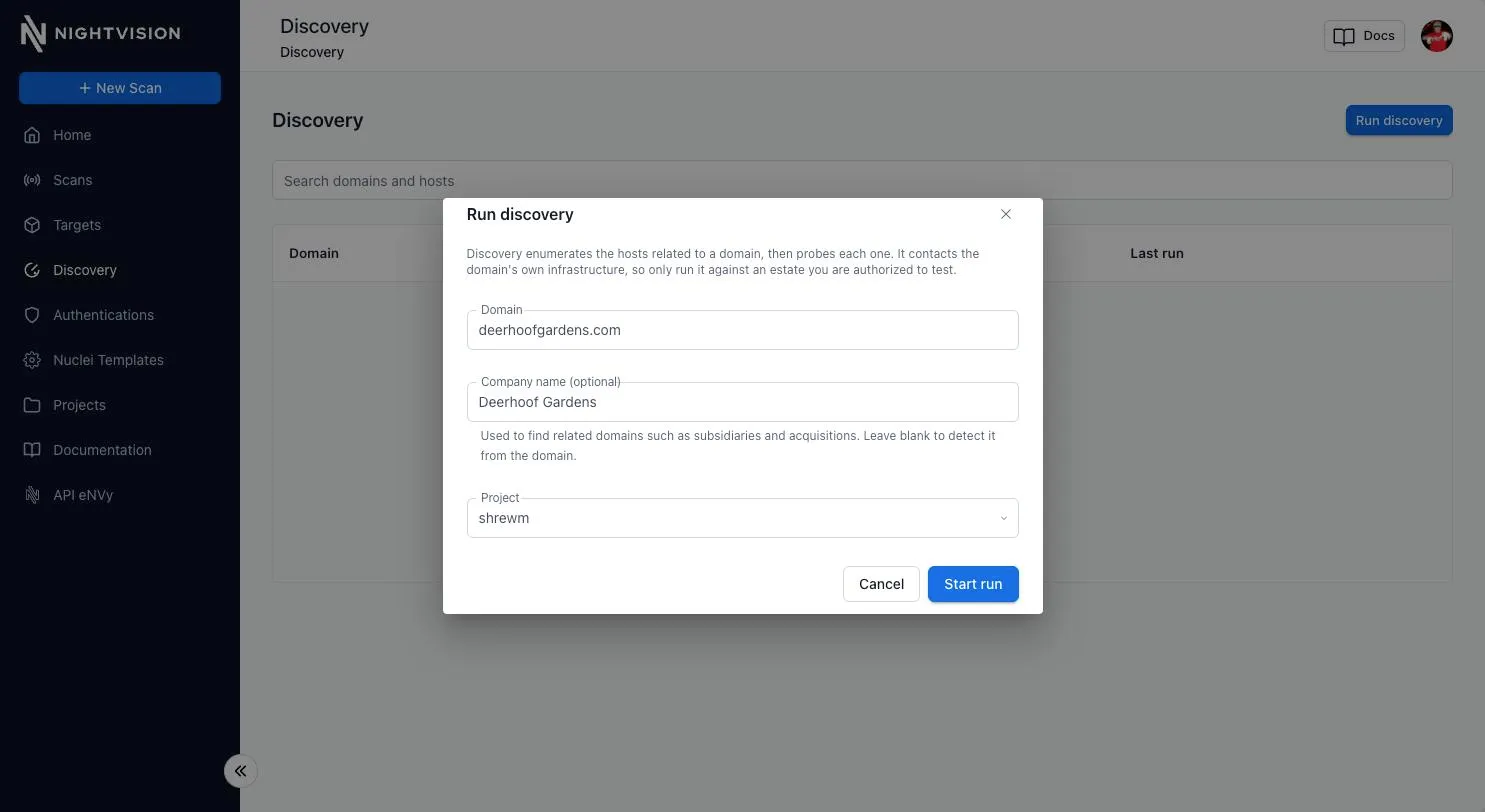
- Click Start run. The run screen opens.
If the workspace already has as many runs going as it may, the dialog says so. See Limits.
When to fill in the company name
Section titled “When to fill in the company name”NightVision derives the company name from the domain’s public registration, its TLS certificate and its homepage. That fails when the registration is privacy-shielded and the site gives nothing else away, which is common, and a run that could not determine a name reports few related domains or none.
Fill the field in if you know the answer, using the company’s real name as it would be written. A name you type is remembered against the domain and reused by every later run. A name NightVision derived is not: each run derives it afresh, so a wrong guess corrects itself, and a typed name always wins over a derived one.
Re-running a domain
Section titled “Re-running a domain”Open a domain from the Discovery list and click Run discovery on its page. There is no form: the run uses the domain the inventory already tracks and the company name you gave it, if any. You are asked to confirm, because the run reaches out to real infrastructure and cannot be recalled.
Results merge into the existing inventory, so hosts keep their history and NightVision can tell you what changed. See Change tracking.
Watching a run
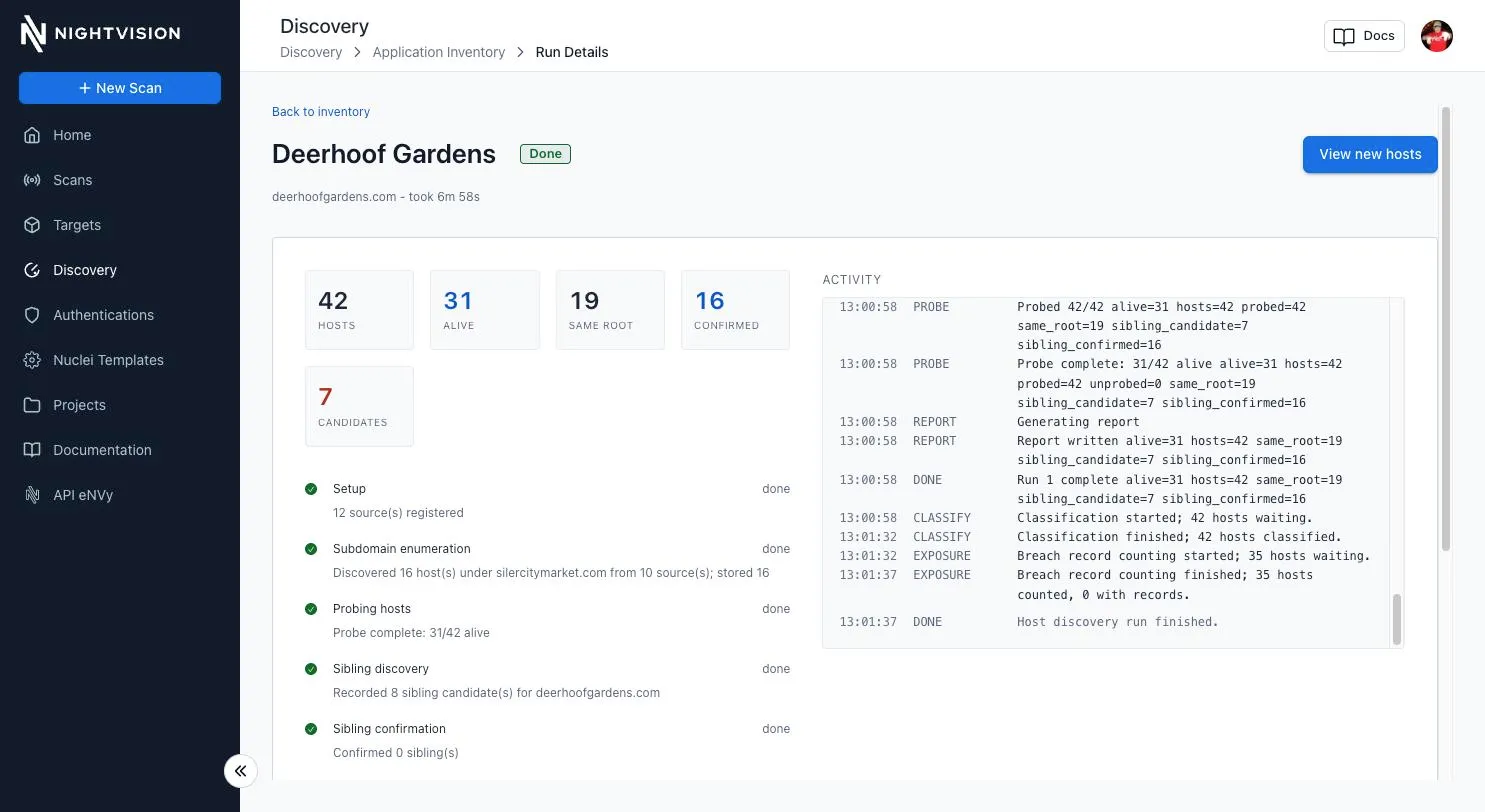
Section titled “Watching a run”The run screen updates while the run works. It shows:
- Status, one of
pending,running,done,canceledorerror, and how long the run has been going. - The phases, in the order the engine performs them, with the one in flight highlighted and its most recent message underneath. Probing, classification and breach-record counting report a percentage.
- Counters for hosts found, hosts that answered (
Alive), hosts under the original domain (Same root), confirmed related domains, and unconfirmed candidates. - Source coverage, listing every enumeration source and what it contributed.
- The activity log, the run’s own narration, line by line. It keeps the last 300 lines.
After the report
Section titled “After the report”A run’s status becomes done when its report is stored, but the screen stays
live through two more phases, Classification and Breach records, with a
second chip in the header while either is working. The inventory is complete
and usable throughout; these phases add to it.
When everything has finished, View new hosts opens the inventory narrowed to what this run saw for the first time.
Reading source coverage
Section titled “Reading source coverage”Sources are not equally available on every run, and a run whose sources were throttled produces a thin inventory that otherwise looks like a complete one. The coverage panel is what tells the two apart.
| Status | Meaning |
|---|---|
| Enabled | Ran and reported. The count beside it is what it contributed. |
| Skipped | Not run, by configuration, or because a limit stopped the run before that phase. |
| Unavailable | Could not start, usually a credential or tool that is not present. |
| Degraded | Started but could not finish. The inventory is thinner than it should be. |
A source that ran and found nothing is drawn with a dashed outline. For the public-record sources that is a real answer, because they report their failures. DNS brute-forcing and the external enumeration tools do not, so for those a zero means coverage is unknown rather than empty.
Stopping a run
Section titled “Stopping a run”Click Cancel run on the run screen and confirm with Stop run. The engine
finishes the phase it is in and reports, the run is marked canceled and
flagged partial, and its hosts are added to the inventory rather than
discarded.
Limits
Section titled “Limits”| Limit | Value | What happens at the limit |
|---|---|---|
| Runs in progress per workspace | 2 | The run is refused with a message saying when to try again. |
| Runs in progress per domain | 1 | The run is refused with the same message. |
| Hosts collected in one run | 5,000 | Enumeration stops admitting hosts; everything admitted is still probed. Marked partial, reason host cap. |
| Wall-clock duration of one run | 60 minutes | Enumeration and probing stop; hosts not yet probed are recorded as not answering. Marked partial, reason duration cap. |
| Hosts classified per run | 2,000 | Classification stops for this run. The rest can be classified from the inventory later. |
When an estate is larger than the host cap, NightVision admits the names most likely to matter first: names that resolve ahead of names that do not, and ordinary hostnames ahead of reverse-DNS shapes.
Partial runs
Section titled “Partial runs”A run that was stopped or capped is marked partial, with the reason beside the status. It is not a failed run: it reports everything it found and says it was truncated, so a small estate can be told apart from a clipped one. But it has not finished checking the estate, so the inventory keeps reflecting the last complete run, and nothing is marked as gone on the strength of a partial one. Re-running the domain replaces a partial result with a complete one.
What a run does not do
Section titled “What a run does not do”- It does not scan anything. Discovering a host does not test it, and creating a target from it does not start a scan either.
- It does not take screenshots of the hosts it finds.
- It does not authenticate anywhere, submit forms, or send payloads.
- It does not notify anyone when it finishes.