

Installing the CLI
Install the CLI
Section titled “Install the CLI”First, download the NightVision Command Line Interface (CLI):
Mac/Linux
Section titled “Mac/Linux”# Install:brew install nvsecurity/taps/nightvision
# Upgrade to the latest version:brew update && brew upgrade nightvisioncurl -L https://downloads.nightvision.net/binaries/latest/nightvision_latest_darwin_amd64.tar.gz | tar -xz; mv nightvision /usr/local/bin/curl -L https://downloads.nightvision.net/binaries/latest/nightvision_latest_darwin_arm64.tar.gz -q | tar -xz; mv nightvision /usr/local/bin/curl -L https://downloads.nightvision.net/binaries/latest/nightvision_latest_linux_amd64.tar.gz -q | tar -xz; sudo mv nightvision /usr/local/bin/curl -L https://downloads.nightvision.net/binaries/latest/nightvision_latest_linux_arm64.tar.gz -q | tar -xz; sudo mv nightvision /usr/local/bin/Windows Subsystem for Linux
Section titled “Windows Subsystem for Linux”If you’re using Windows Subsystem for Linux (WSL), install xdg-utils as a prerequisite. This will allow the CLI to open the browser to perform the login command.
sudo apt install xdg-utilsWindows (PowerShell)
Section titled “Windows (PowerShell)”- Launch PowerShell as an administrator.
- Click on the “Start” button located at the bottom-left corner of your screen or press the “Windows” key on your keyboard to open the Start Menu.
- In the search bar, type “PowerShell.” Right-click on “Windows PowerShell” in the search results.
- From the context menu that appears, select “Run as administrator.”
- Paste the commands below into your PowerShell terminal.
# Open a new Admin Powershell console
# Create the folder and add the new location into the PATH for the first time onlyNew-Item -ItemType Directory -Path "C:\Program Files\Nightvision\bin" -Force$env:Path = "$env:Path;C:\Program Files\Nightvision\bin"[Environment]::SetEnvironmentVariable("Path", $env:Path, "Machine")
# Run this block to install or update the appInvoke-WebRequest -Uri https://downloads.nightvision.net/binaries/latest/nightvision_latest_windows_amd64.tar.gz -OutFile nightvision_latest_windows_amd64.tar.gztar xf .\nightvision_latest_windows_amd64.tar.gz -C "C:\Program Files\Nightvision\bin"rm .\nightvision_latest_windows_amd64.tar.gz# Open a new Admin Powershell console
# Create the folder and add the new location into the PATH for the first time onlyNew-Item -ItemType Directory -Path "C:\Program Files\Nightvision\bin" -Force$env:Path = "$env:Path;C:\Program Files\Nightvision\bin"[Environment]::SetEnvironmentVariable("Path", $env:Path, "Machine")
# Run this block to install or update the appInvoke-WebRequest -Uri https://downloads.nightvision.net/binaries/latest/nightvision_latest_windows_arm64.tar.gz -OutFile nightvision_latest_windows_arm64.tar.gztar xf .\nightvision_latest_windows_arm64.tar.gz -C "C:\Program Files\Nightvision\bin"rm .\nightvision_latest_windows_arm64.tar.gzHelp Page
Section titled “Help Page”Append --help to any command to view usage information about the command or its subcommand.
# Root level commandnightvision --help
# Subcommand examplenightvision swagger extract --help
Authenticate the CLI
Section titled “Authenticate the CLI”Run the following to authenticate the CLI with your NightVision account. Alternatively, nightvision will respect the NIGHTVISION_TOKENenvironment variable.
nightvision loginDownload Links
Section titled “Download Links”CLI Usage
Section titled “CLI Usage”Learn more about other CLI commands in the pages below.
 API Discovery:
 swagger extract and swagger diff
▶
 Running Scans from the CLI:
 scan
▶
 Recording Interactive Logins with Playwright:
 auth playwright create
▶
Create Header Credentials: auth headers create
▶
 Code Traceback:
 export sarif
▶
 Web Target Commands
▶
API Target Commands
▶
Web Target Commands
▶
API Target Commands
▶
The command line uses NightVision’s Smart Proxy in the background to run fast scans against targets on private networks. It requires zero configuration on behalf of the customer for a transparent user experience. If you’re curious about how this works, you can view details about the Smart Proxy at the link below.
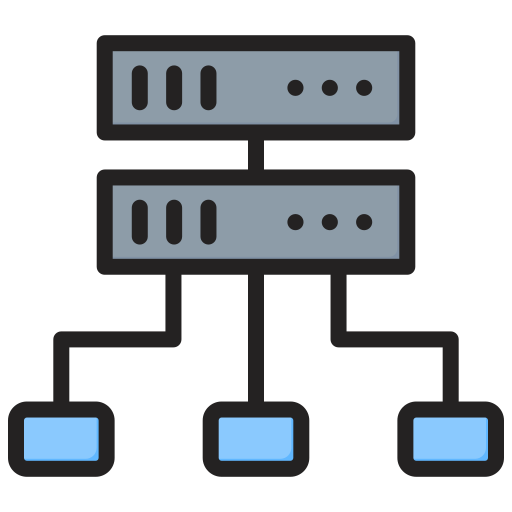 How the Smart Proxy Works in the background