

User-Defined Domains for Web Targets
What are User-Defined Paths?
Section titled “What are User-Defined Paths?”When NightVision scans your web application, the scanner only allows network requests to your application’s domain by default. If your app depends on external domains, such as microservices or widgets hosted under a different domain, those URLs will be skipped during the scan, resulting in incomplete scan coverage.
User-defined paths let you whitelist additional domain patterns so the scanner covers all the services your application needs to function properly.
When should I configure them?
Section titled “When should I configure them?”You should configure user-defined paths if your web application:
- Uses a microservice architecture with services on different domains
- Makes API calls to third-party services
- Embeds UI widgets hosted on different domains
Note: When you create a new web target or start your first scan, NightVision will remind you to configure user-defined paths if you haven’t already.
How to configure User-Defined Paths
Section titled “How to configure User-Defined Paths”There are three ways to add paths: automatic discovery via the CLI, manual entry through the web UI, or CSV import.
Option 1: Discover domains automatically (recommended)
Section titled “Option 1: Discover domains automatically (recommended)”The NightVision CLI can open a browser window, record the external domains your app communicates with, and upload them for you.
Prerequisite: You need the NightVision CLI installed. See Installing the CLI.
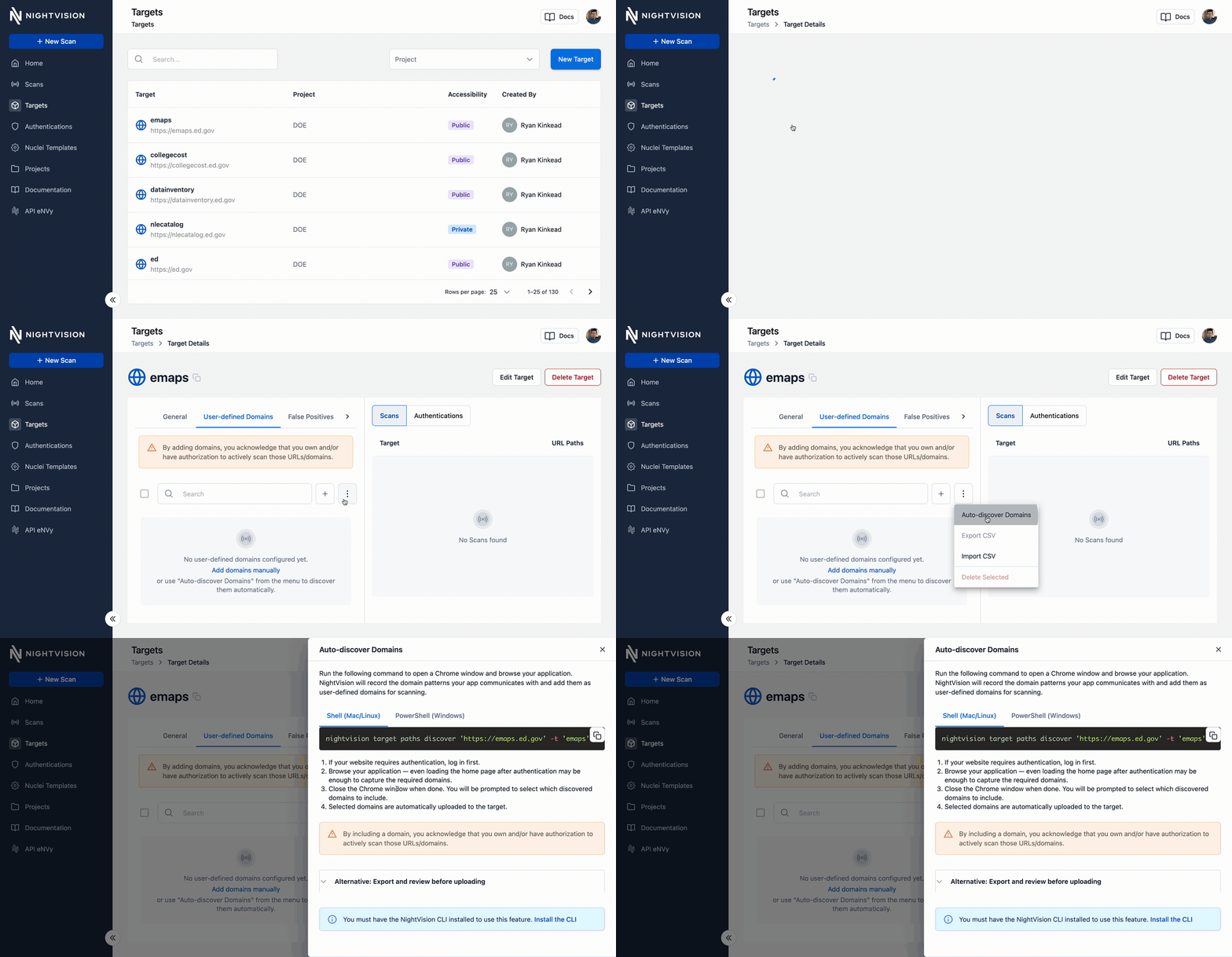
(1) Generate a domain discovery command from the UI
Section titled “(1) Generate a domain discovery command from the UI”- Navigate to your target’s config page.
- Open the User-defined Paths tab.
- Open the menu (three dots) and select Auto-discover Domains to generate the domain discovery command.
(2) Discover and upload domains
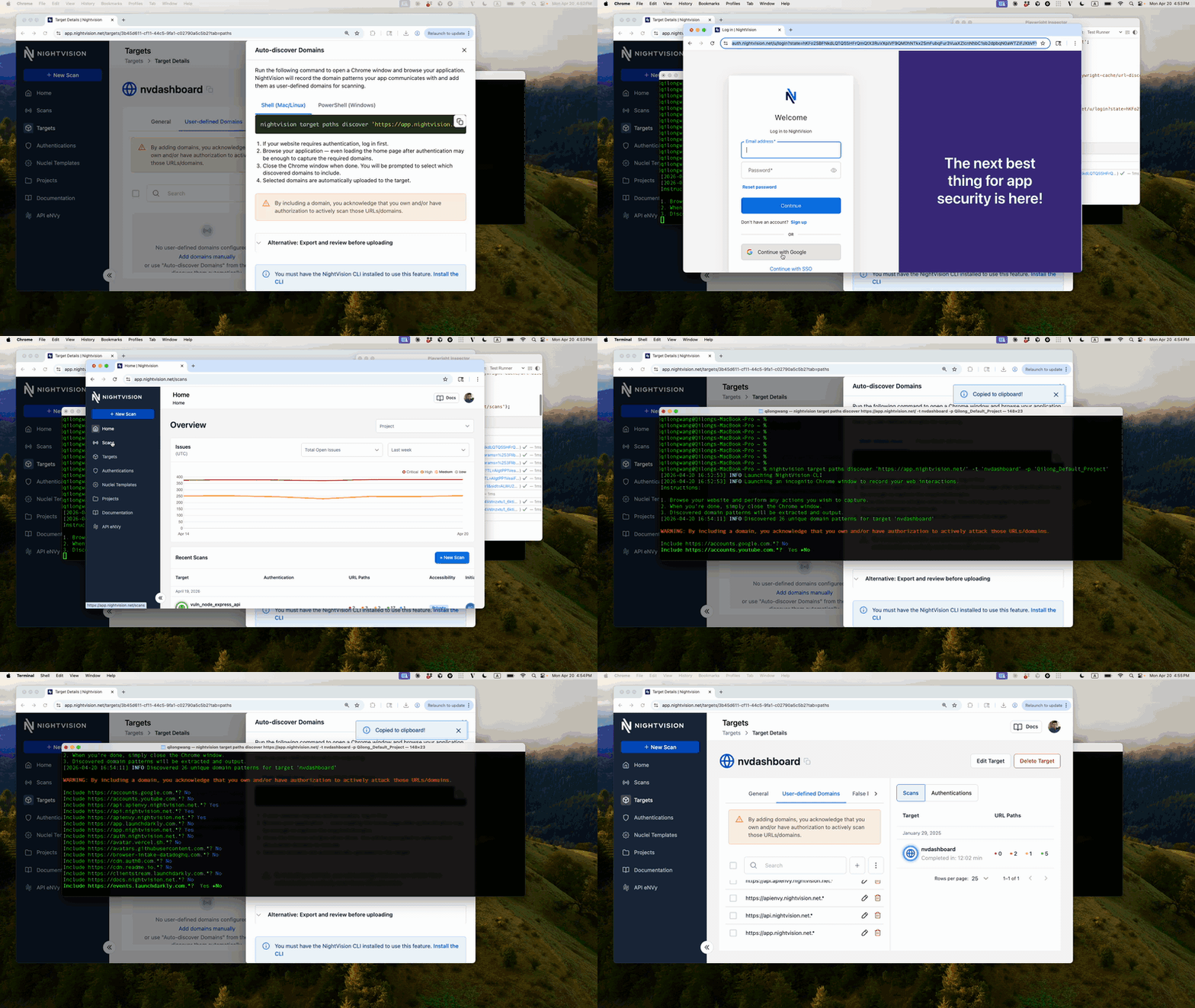
Section titled “(2) Discover and upload domains”nightvision target paths discover 'https://your-app.com' -t 'your-target' -p 'your-project'This opens a Chrome window. Browse your application, then:
- If your site requires authentication, log in first.
- Navigate through your app to extract domain patterns.
- Close the Chrome window when done.
- Select
yesornofor each discovered domain. - The selected domains are automatically added to the User-defined Paths tab of the scan target.
(Optional) Save to CSV first
Section titled “(Optional) Save to CSV first”You can save the discovered domains to a CSV file first using the --no-upload option:
nightvision target paths discover 'https://your-app.com' -t 'your-target' -p 'your-project' --no-upload -o paths.csvReview or modify the domain list in the CSV manually, then upload the file in the UI or through the CLI:
nightvision target paths upload paths.csv -t 'your-target' -p 'your-project'Option 2: Add domains manually
Section titled “Option 2: Add domains manually”- Navigate to your target’s config page.
- Open the User-defined Paths tab.
- Click the Add domains manually link or the + button to add a domain pattern (e.g.,
https://api.example.com.*).
Option 3: Import from CSV
Section titled “Option 3: Import from CSV”- Navigate to your target’s User-defined Paths tab.
- Open the menu (three dots) and select Import CSV.
- Upload a CSV file with a
pathcolumn header. Each row should contain one domain pattern.
Example CSV:
pathhttps://api.example.com.*https://cdn.example.com.*https://auth.provider.com.*Managing paths
Section titled “Managing paths”From the User-defined Paths tab you can:
- Search paths using the search bar
- Edit a path by clicking the pencil icon
- Delete individual paths with the trash icon, or select multiple and use Delete Selected from the menu
- Export all configured paths as a CSV via Export CSV in the menu