

Validating Login Credentials
Description
Section titled “Description”A login check runs only the authentication step of a scan: NightVision replays the recorded login script, captures the resulting session, and exits. No crawler runs, no ZAP or Nuclei alerts fire, and no scan findings are produced beyond a single login-verification record. The point is a fast, focused answer to one question: does this credential still work?
This is the right tool when you want to:
- Verify a freshly recorded authentication before scheduling a full scan.
- Add a credential-health check to CI that catches a rotated password or an expired MFA seed before it silently breaks tomorrow morning’s scan.
- Reproduce an authentication failure without paying for a full scan.
Login checks are available from two surfaces:
- Dashboard. A one-click Login Check action on the Authentication Details page, with a config dialog for optional end-to-end validation.
- CLI.
nightvision scan --login-checkwith the same validation flags, designed for CI pipelines that branch on a verdict-specific exit code.
The two surfaces drive the same backend check and emit the same Verified, Failed, or Inconclusive verdict. Pick whichever fits the moment; the rest of this page covers both.
A login-check run is capped at 2 minutes server-side. The feature is supported for URL and OPENAPI targets only - target types without a runtime surface (for example, GitHub source targets) have nothing to verify against.
From the dashboard
Section titled “From the dashboard”Open the Authentication Details page for the credential you want to check and click Login Check in the top-right action bar. The button is available for Playwright (script-based) authentications.
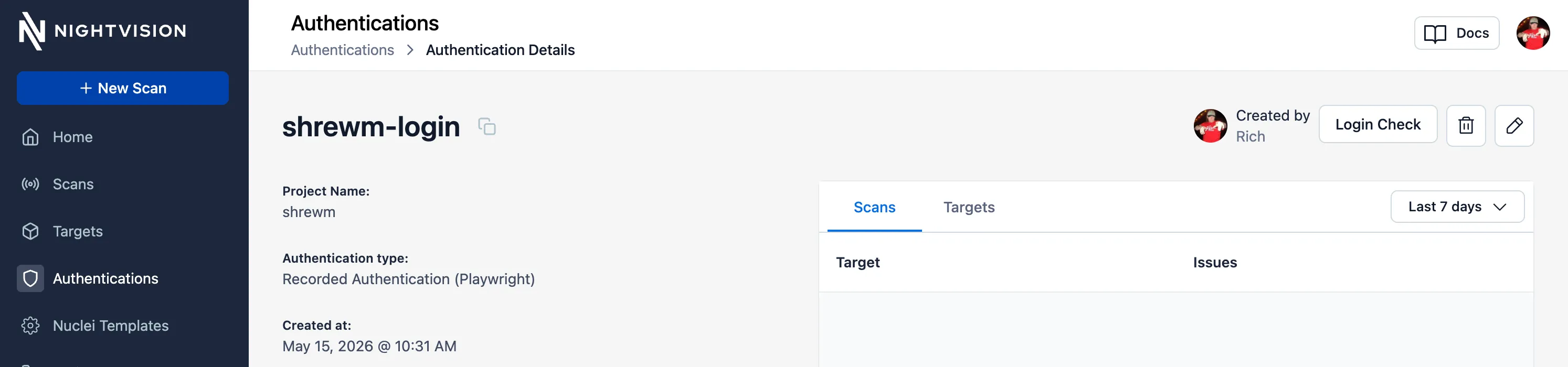
The Run login check dialog pre-selects the last (credential, target) pair you used, so repeating a check is one click. Pick a different target from the Target dropdown if you want to validate a different attached application.
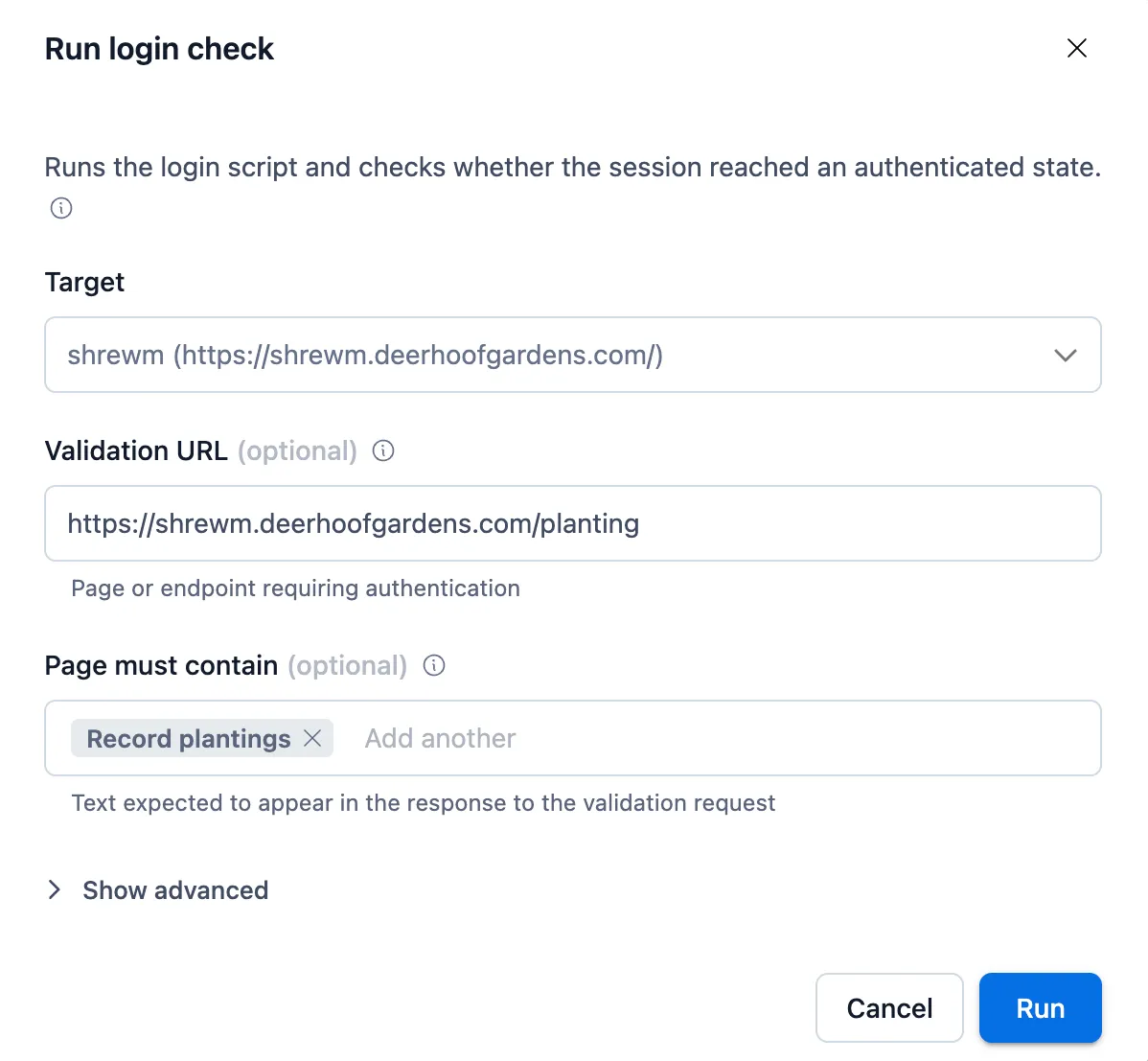
The two top fields are all you need for most checks:
- Validation URL (optional). A page that should only be reachable while logged in. Account pages, dashboards, and user-detail API endpoints are good picks. Avoid URLs that redirect to the login form when the session is missing unless you also add a substring assertion, since the redirect target may return 200.
- Page must contain (optional). Text that must appear in the validation URL’s response body. Type a phrase and press Enter to add it as a chip; repeat for multiple required substrings.
For finer-grained checks, click Show advanced:
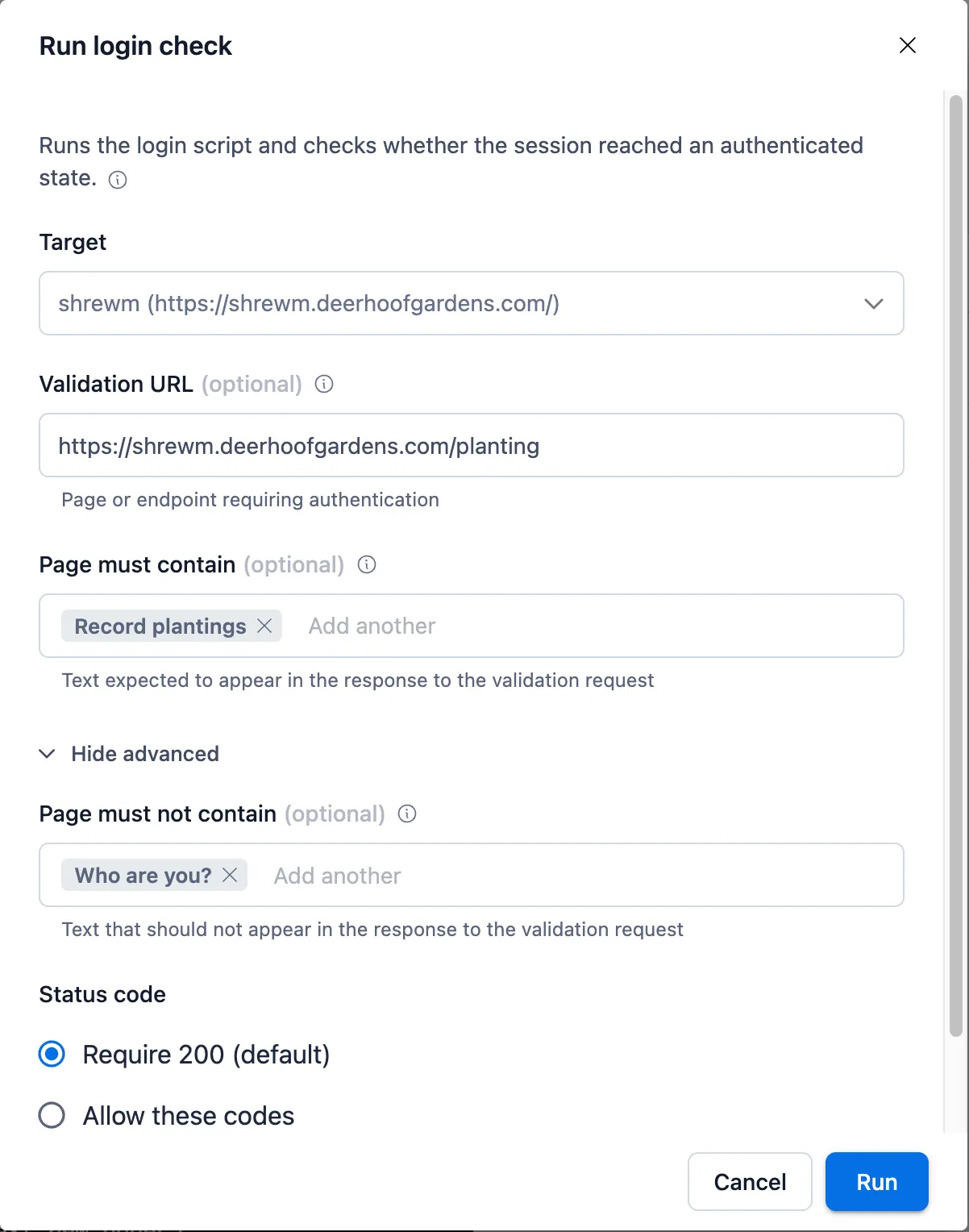
- Page must not contain. Text that must NOT appear. Use this for unmistakable logged-out markers like the word “Login” or a “Please sign in” prompt.
- Status code. By default the probe requires HTTP 200. Pick Allow
these codes to provide an allowlist (for example,
200, 204for an endpoint that sometimes returns no content), or Don’t check status when you would rather rely entirely on the substring assertions.
Click Run to launch the check. NightVision opens the scan and lands on the Login Status tab when it finishes.
Reading the verdict
Section titled “Reading the verdict”A successful run shows a green Verified chip on the Login Status tab, with an inline summary of the validation outcome:
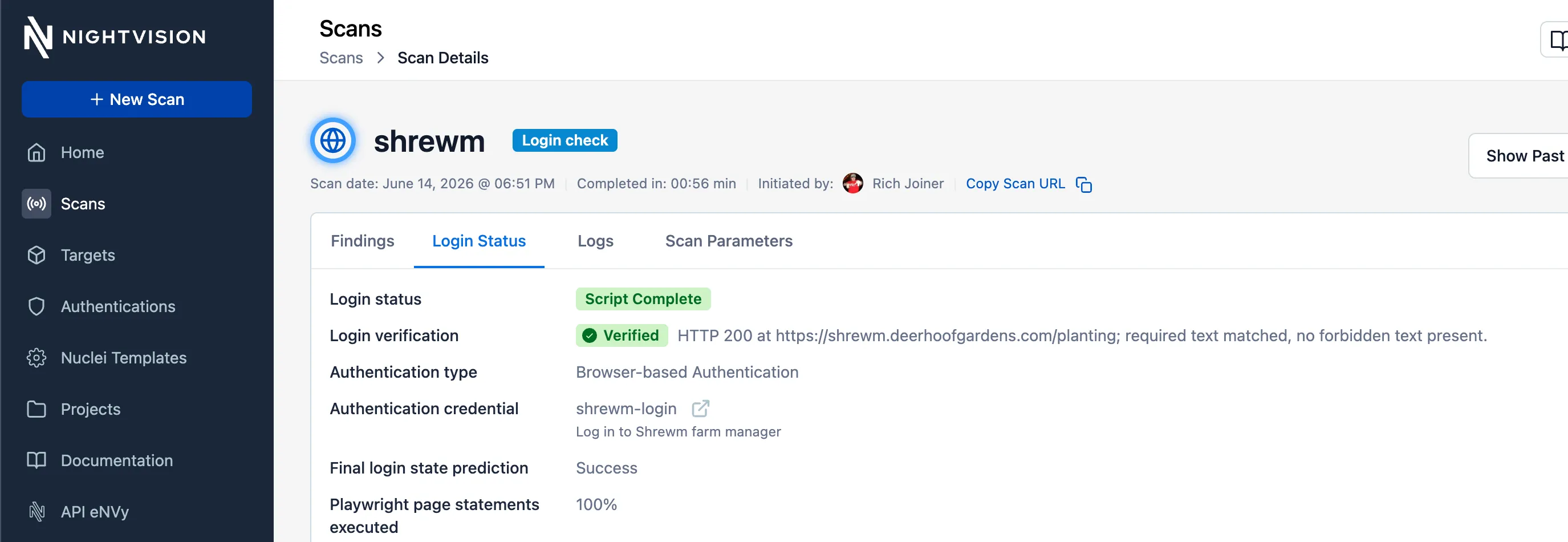
If the validation failed, the verdict appears as a red Failed chip
with the specific reason inline. Hover the chip for structured reason
codes (STATUS_NOT_ALLOWED, MISSING_REQUIRED_TEXT,
FORBIDDEN_TEXT_PRESENT, OFF_ORIGIN_REDIRECT, TIMEOUT, and so on),
along with evidence such as the actual status returned or the redirect
chain.
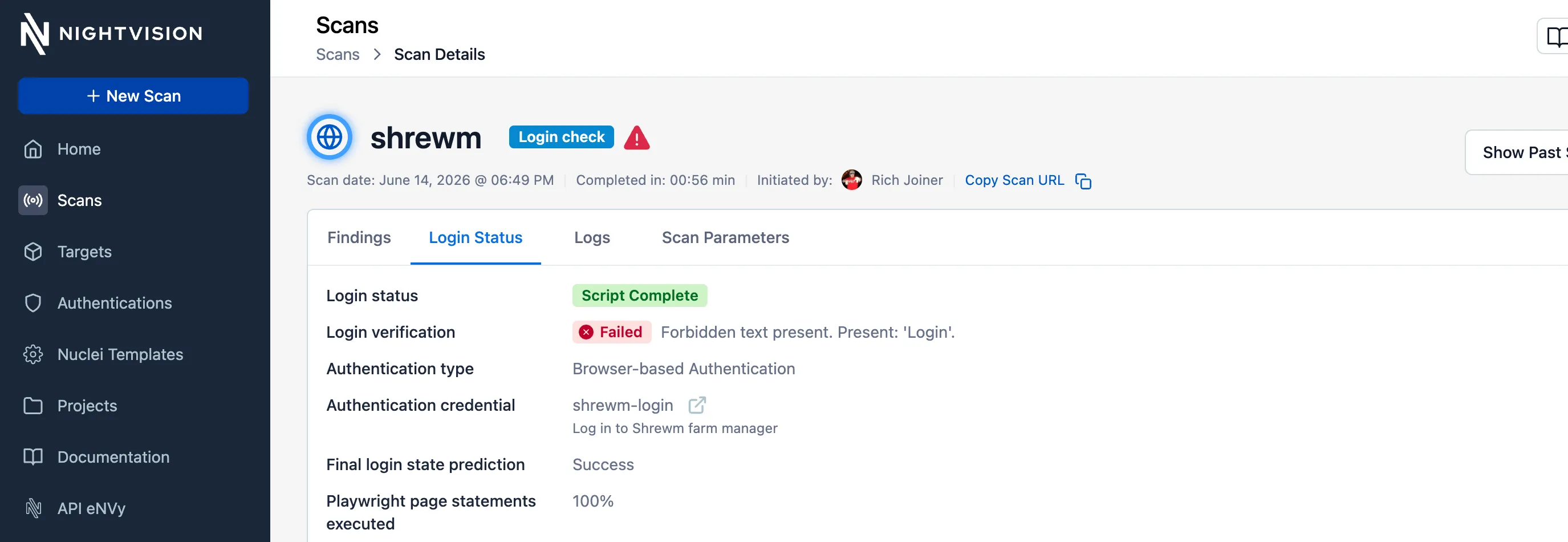
A third verdict, Inconclusive, appears when the probe could not reach a clean decision - the validation URL was unreachable, redirected off-origin, or hit a connection timeout.
From the CLI
Section titled “From the CLI”nightvision scan my-target --login-check -c my-authA credential is required. Pass it via -c (name), -C (UUID), or the
NIGHTVISION_CREDS_ID environment variable. --no-auth is rejected:
there is nothing to check without a credential.
If the recorded login script captured a session, the command exits 0.
Otherwise it exits non-zero with a verdict-specific code (see
Exit codes below). Any --max-duration-minutes value is
ignored; the 2-minute server-side cap applies.
Verify with a logged-in URL
Section titled “Verify with a logged-in URL”nightvision scan my-target \ --login-check \ -c my-auth \ --validation-url https://app.example.com/accountBy default, the probe expects exactly HTTP 200.
Constraints on the URL:
- Must be
httporhttps. - Must include a host.
- Must not embed userinfo (
https://user:pass@host). Credentials belong in the authentication resource, not the URL. - Leading or trailing whitespace is trimmed.
Substring assertions
Section titled “Substring assertions”nightvision scan my-target \ --login-check \ -c my-auth \ --validation-url https://app.example.com/account \ --validation-must-contain "Sign out" \ --validation-must-not-contain "Please log in"Each --validation-must-contain substring MUST appear in the response
body. Each --validation-must-not-contain substring must NOT appear.
Both flags are repeatable; all entries must hold simultaneously. These
are the CLI equivalents of the dashboard’s Page must contain and
Page must not contain chip inputs.
Matching rules:
- Case-insensitive literal text. No regex, no wildcards, no anchors.
- Matched against the raw HTTP body, not the rendered DOM. Pick text that appears in the unrendered HTML (view-source the page first to confirm). React or single-page apps that only render auth-aware text in JavaScript will not match - look for a server-rendered marker (a CSRF meta tag, a username in a hidden input, a cookie banner) or point the validation URL at a JSON API endpoint instead.
Status-code allowlist
Section titled “Status-code allowlist”Override the default 200-only behaviour when a different status is
the expected authenticated response.
nightvision scan my-target \ --login-check \ -c my-auth \ --validation-url https://app.example.com/me \ --validation-status 200 --validation-status 204--validation-status is repeatable and takes integers in [100, 599].
This maps to the dashboard’s Allow these codes radio option.
When you only care about body content, skip status entirely with
--validation-ignore-status (the Don’t check status radio option):
nightvision scan my-target \ --login-check \ -c my-auth \ --validation-url https://app.example.com/account \ --validation-ignore-status \ --validation-must-contain "Sign out"--validation-status and --validation-ignore-status are mutually
exclusive. All content-assertion flags require both --login-check and
--validation-url; using them without either is a parse-time error.
Exit codes
Section titled “Exit codes”The CLI returns a verdict-specific exit code so CI pipelines can branch on the outcome. The dashboard surfaces the same verdicts as the Verified / Failed / Inconclusive chip on the Login Status tab.
| Code | Verdict | Meaning | Typical cause |
|---|---|---|---|
| 0 | Verified | Login script captured a session. With a validation URL, the probe also satisfied every status and substring rule. | Healthy credential. |
| 1 | Incomplete | The scan could not complete. | API unreachable, scanner aborted, target offline, login script crashed before producing a session. Not a verdict on the credential itself; rerun and investigate logs. |
| 2 | Failed | The probe ran but the credential did not work. | Login script never produced a session, the validation URL returned a forbidden status, or a substring rule failed. The credential needs attention. |
| 3 | Inconclusive | The probe could not reach a decision. | Validation URL was unreachable, off-origin redirect chain, or a transient backend signal prevented a clean pass or fail. |
CI example
Section titled “CI example”nightvision scan my-target \ --login-check \ -c my-auth \ --validation-url https://app.example.com/account \ --validation-must-contain "Sign out"
case $? in 0) echo "auth healthy" ;; 1) echo "scan infrastructure problem, retrying"; exit 75 ;; 2) echo "credential is broken, page on-call" ; exit 1 ;; 3) echo "inconclusive, will retry next run" ; exit 0 ;;esacRun this on a schedule (nightly, hourly for high-value targets) against a long-lived authentication and you will hear about credential drift before it lands in a real scan.
See also
Section titled “See also”- Interactive Logins - record the authentication script that login-check replays.
- Editing Authentication Scripts - adjust a recorded script when the login flow changes.
- Reusing Authentications - copy a verified authentication onto another target.