Public Web Apps
Description
Section titled “Description”Historically, skilled engineers have needed hours or days to prepare and run task scans. However, with NightVision, any developer can easily start a scan from scratch in under 30 seconds and obtain results in under 15 minutes. View how quick and easy it is to start a Public Web App Scan with our demo below.
Note: Here is the reference for the URL used in this tutorial:
- Base Target URL:
<http://public-firing-range.appspot.com/>
Interactive Demo - Public Web App Scan
Section titled “Interactive Demo - Public Web App Scan”Step-by-Step Guide
Section titled “Step-by-Step Guide”To run a security scan against a Web Application:
-
Navigate to https://app.nightvision.net.
-
Click on New Scan in the top left.
-
Click on Scan Web Applications this will bring you to the scan home screen.
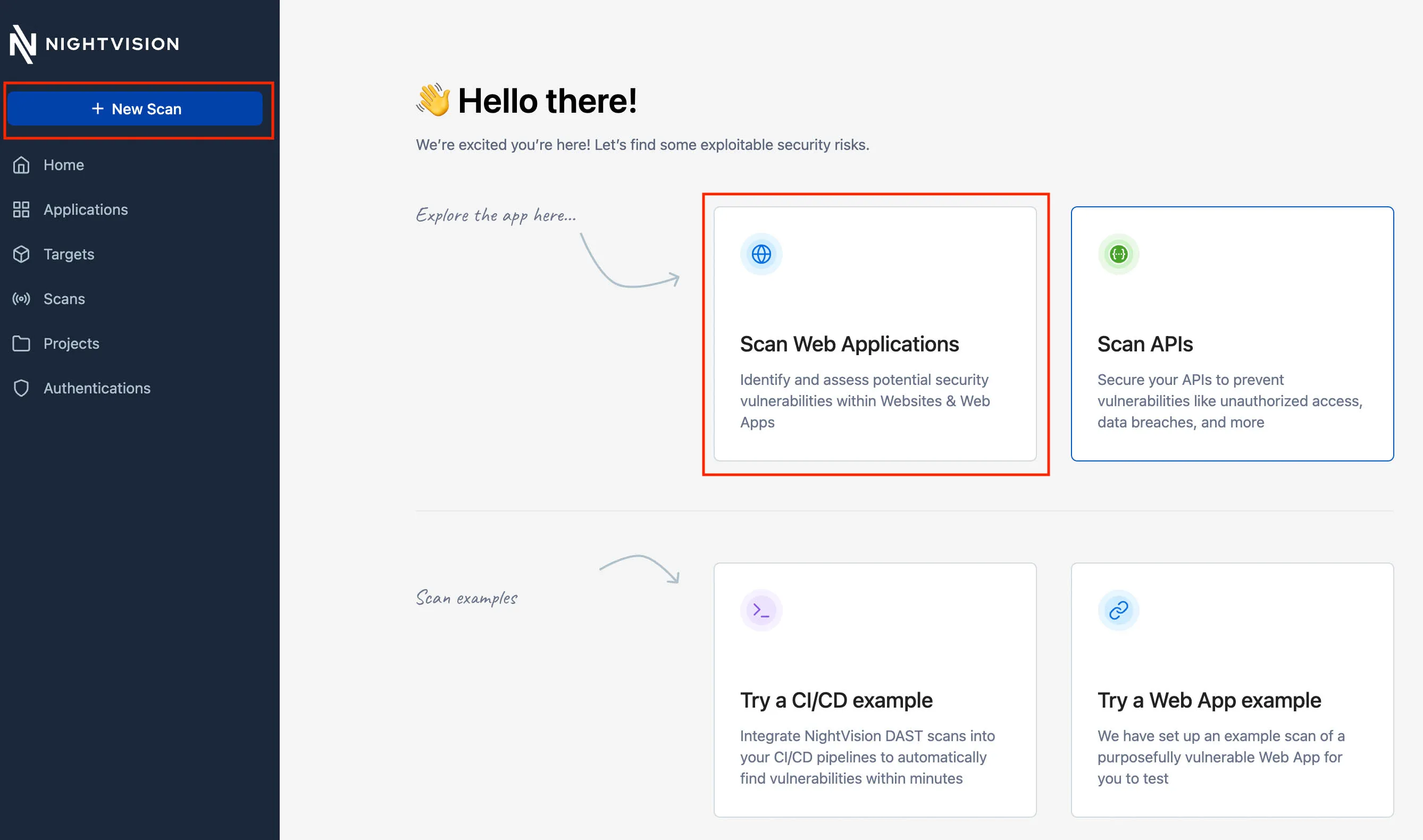
The NightVision interface displays options for scanning web applications and APIs 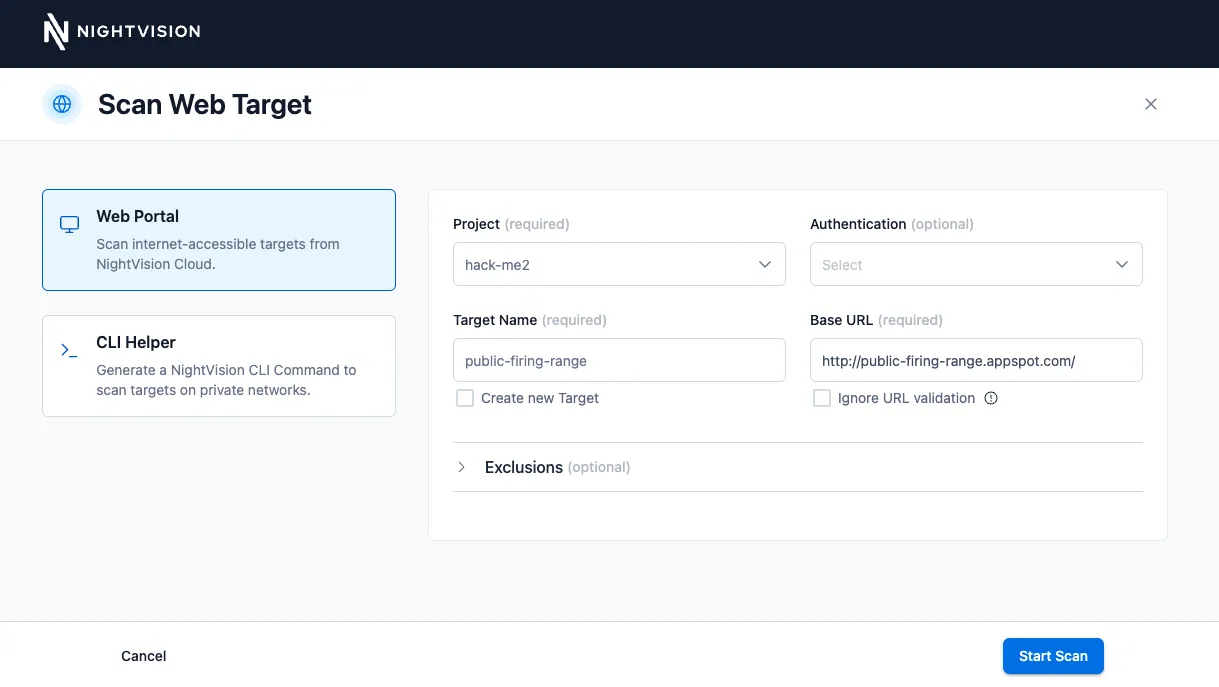
The NightVision "Scan Web Target" interface allows users to set up a new scan by specifying project details, target name, base URL, and authentication options. -
Click on Create new Target, add the name of a target, and add the target URL (for example, you can test this out with http://public-firing-range.appspot.com or feel free to use the URL of your public web application).
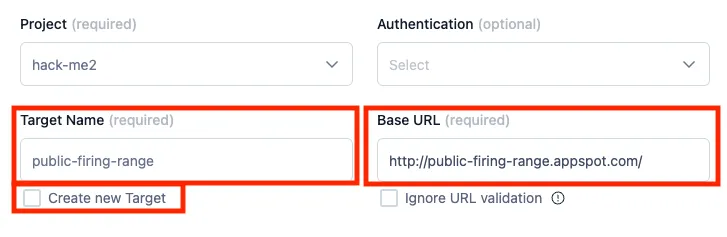
- Lastly, click Start Scan to begin your scan.
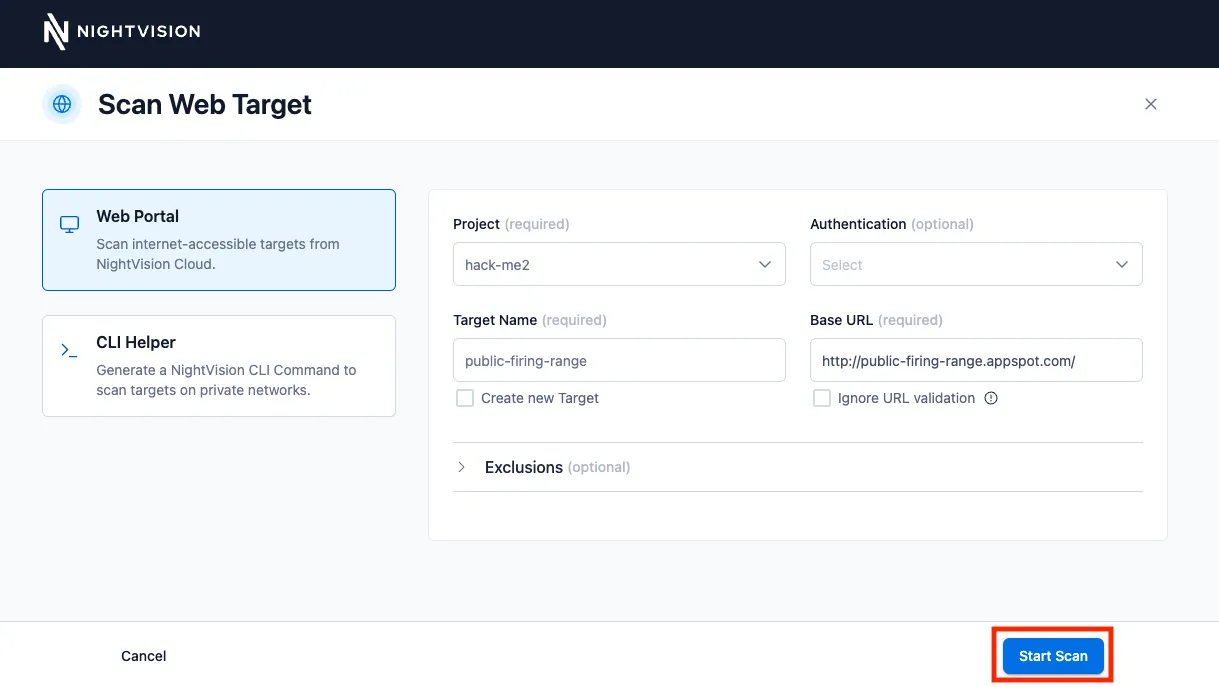
This will navigate to the Scans page, where the scan is now listed as “In Progress.”
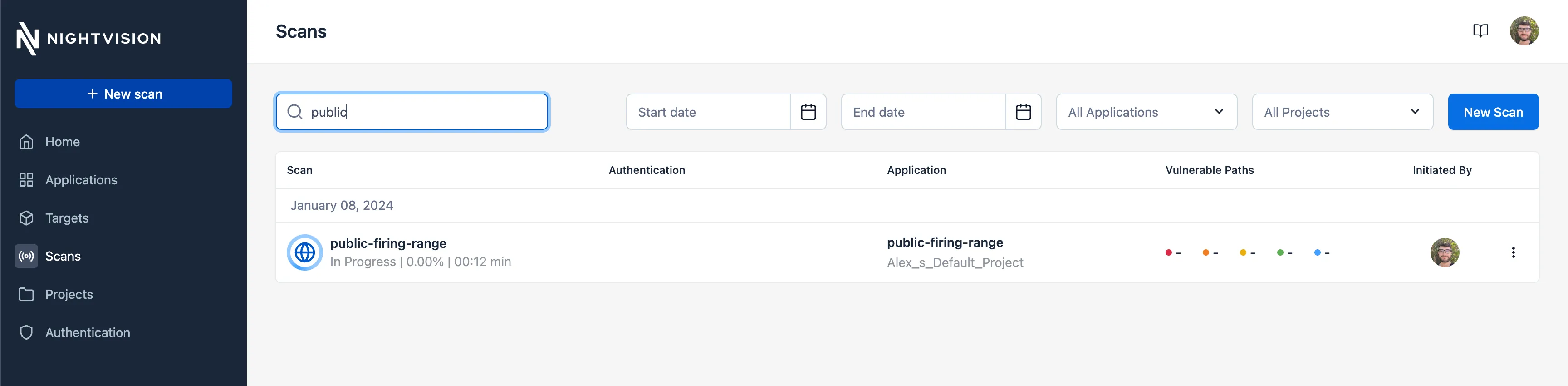
Waiting a few minutes will reveal that results typically appear within seconds to a few minutes. The tool generally takes 5-15 minutes to crawl the website, inject payloads, and identify vulnerabilities.
Here’s what the completed scan looks like:
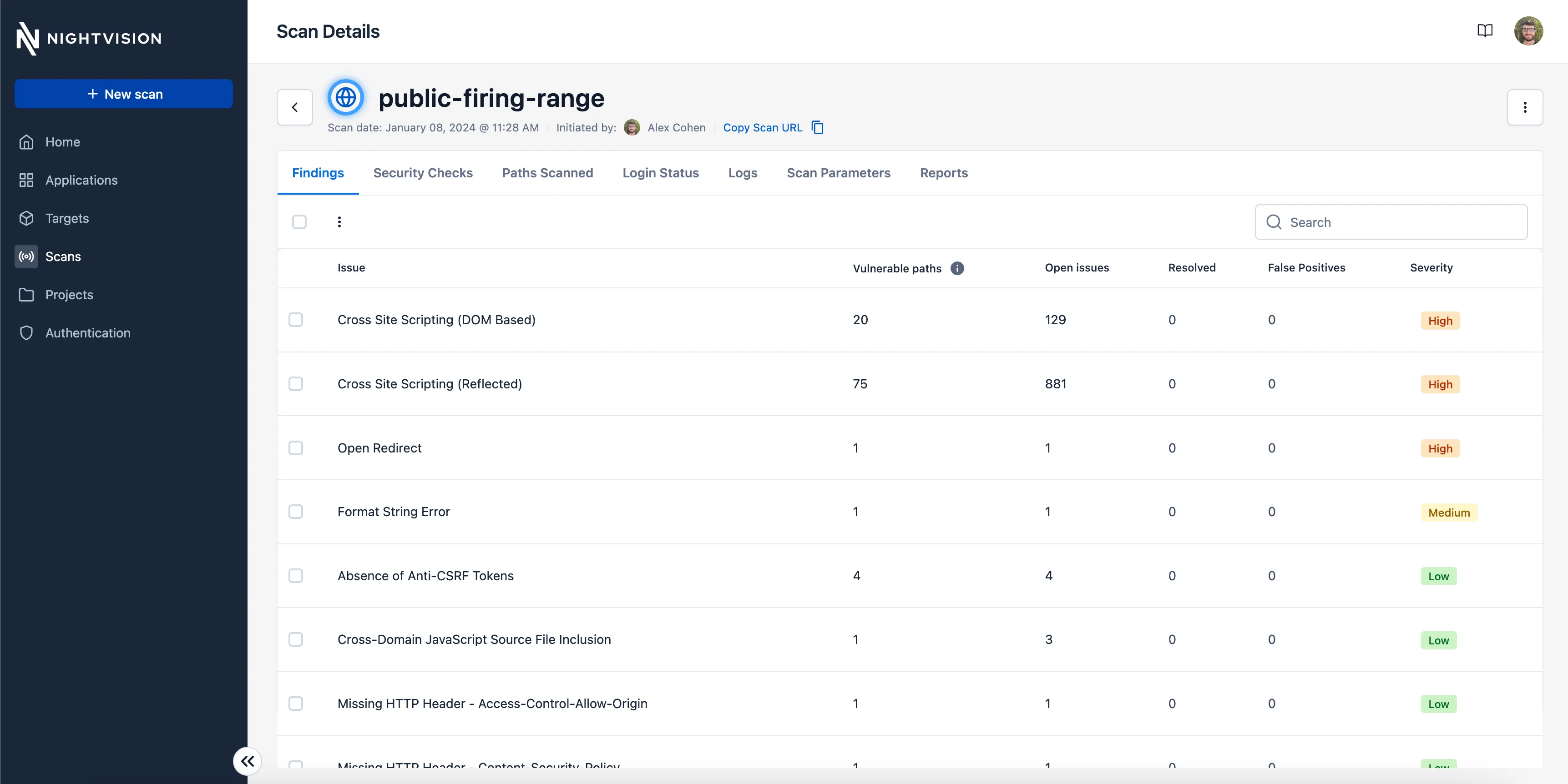
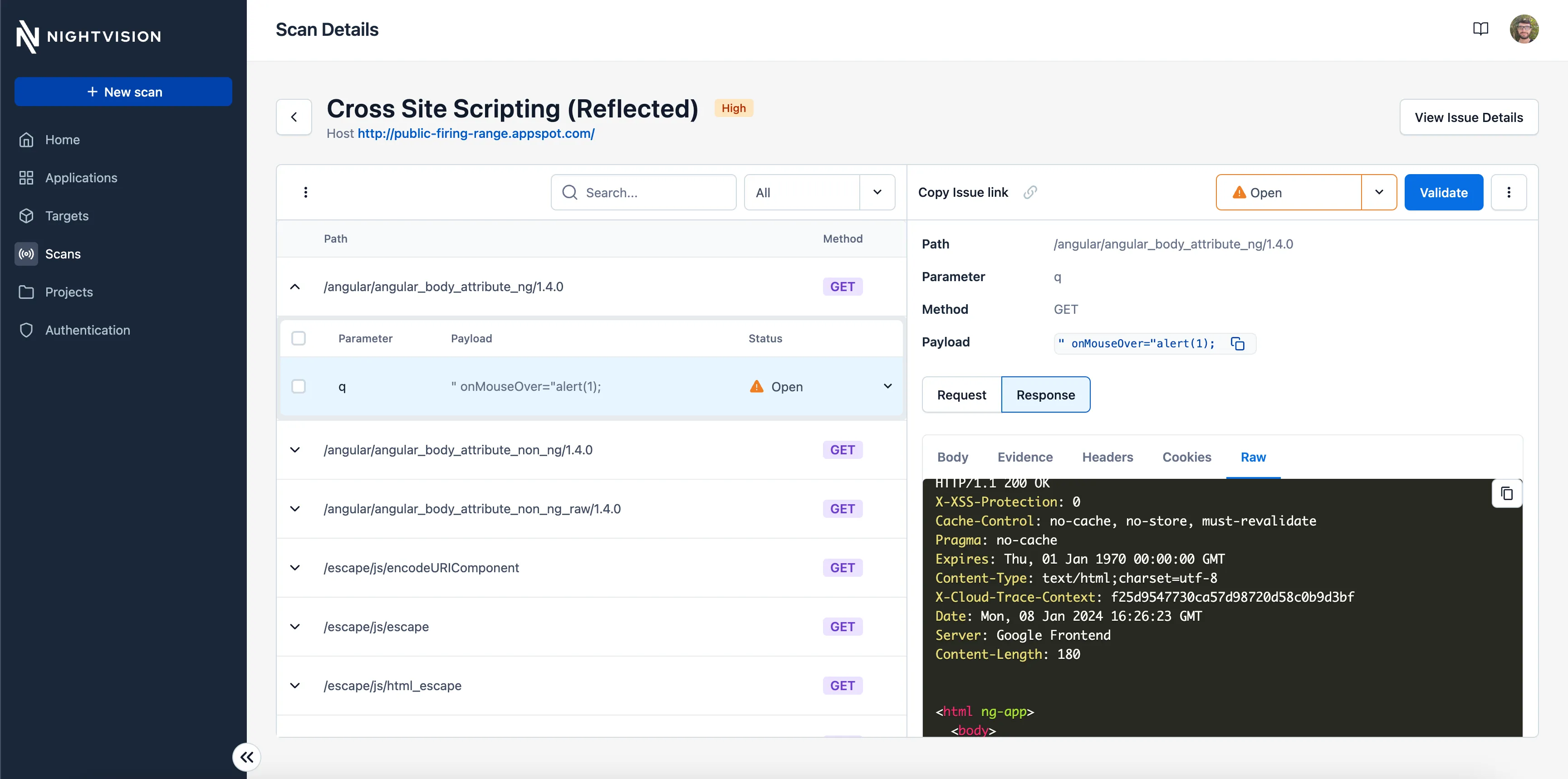
- Explore the security vulnerability further by clicking on the finding, like Cross Site Scripting (Reflected).
Here are what the results look like: