

Recording HTTP Traffic
Enriching a scan with representative HTTP traffic is one technique to maximize scan coverage. A HAR (HTTP Archive) file contains all network interactions between the client (such as a browser) and a server, including cookies, headers, request/response bodies, and more.
While it is not strictly necessary to include HAR files in a NightVision scan, it can sometimes lead to higher quality results, particularly when:
- Certain pages are only accessible via complex business logic.
- Accessing certain pages requires legitimate UUIDs that cannot be known by simply parsing an OpenAPI specification.
The HAR file only needs to be recorded once. The traffic will be included in all subsequent scans after it is attached to the scan target. HAR files can be attached to both API and Web targets.
How to Record HTTP Traffic (HAR files) with NightVision’s CLI
Section titled “How to Record HTTP Traffic (HAR files) with NightVision’s CLI”To record traffic from the command line:
- First, create the traffic-example target:
nightvision target create traffic-example http://testhtml5.vulnweb.com --type web- Enter the following command to record the HAR file. This will spin up a Chrome browser in your local environment. Fill out the form, then exit the browser.
nightvision traffic record testuser-contact-form http://testhtml5.vulnweb.com/#/contact --target traffic-example --output traffic.har
Template:nightvision traffic record {{recording name}} {{url}} --target {{scan target name}} --output traffic.har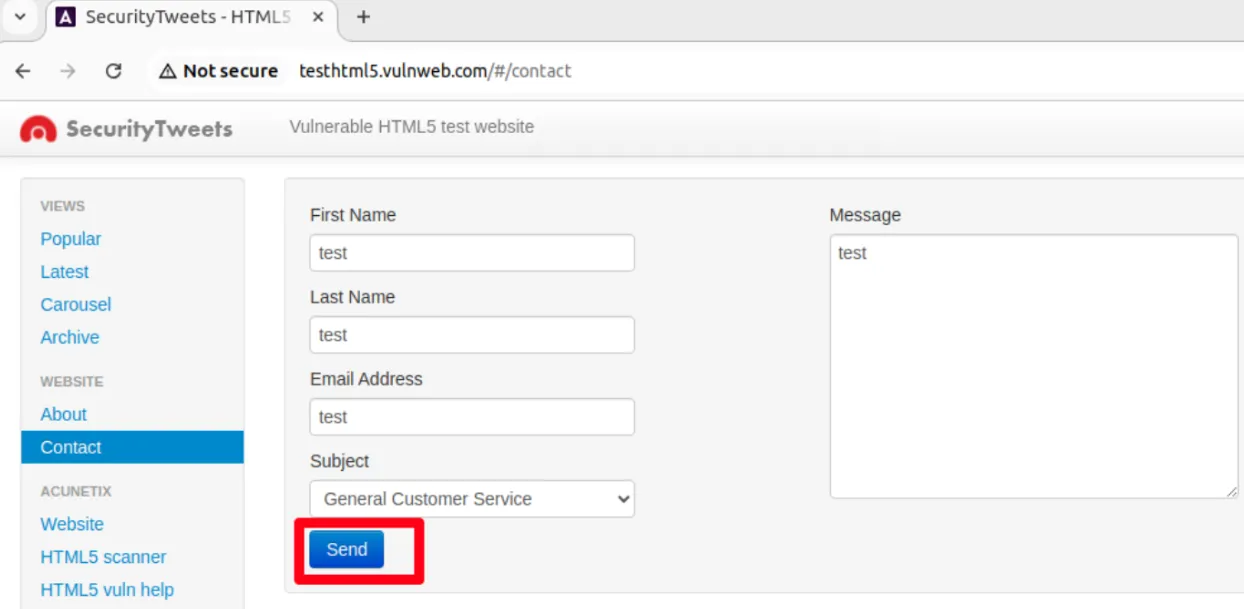
- Observe that the command completed successfully. This means that the traffic has been uploaded to NightVision Cloud.

- If you visit the target in the browser, you will see that the traffic file was uploaded:
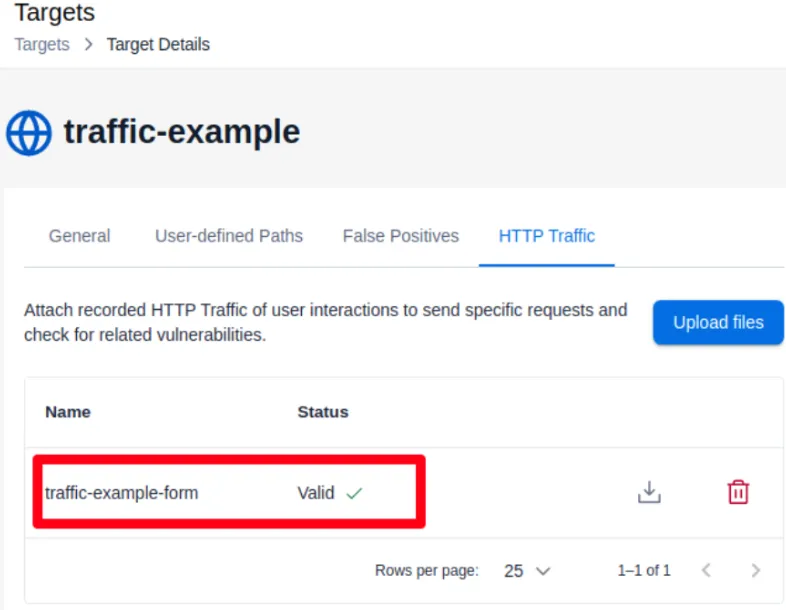
- Note that any subsequent scans of this application will be enriched with this HAR file - ensuring higher coverage during your scan.
How to upload a HAR file from the UI
Section titled “How to upload a HAR file from the UI”To upload an existing HAR file from the UI:
- In your web browser, navigate to https://app.nightvision.net.
- On the left side of the screen, click on the Targets menu.
- Click on the target.
- In the top menu bar, click on the button HTTP Traffic.
- Once the traffic has been recorded within a browser, the HAR file can be uploaded.
- Click on the blue Upload Files button to open the uploader.
- You can drag and drop the HAR file and then click the Upload button. The user interaction will now be replayed the next time a scan is run on that Target.