

Slack
Description
Section titled “Description”NightVision can deliver scan results to Slack based on the SARIF file created via nightvision sarif export. The SARIF output can be converted into many formats, including for Azure Boards, Slack, and more. This example code can be found at the following repo: Slack Integration Repository
Preview: Example Results
Section titled “Preview: Example Results”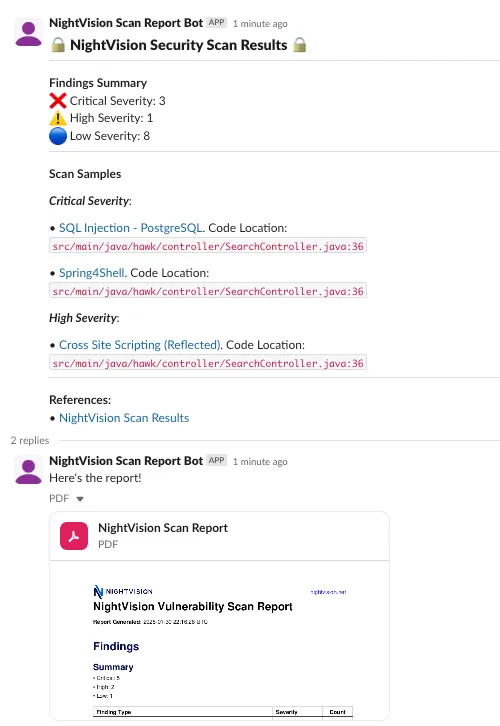
Creating a Slack token:
Section titled “Creating a Slack token:”-
First, create a Slack app by going to (Slack API token create).
-
Do not click on Generate Token - that will give you the wrong type of token. Click on the
Create an Appbutton.
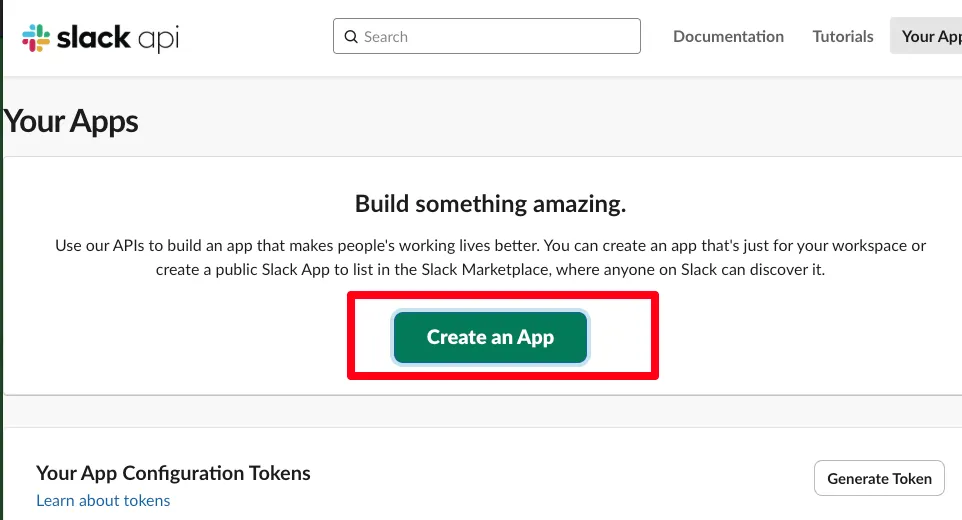
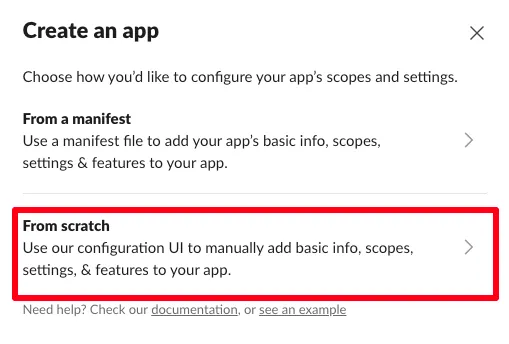
- In the Create an App modal, click “From scratch”.
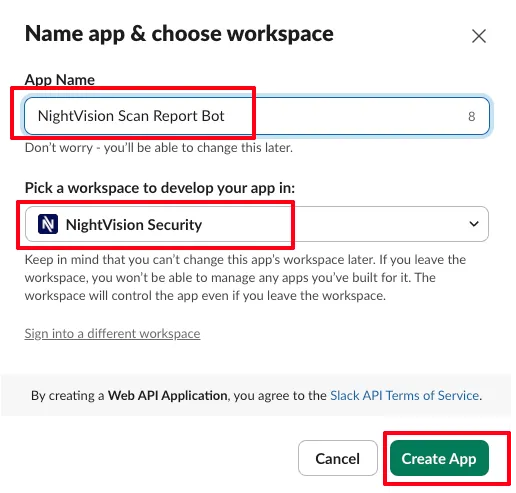
- Enter a name for the app, like “NightVision Scan Report Bot.” Select your workspace from the dropdown. Then click Create App.
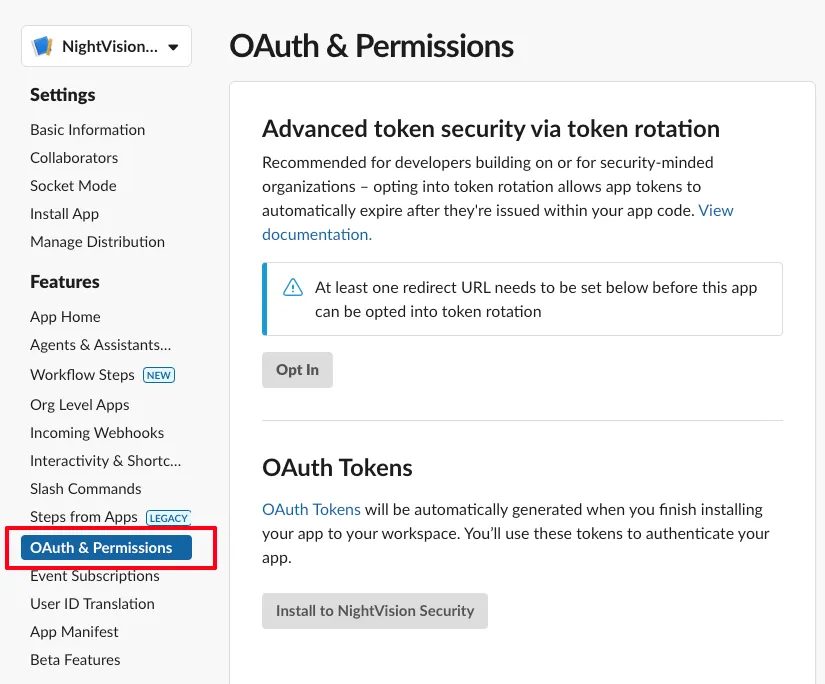
- You will be redirected to the Basic Information tab for your app automatically. Select OAuth & Permissions from the sidebar.
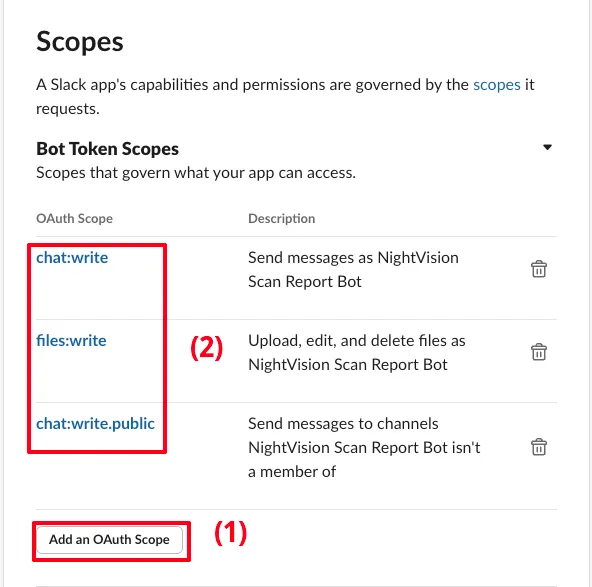
- Scroll down to the Bot Token Scopes in the Scopes section. Select Add an OAuth Scope and add the following scopes to your token:
chat:write: This allows your bot to send messages.files:write: This allows your bot to upload fileschat:write.public(optional): This allows your bot to send messages to channels that it isn’t a member of.
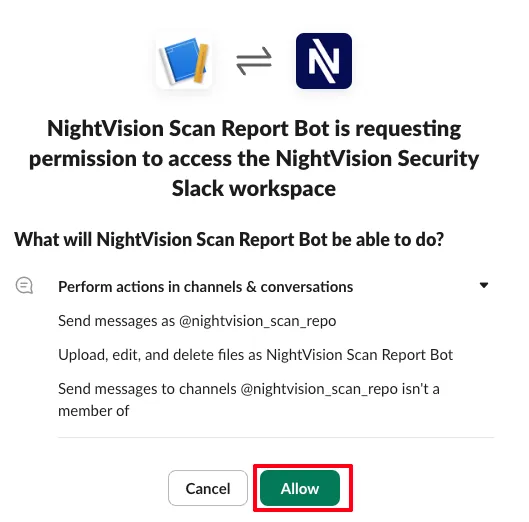
- On the same page, scroll up to the OAuth Tokens section. Click on Install to<your workspace name> to authorize the permissions you have configured.
- After installing the app, you’ll be redirected back to the OAuth & Permissions page. Here, you can find your Bot User OAuth Access Token. This token usually begins with
xoxb-. Click Copy and save the token for later. - Now go to your Slack workspace where the app was installed.
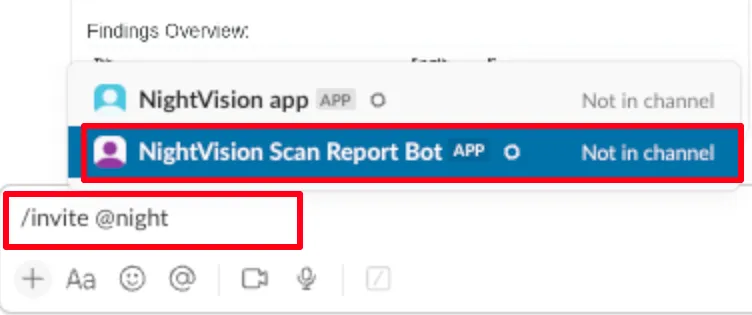
- Navigate to the channel where you want your app to post messages. In the chat, type:
/invite @YourBotNameand select the bot.
Adding the NightVision Slack Importer to a pipeline:
Section titled “Adding the NightVision Slack Importer to a pipeline:”Adding the tool to any pipeline is very easy. You can take a look at the following GitHub workflow where the tool is included in the pipeline:
      - name: (7) Install nightvision slack importer and dependencies        run: |          git clone https://github.com/jxbt/nightvision_slack_importer.git          cd nightvision_slack_importer          sudo apt-get update          sudo apt-get install -y python3-pip python3-venv google-chrome-stable          python3 -m venv .venv          source .venv/bin/activate          pip3 install -r requirements.txt
      - name: (8) Run NightVision Slack Importer        run: |          cd nightvision_slack_importer          source .venv/bin/activate          python3 nightvision_slack_importer.py --sarif ../results.sarif --token ${{ env.SLACK_TOKEN }} --channel ${{ env.SLACK_CHANNEL_ID }}
Local PDF without Slack
Section titled “Local PDF without Slack”You can also create this PDF locally with the following:
# this will make a results.sarif filenightvision export sarif -s $SCANID --swagger-file $PATH/$TO/openapi-spec.yml
# then download the repo and run the python script to make a pdf reportgit clone https://github.com/alex-nightvision/nightvision_slack_importer.git
cd nightvision_slack_importer
pip3 install -r requirements.txtpython nightvision_slack_importer.py -l -f $PATH/$TO/results.sarif