
DAST Scans
NightVision offers rapid Dynamic Application Security Testing (DAST) complemented by Static Analysis. It transforms how organizations do application security testing, simplifying the process with automated setup, delivering scan results in minutes, and assisting teams in finding and fixing security vulnerabilities within code. The breadth, depth, and speed of NightVision’s DAST software help businesses enhance their security posture, accelerate the adoption of shift-left security, and elevate the overall developer experience.
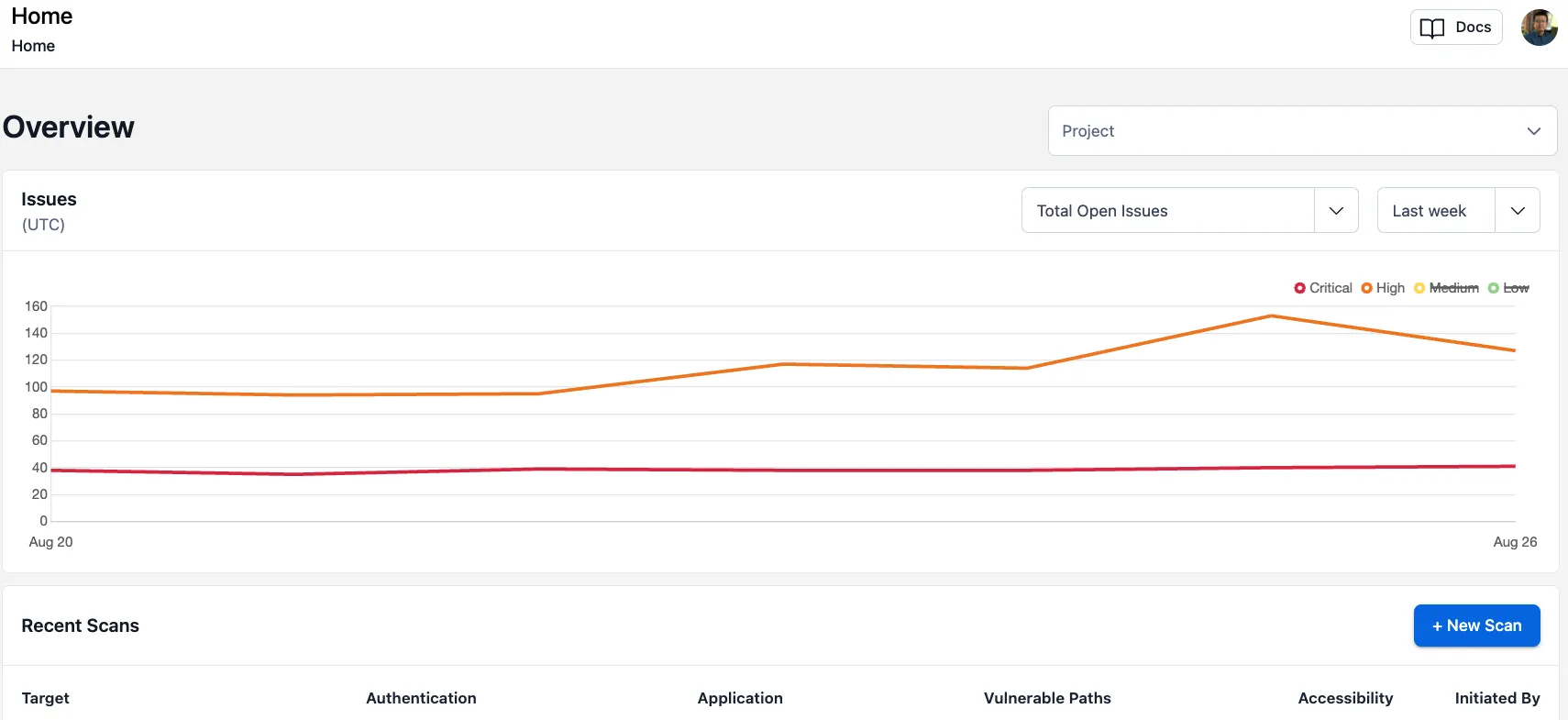
Web Scans
Section titled “Web Scans”NightVision can scan both public and private web applications. A user only needs to provide the web app URL in order to start the scan. If the web app has a login page, the user can use NightVision’s authentication recording feature to record the authentication information, and play back the recording during the scanning to get past the login wall.
A user can use the web interface or the NightVision CLI to start the web scan. The scan can be triggered manually, run as scheduled job, or embedded into CI/CD pipeline.
API Scans
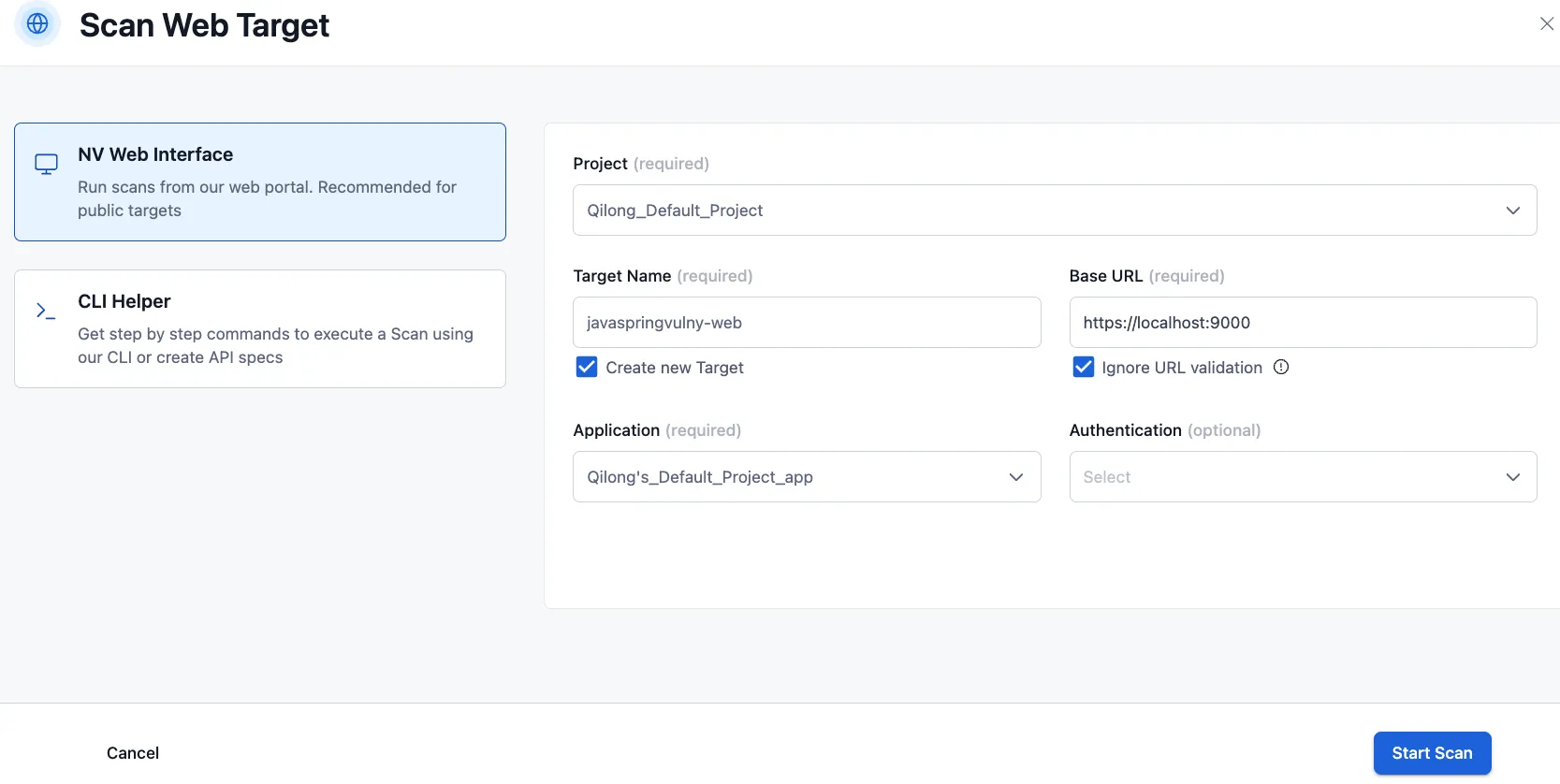
Section titled “API Scans”NightVision can scan both public and private REST APIs. A user needs to provide both the base URL and the OpenAPI spec (or Postman collection). If the API doesn’t have an OpenAPI spec, the user can also use NightVision’s API discovery feature to scan their API source code and automatically generate the OpenAPI spec. NightVision can trace the discovered vulnerabilities back to their origin in the source code if a user uses the OpenAPI spec generated by NightVision to start the API scan.
Similar to web scans, a user can use the web interface or the NightVision CLI to start the API scan. The scan can be triggered manually, run as a scheduled job, or embedded into the CI/CD pipeline.
Running Scans from the CLI
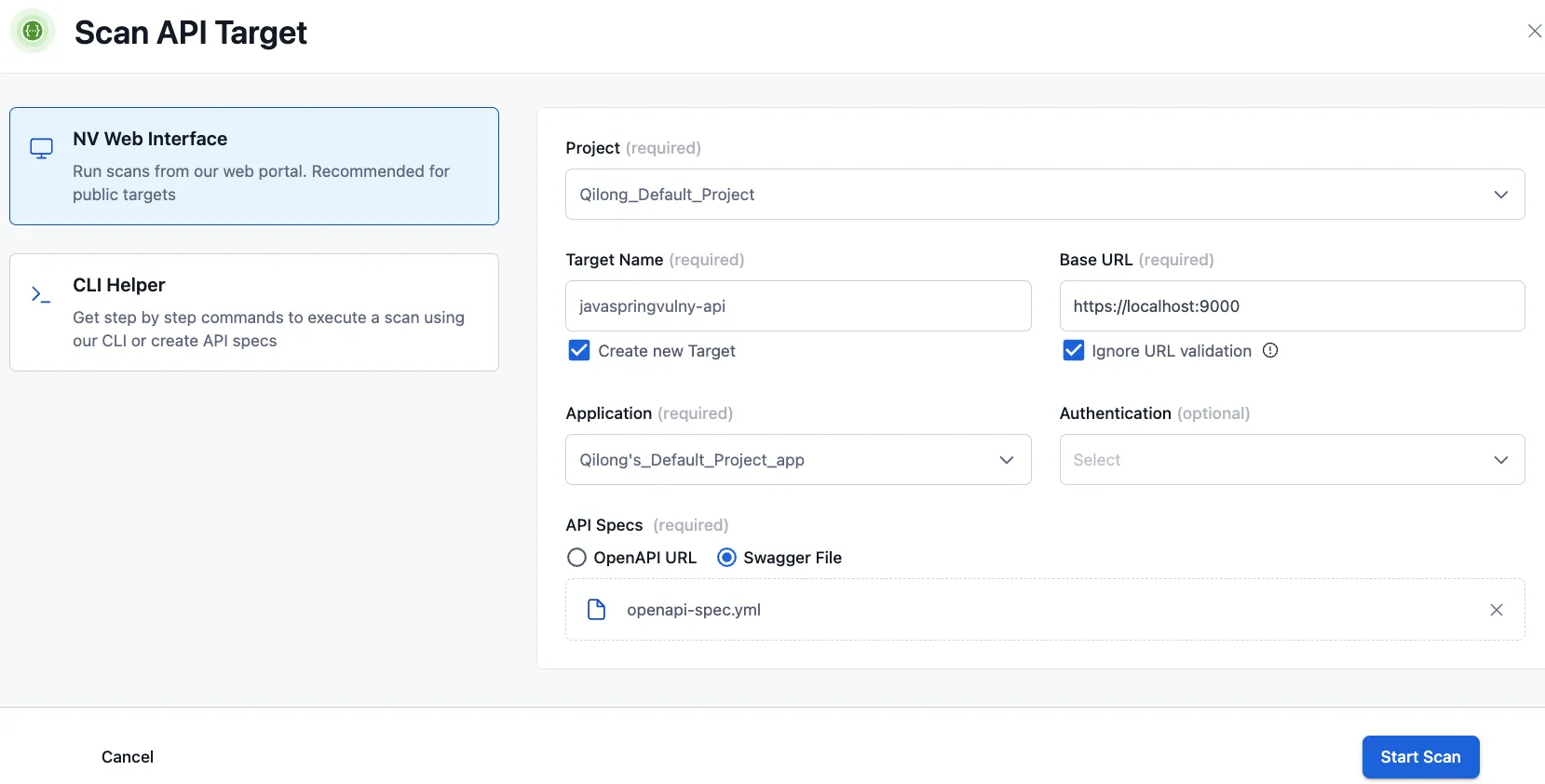
Section titled “Running Scans from the CLI”Scans can be triggered from the NightVision CLI by using the scan command and specifying the name of the target.
nightvision scan my-targetTo run a scan that uses an Authentication resource, such as Interactive Logins or Headers and Cookies, just specify the name of the Authentication resource with the --auth flag:
nightvision scan my-target --auth credential-nameScan Results
Section titled “Scan Results”List of Scans
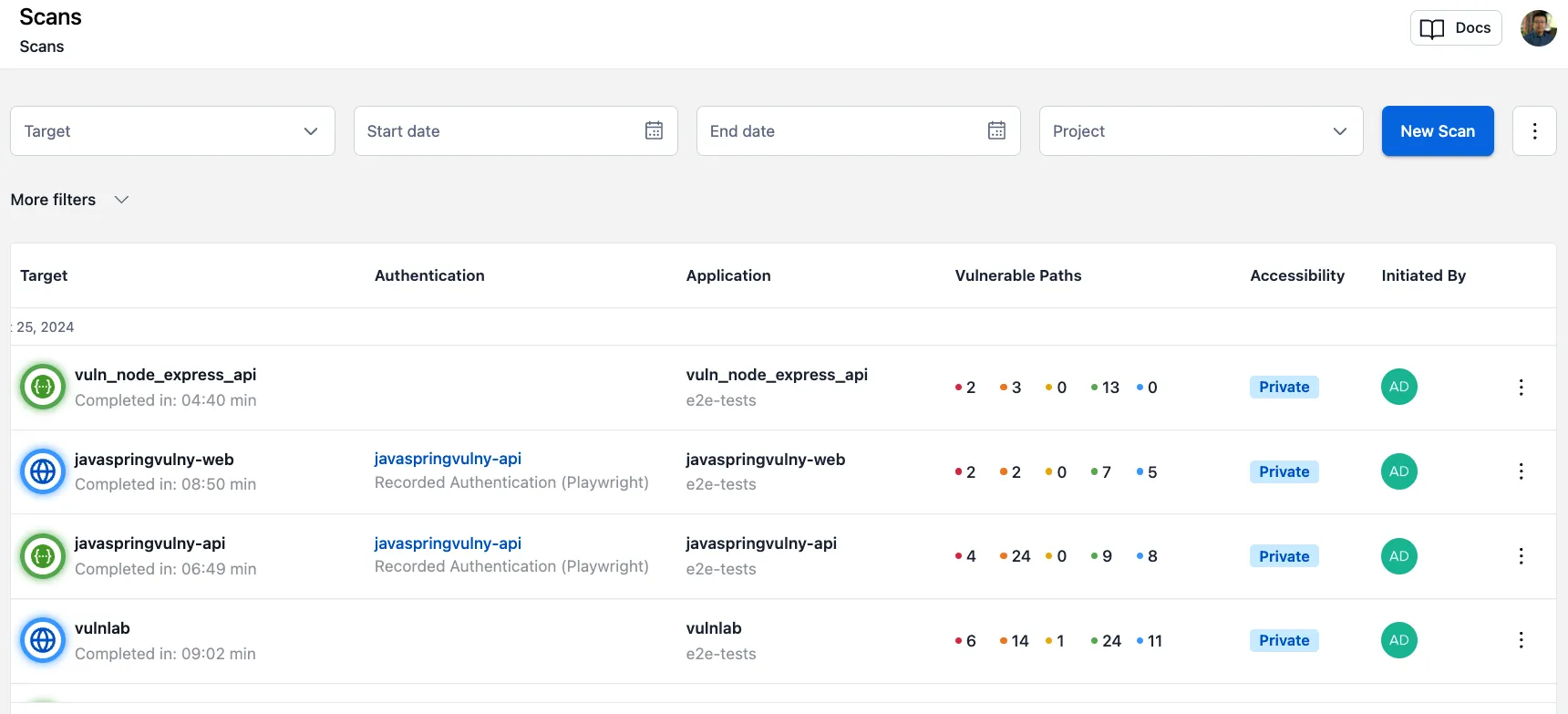
Section titled “List of Scans”A user can access the scans they started and scans shared with them.
Scan Findings
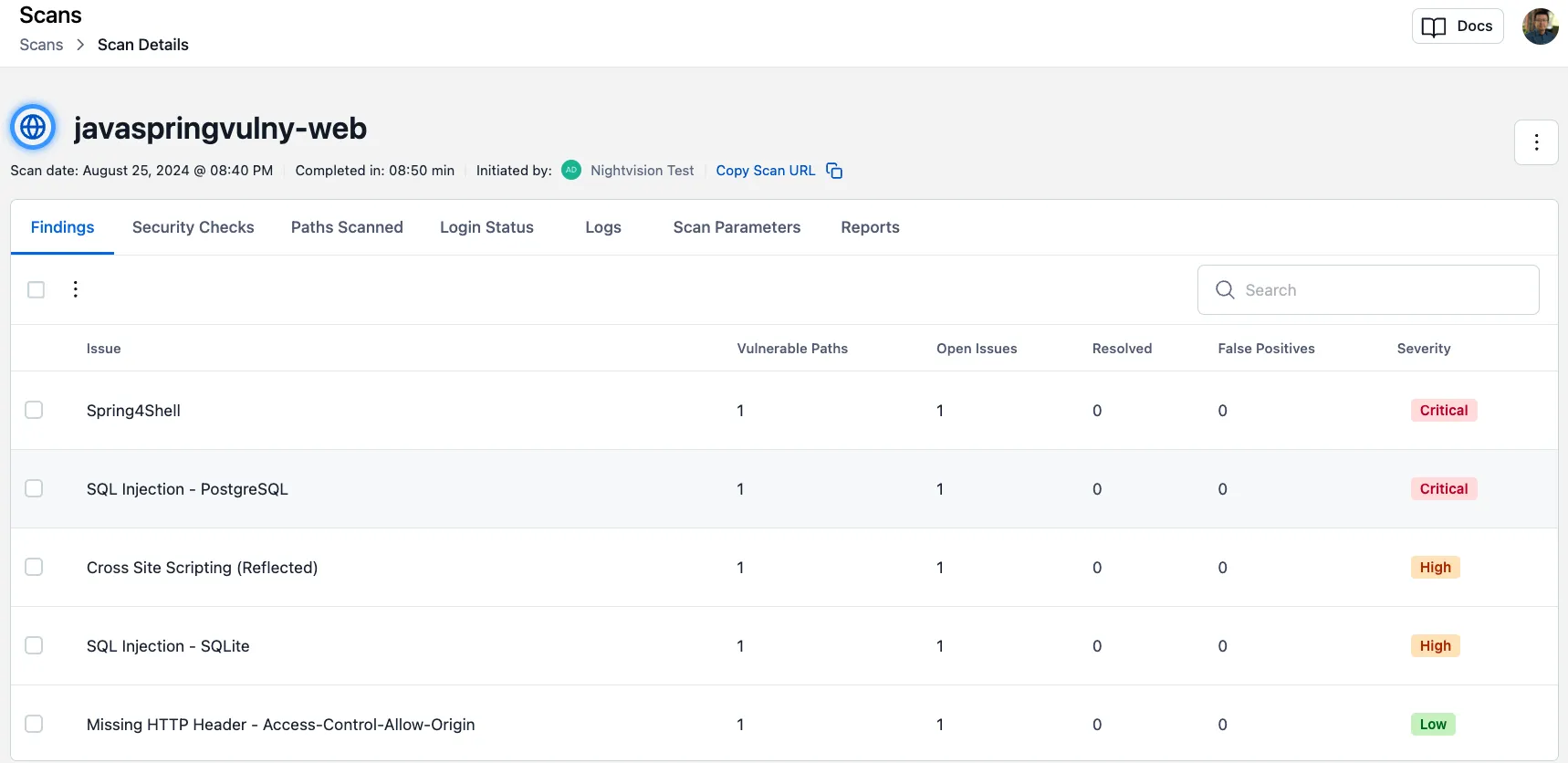
Section titled “Scan Findings”A user can review the scan finding details, including issue details, severity rating, number of impacted paths, etc.
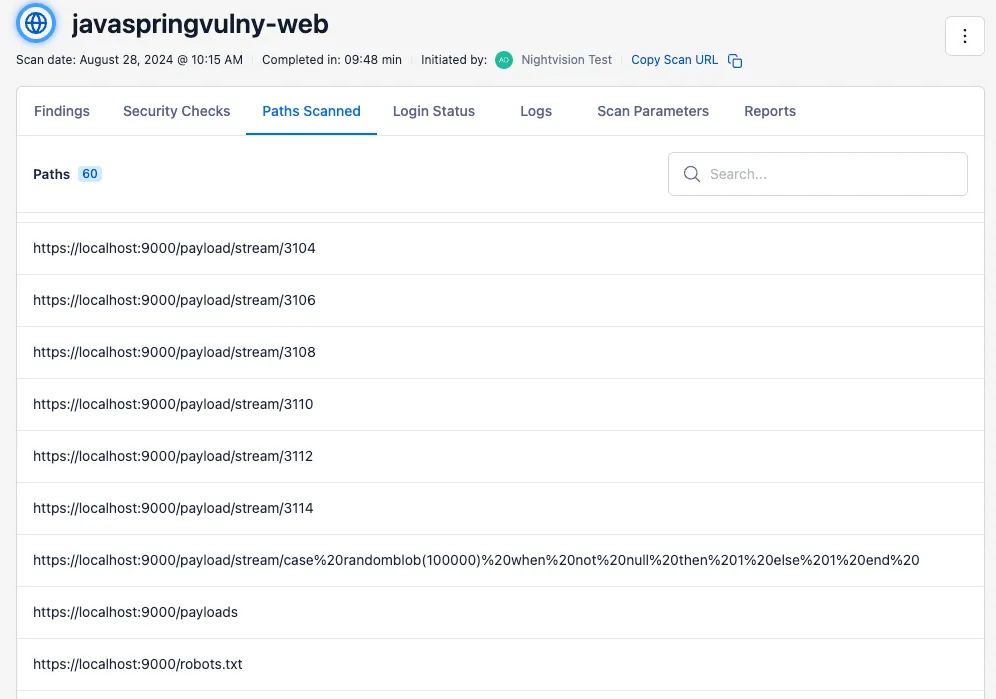
URL Paths Scanned
Section titled “URL Paths Scanned”A user can review other information relevant to the scan, such as security check details, scan logs, scanned paths, and scan reports in different formats.
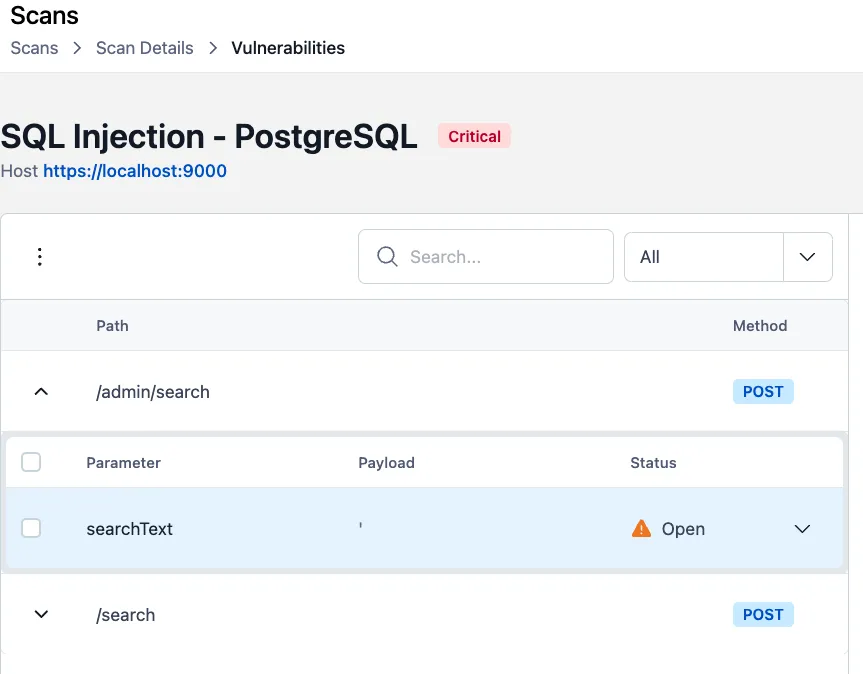
Scan Details - Endpoints
Section titled “Scan Details - Endpoints”A user can find the details of all the endpoints impacted by a discovered vulnerability.
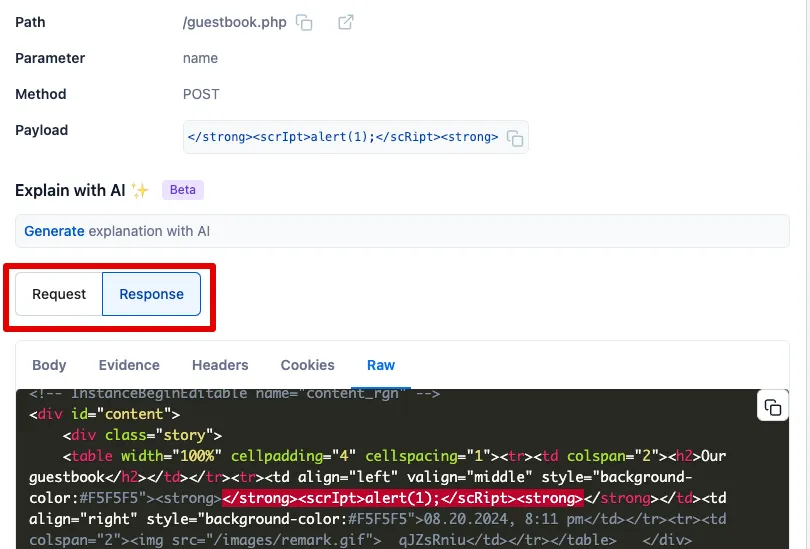
HTTP Requests and Responses
Section titled “HTTP Requests and Responses”You can view the HTTP Requests and Responses associated with a finding in the Request and Response tabs.
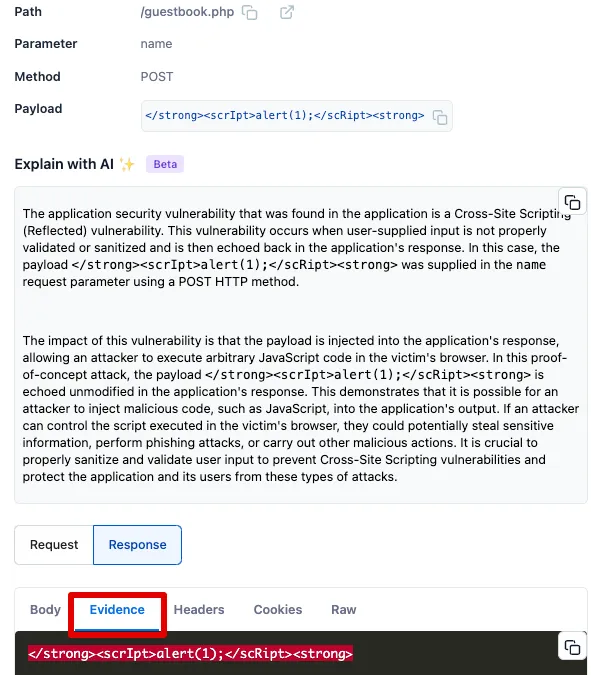
Evidence
Section titled “Evidence”The Evidence tab identifies the response from the server that indicates an exploitable vulnerability. In some cases, it simply displays the input that was reflected unmodified in the response. In other cases, it provides a short explanation of the vulnerability.
The Explain with AI ✨ feature also provides a more robust explanation of what happened in the request and why the response indicates the vulnerability is a true positive.
Trend Analysis
Section titled “Trend Analysis”Users can review the historical trend of their application’s security posture, including the change in total open issues and the number of discovered vulnerabilities.
The results can be sorted by project. Projects are often grouped by business unit or team, depending on the organization.
This helps users observe trends that influence the graph, such as:
- When positive security activities help remediate vulnerabilities, causing a downward trend in total security issues.
- When new targets with vulnerabilities are introduced, causing an upward trend in total security issues.