

TOTP Authentication
Description
Section titled “Description”NightVision can scan applications that require a TOTP 6-digit code at login. When you configure a TOTP seed on an authentication, NightVision generates a fresh code at scan time and inserts it into your recorded Playwright script, so you don’t need a person on standby to type the code.
This works with any standard TOTP authenticator, including Google Authenticator, Microsoft Authenticator, Authy, and 1Password. If the app you want to scan presents a QR code during MFA setup, it’s almost certainly TOTP and NightVision can handle it.
Prerequisites
Section titled “Prerequisites”- An application that uses TOTP MFA at login.
- The seed for the account you want NightVision to use during scans. This is the base32 string shown behind Can’t scan it?, Enter setup key manually, or Show secret on the MFA enrollment screen. An
otpauth://URI works too. - A Playwright-recorded authentication that walks all the way through the MFA prompt. See Interactive Logins if you haven’t recorded one yet.
Record the Authentication Script
Section titled “Record the Authentication Script”Follow Interactive Logins to record a Playwright authentication against your target. When the browser reaches the MFA prompt during recording, open your authenticator app, type the current 6-digit code into the MFA input, and continue through to a fully logged-in state before closing the browser.
The saved script contains a .fill() call for each value you typed, with those values replaced by placeholders {{0}}, {{1}}, {{2}}, in the order they appeared:
page.get_by_label("Username").fill("{{0}}")page.get_by_label("Password").fill("{{1}}")page.get_by_label("Code").fill("{{2}}")Configure MFA
Section titled “Configure MFA”- Navigate to Authentications and open the authentication you recorded. The Multi-factor Authentication field shows Not configured.
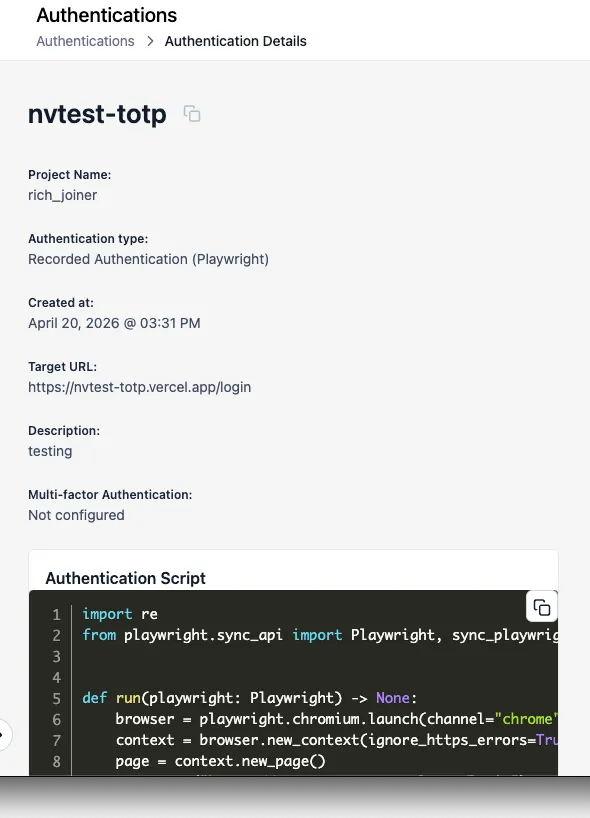
-
Click the Edit icon at the top right to open the Edit Authentication drawer, then click Configure MFA in the Multi-factor authentication section.
-
On the Raw seed tab, paste your seed into Seed (base32). Alternatively, switch to the otpauth:// URI tab and paste a full URI to pre-fill every field at once. Leave Algorithm (SHA1), Digits (6), and Period (s) (30) at their defaults unless your app uses non-standard values.
-
Under Placeholder designation, click the placeholder that represents the MFA code input, typically the last one. The selected line highlights in the script preview. Click Next.
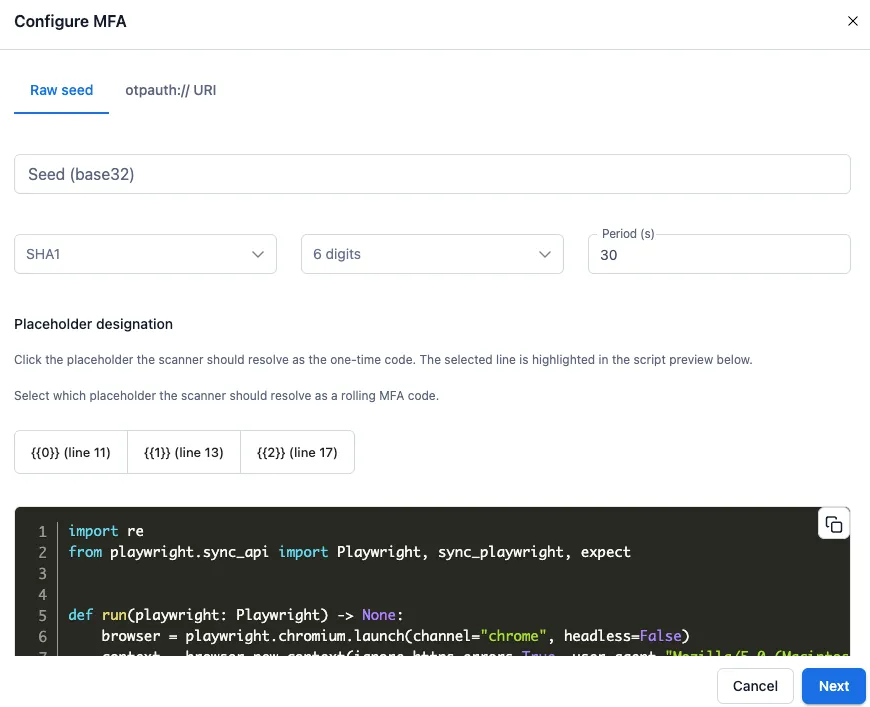
- Open your authenticator app, type the current 6-digit code into Verification code, and click Verify and save. If the code doesn’t match, the dialog blocks saving; check the seed and try again.
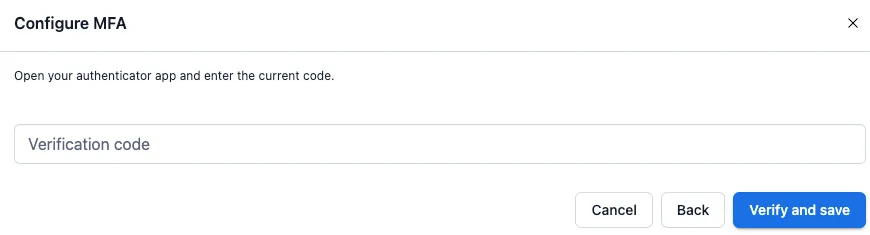
MFA is now configured. The Multi-factor Authentication field summarizes your TOTP settings and selected placeholder, and the Authentication Script panel shows an MFA configured badge.
To change the seed or placeholder later, reopen Edit Authentication and click Edit MFA. To remove MFA from the authentication, click Remove MFA.
Run a Scan
Section titled “Run a Scan”Run a scan against a target that uses this authentication. In the scan log you’ll see:
- An entry marking the start of the authentication process.
- A one-time code generated entry when NightVision injects the TOTP code into the script.
- A login success status once every step in the script completes.