

Reusing Authentications
Description
Section titled “Description”NightVision can copy an existing Playwright authentication onto another target with its own Login URL, so one recorded login flow can drive scans across multiple applications. This is common for sets of products behind a shared identity provider (Auth0, Okta, corporate SSO) or multiple environments of one application.
The copy preserves the full Playwright script, the encrypted secrets behind
each {{N}} placeholder, and any MFA configuration. It is a fully
independent authentication; editing it later does not affect the source.
Make a copy
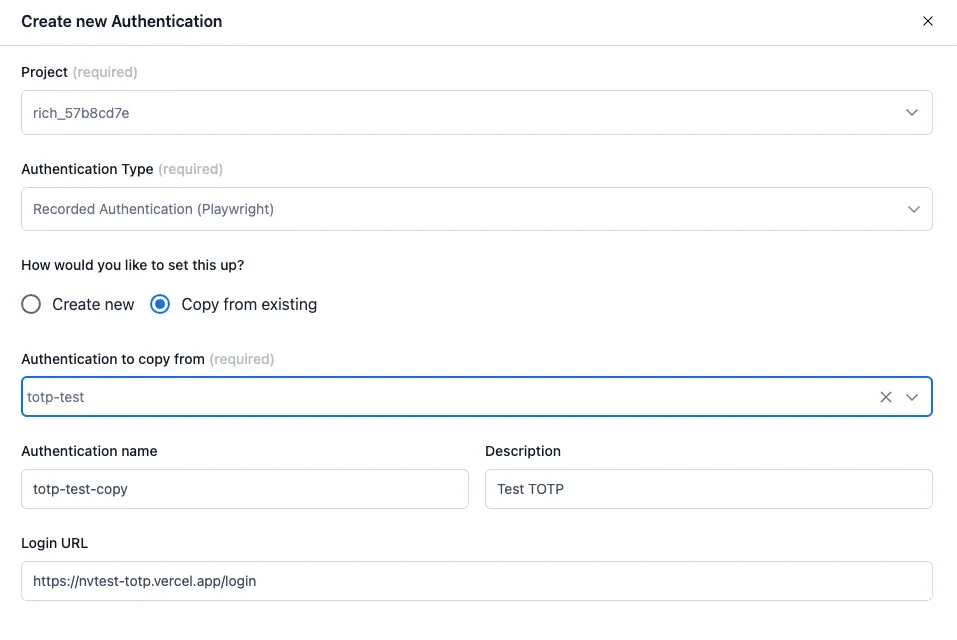
Section titled “Make a copy”The process to create a copy in the New Authentication form is described below.
- Click New Authentication from the Authentications page.
- Pick the Project and select Recorded Authentication (Playwright) as the Authentication Type.
- Under How would you like to set this up?, choose Copy from existing.
- In Authentication to copy from, search for and pick the source authentication. The form pre-fills a default Authentication name and Description from the source.
- Edit the Authentication name and Description if needed. The name must be unique within the project.
- Optionally edit the Login URL to point at the new environment. If the
first
page.goto(...)of the script matches the source’s old Login URL, NightVision rewrites it to the new value automatically; if the firstgotocarries a different URL, the script is left alone and you can fix it later via Editing Authentication Scripts. - Click Copy. NightVision creates the new authentication, copies the script and secrets, and opens the Authentication Details page.
What gets copied
Section titled “What gets copied”| Element | Copied? | Notes |
|---|---|---|
| Playwright script body | Yes | Identical to the source, with the first goto URL rewritten when it matched the source Login URL. |
Placeholder secrets ({{0}}, {{1}}, …) | Yes | Stored as fresh secret entries against the new authentication. |
| MFA / TOTP configuration | Yes | Same seed, algorithm, and placeholder selection as the source. See TOTP Authentication. |
| Login URL | New value or source value | Whatever you entered in step 6. |
| Description | Yes | Editable on the form before the copy is created. |
| Targets, scans, and schedules using the source | No | The new authentication is unattached. Assign it to a target on the Authentications tab of that target. |
Edit before scanning
Section titled “Edit before scanning”After the copy finishes, double-check anything that is environment-specific:
- Login URL. Did the automatic rewrite catch every step that points at the old environment? Use Editing Authentication Scripts to fix any remaining hardcoded URLs.
- MFA seed. If the new environment uses a different MFA-enrolled account, reopen Configure MFA and paste the new seed.
- Secrets. If the new environment uses different credentials (a different username or password, for example), re-record the authentication. The in-browser script editor doesn’t expose individual placeholder values, so the recorder is the way to capture fresh ones.
Once the copy is attached to a target, run a one-off scan to confirm the login status reaches Script Complete before scheduling longer scans.