

Reading the Inventory
The Discovery section lists every domain you have run discovery against. Opening one shows its application inventory: the hosts found under it, what each appears to be, how exposed it looks, and whether anything is scanning it.
The domains list
Section titled “The domains list”| Column | What it shows |
|---|---|
| Domain | The domain this inventory tracks, with the company name underneath when one is known. |
| Hosts | How many hosts the inventory currently holds. |
| New | How many hosts the most recent run saw for the first time. Click it to open the inventory narrowed to those hosts. |
| Last run | When that run happened. |
The search box reaches hostnames as well as domain names, so searching for
admin finds the domains that have a matching host, with a matching chip
showing how many.
A domain’s page
Section titled “A domain’s page”The page is titled Application Inventory and has, top to bottom:
- The header, with the domain and Run discovery for re-running it. A banner appears underneath when hosts are waiting to be classified.
- The summary, two panels that describe the estate as a whole. See The summary panels.
- Run history, collapsed by default, one line per run. Click a date to open that run, or Show only this run to narrow the table to what it found.
- Tabs that split the inventory by what the hosts are.
- The filters and the host table.
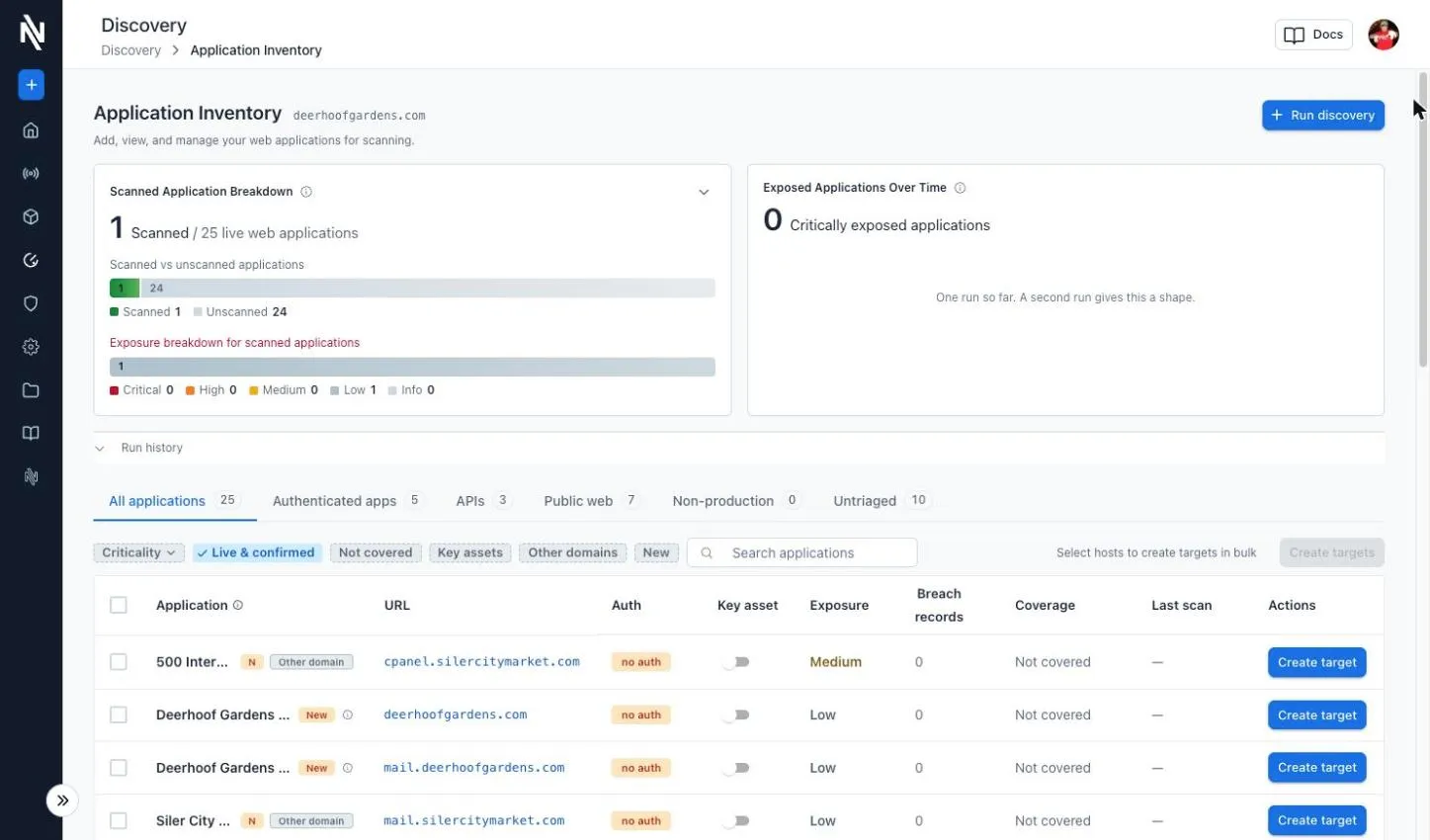
The tab, search, filters, sort and run narrowing are all carried in the URL, so a view can be bookmarked or shared.
The tabs
Section titled “The tabs”| Tab | Categories it holds |
|---|---|
| All applications | Everything. |
| Authenticated apps | Login portal, Admin panel |
| APIs | API |
| Public web | Marketing site, Docs, Acquired product |
| Non-production | Staging/dev |
| Untriaged | Unknown, Dead/parked, and hosts not yet classified |
Each tab counts the live applications it holds. Hosts that no longer resolve are listed when you ask for them but never counted.
The host table
Section titled “The host table”| Column | What it shows |
|---|---|
| Application | The page title, or Untitled. A chip marks hosts that are New, Changed or Reappeared since the previous run, and a marker says how the host relates to the domain. |
| URL | The hostname, linked. Sortable. |
| Auth | What stood between the probe and the application: no auth, login page, 401 challenge, a redirect to a login, or dead if the host did not answer. no auth on a live host is highlighted. |
| Key asset | A switch to mark the host as one you want to protect. See Key assets. |
| Exposure | Critical, High, Medium, Low or Info. An asterisk marks a provisional score. See How exposure is decided. |
| Breach records | How many records in a breach and infostealer corpus mention this host. Sortable. See Breach records. |
| Coverage | Whether a scan target covers this host: Not covered, Never scanned or Scanned. |
| Last scan | When the covering target was last scanned. Sortable. |
| Actions | Create target, or once one exists, Start scan and a link to the target. See Creating targets from discovery. |
Hover an exposure score for the facts that produced it, and a relation marker for where the host was found and why it was attributed to the company. The table sorts by exposure by default and loads a hundred rows at a time as you scroll.
Filters
Section titled “Filters”| Filter | Default | Effect |
|---|---|---|
| Criticality | Off | Show only the exposure levels you pick. |
| Live & confirmed | On | Hide hosts that did not answer, and related domains that could not be confirmed. |
| Not covered | Off | Show only hosts with no live target. |
| Key assets | Off | Show only hosts marked as a key asset. |
| Other domains | Off | Show only confirmed hosts on a root domain other than the one you ran discovery against. |
| New | Off | Show only hosts the most recent run saw for the first time. |
Live & confirmed hides a lot, for two reasons. Certificate transparency logs remember every name a certificate was ever issued for, including hosts retired years ago, so a real inventory is dominated by hostnames that no longer resolve. And unconfirmed related domains may not be yours at all, as explained next.
How hosts relate to the domain
Section titled “How hosts relate to the domain”Every host is one of three things, and the marker beside its name says which.
| Relation | Marker | Meaning |
|---|---|---|
| Same root | An info glyph | A subdomain of the domain you ran discovery against. Not an inference: it shares the registrable domain. |
| Confirmed sibling | Other domain | A host on a different domain that NightVision confirmed belongs to the same company, on weighted evidence such as a shared favicon, analytics id, TLS certificate, network, registrant, nameservers, or a public record of the acquisition. |
| Sibling candidate | Unconfirmed | A different domain that related-domain discovery suggested and confirmation could not verify. |
Related-domain discovery works from the company name, so a name that is also a common word or product category returns other companies’ domains, and those are real, live and unrelated to you. Candidates are hidden by default for that reason, are never actively checked or queried for breach records, and are worth confirming yourself before creating a target from one. Switch Live & confirmed off to review them.
Classification
Section titled “Classification”Classification decides what a host is and assigns a category. It runs as the last-but-one phase of every run, working through the live hosts in batches. The tab a host appears under is its category.
| Category | Typical host |
|---|---|
| Marketing site | Public brochure or campaign site. |
| Login portal | A sign-in surface for an application. |
| API | A machine interface rather than a page. |
| Docs | Documentation or a knowledge base. |
| Staging/dev | A non-production environment. |
| Admin panel | An administrative or internal console. |
| Acquired product | A product running under an acquired company’s brand. |
| Dead/parked | Resolves but serves nothing meaningful. |
| Unknown | The signals were not enough to choose. |
Unknown is a decision, not an omission. A host that has not been looked at yet
has no category, and sits in Untriaged until it does.
When hosts are waiting, a banner at the top of the page says how many, with a Classify button. While a run’s own classification phase is working the button is disabled and the count falls on its own; otherwise it classifies the whole inventory now, including hosts the filters and tabs are hiding, and reports what it did as it goes.
A host that fails classification three times is left without a category. Each workspace may classify 10,000 hosts per month; a workspace that reaches the limit is told so and can contact NightVision to raise it.
Classification never scans anything and never judges risk. It assigns a category, and the exposure score is then recalculated against it by fixed rules.
Provisional scores
Section titled “Provisional scores”An asterisk after an exposure score means the host has not been classified yet, so it was scored from its hostname and response alone, or that the classifier was not confident in its answer. Either way the score is a floor rather than a verdict.
A category set by hand is never provisional and is never overwritten by a later classification. Setting one is available through the API today rather than the portal.
Key assets
Section titled “Key assets”The Key asset switch marks a host as one you particularly want to protect: a customer login, a payment page, an internal console. The mark does nothing to the score; it exists so the Key assets filter and the summary can answer “are the things we care about covered?” without you re-deriving the list every time.
How exposure is decided
Section titled “How exposure is decided”Exposure is calculated by rules, not by a model, and every host records the facts that produced it. It is the product of two things.
Sensitivity is how much the host would matter if it were exposed.
| Sensitivity | When |
|---|---|
| High | Category Admin panel or Staging/dev, or a hostname containing a label like admin, staging, stage, dev, test, qa, uat, preview, sandbox, internal, int, jenkins, grafana, kibana, gitlab, jira or vpn. |
| Medium | Category Login portal, API or Acquired product, or a portal-like hostname such as portal, login, signin, secure, sso, auth, app, api, my, dashboard, console, account, customer, client, partner or remote. |
| Low | Everything else. |
A hostname can raise sensitivity above what the category alone would give, so an
Unknown host called jenkins.example.com is still high sensitivity.
Observed exposure is what the response actually showed: the highest
severity among the signals observed on the host, or none.
| Signal | Severity | Fires when |
|---|---|---|
| Directory listing | High | The server returns an autoindex page. |
| Debug page | High | A framework debug or stack-trace page is served. |
| Sensitive surface with no auth | High | A high-sensitivity host returns 2xx with no authentication in the way. |
Exposed .git repository | High | /.git/HEAD is readable and contains a Git ref. |
Exposed .env file | High | /.env is readable and contains environment variables. |
| Exposed server status | High | /server-status is readable and is an Apache status page. |
| Exposed actuator | High | /actuator/env is readable. |
| Dev or staging publicly reachable | Medium | A non-production surface answers publicly with no authentication. |
| Unexpected login form | Medium | A password field appears on a host that is not a login portal. |
| Wildcard CORS | Medium | Access-Control-Allow-Origin: *. Informational on low-sensitivity hosts, where it is normal. |
| Server version disclosed | Low | Server or X-Powered-By reveals a version. |
Missing HSTS, CSP or X-Frame-Options | Low | The header is absent on an HTML 2xx response. |
security.txt published | Info | Good hygiene, recorded rather than counted against the host. |
robots.txt discloses sensitive paths | Info | Entries reference admin, internal, private or .git. |
Authentication gates exposure: when a host redirects to a login or answers with an authentication challenge, the “openly reachable” signals do not fire.
The score is sensitivity crossed with observed exposure:
| Sensitivity / Observed | High | Medium | Low | None |
|---|---|---|---|---|
| High | Critical | High | Medium | Low |
| Medium | High | Medium | Low | Low |
| Low | High | Medium | Low | Info |
Low sensitivity with high observed exposure stays High: a readable .git
directory or .env file is serious whatever the site is for. A host that did not
answer, with nothing observed, is Info.
A numeric score sits inside each level, so hosts at the same level still sort against each other: Critical is 90-100, High 70-89, Medium 50-69, Low 20-49, Info 0-19.
Breach records
Section titled “Breach records”After each run, NightVision counts how many records in a third-party breach and infostealer corpus mention each confirmed host over the last 90 days. The query is a count only; no record, account or credential is retrieved or stored.
| The cell shows | Meaning |
|---|---|
| A number | That many records mentioned the host in the window. Hover for when it was counted. |
0 | Counted, and nothing mentioned the host. |
| A dash | Not counted yet. |
n/a | Not counted, and will not be: the host is an unconfirmed related domain. |
! | The query failed. Hover for why. |
The number is not a count of accounts, since one account can appear in many records, and it is not additive, since records on a root domain may include records on its subdomains. Counts refresh weekly.
The summary panels
Section titled “The summary panels”Two panels above the run history describe the inventory as a whole. Both follow the filters and count every matching host, not just the rows loaded so far. Hide them with the icon in their corner; the choice is remembered.
Scanned Application Breakdown shows how many of the live applications a scan has covered, and the exposure levels among the scanned ones, so you can see what has actually been tested, level by level.
Exposed Applications Over Time shows how many applications are critically exposed now, and a chart of critical, high and medium counts across completed runs. It takes two completed runs to have a shape.
Change tracking
Section titled “Change tracking”Re-running a domain merges into the same inventory rather than replacing it, so NightVision can say what moved.
| Change | Meaning |
|---|---|
| New | The latest run saw this host for the first time. |
| Changed | Its exposure level, authentication state, status class or signals differ from the previous run. |
| Reappeared | It had stopped appearing and is back. |
| (blank) | Nothing meaningful changed. |
Change is calculated from stable facts only. Page titles, technology strings and the category are ignored, so a classifier changing its mind cannot look like the estate changing.
A host that stops appearing is kept rather than deleted, because one run missing a host is far more often a quiet source than a decommissioning. A partial run never marks hosts as gone.