

Authentication
Login check
A login check runs only the login step of a scan. NightVision replays the recorded login, keeps the session it produced, optionally loads a page with that session to prove it is signed in, and stops. Nothing is crawled and no vulnerability checks run.
In the dashboard: Authentications
Open Authentications (opens in a new tab)Use it to:
- Confirm a new recording before you schedule scans with it.
- Catch a rotated password or an expired MFA seed in a pipeline before it breaks tomorrow’s scan.
- Reproduce a login failure without waiting for a full scan.
A login check finishes within two minutes and does not count toward your plan’s scans. It needs a recorded login and a web or API application. Header and cookie authentications have no login flow to check.
Run a login check
Section titled “Run a login check”-
Select Authentications and open the recorded login.
-
Select Run login check.

Run login check sits beside Edit and Re-record. -
Choose the Application to check against. The list holds the web and API applications in the authentication’s project, and starts on the one most recently scanned with this login.
-
Optional: add rules that prove the session is signed in. See Validation rules.
-
Select Run.
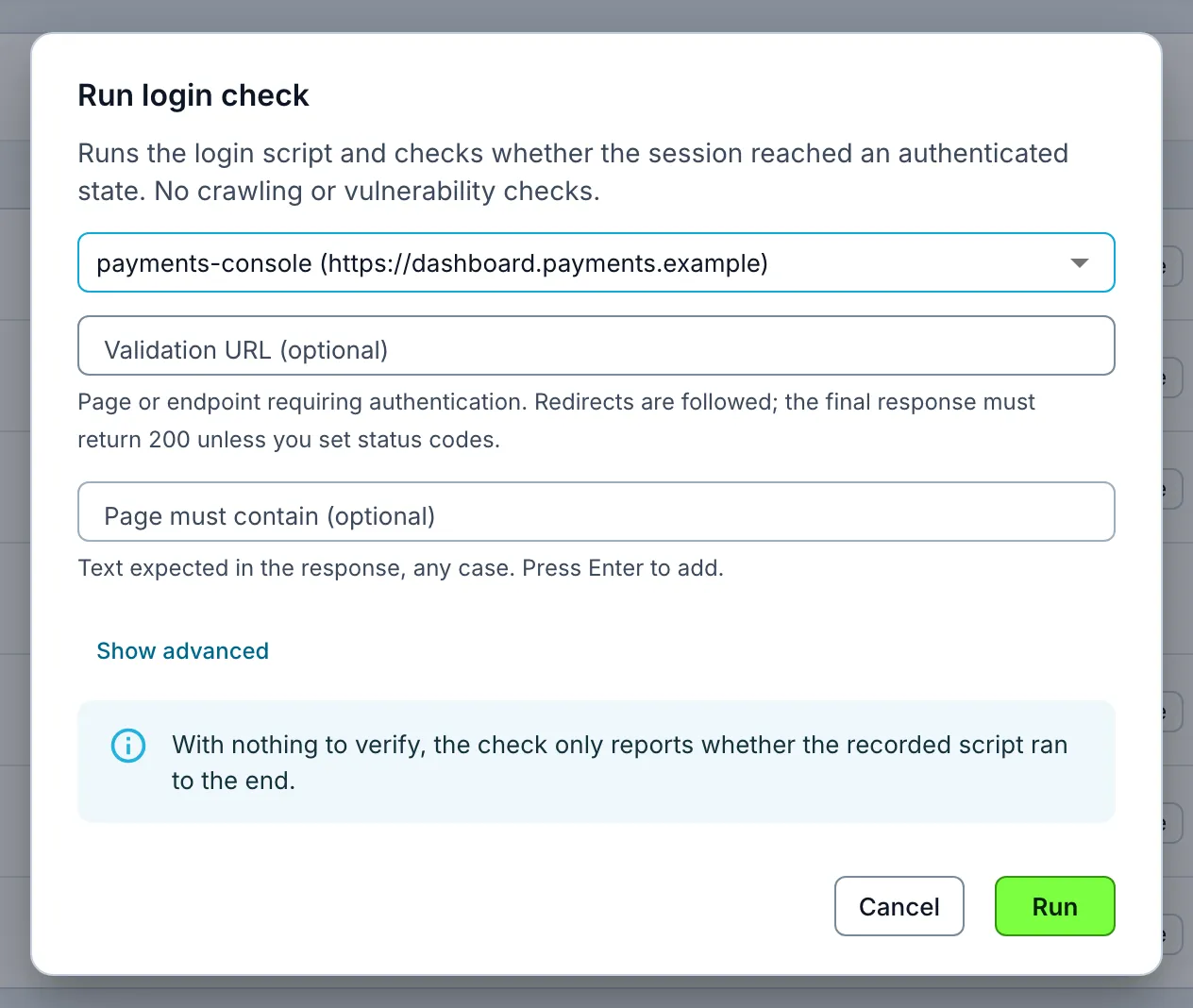
NightVision starts the check and opens its Login status when it is ready.
Validation rules
Section titled “Validation rules”With no rules, a login check tells you the script ran to the end. That does not prove the application let you in: a login page that rejects the password still lets every step run. Rules close that gap by loading one page with the session and checking the answer.
| Field | What it checks |
|---|---|
| Validation URL (optional) | A page or endpoint that needs authentication, such as an account page or a /me API endpoint. Redirects are followed, and the final response must return 200 unless you change the status rule |
| Page must contain (optional) | Text that must appear in the response, in any case. Type it and press Enter to add it. Add up to 8 |
| Page must not contain (optional) | Under Show advanced. Text that fails the check if it appears, such as Please sign in |
| Default: the final response must be 200 | The status rule used unless you pick another |
| Accept these status codes | A comma-separated list of up to 8 codes from 100 to 599, for example 200, 204 |
| Do not check the status | Decide by the text rules alone. Available once you add a text rule |
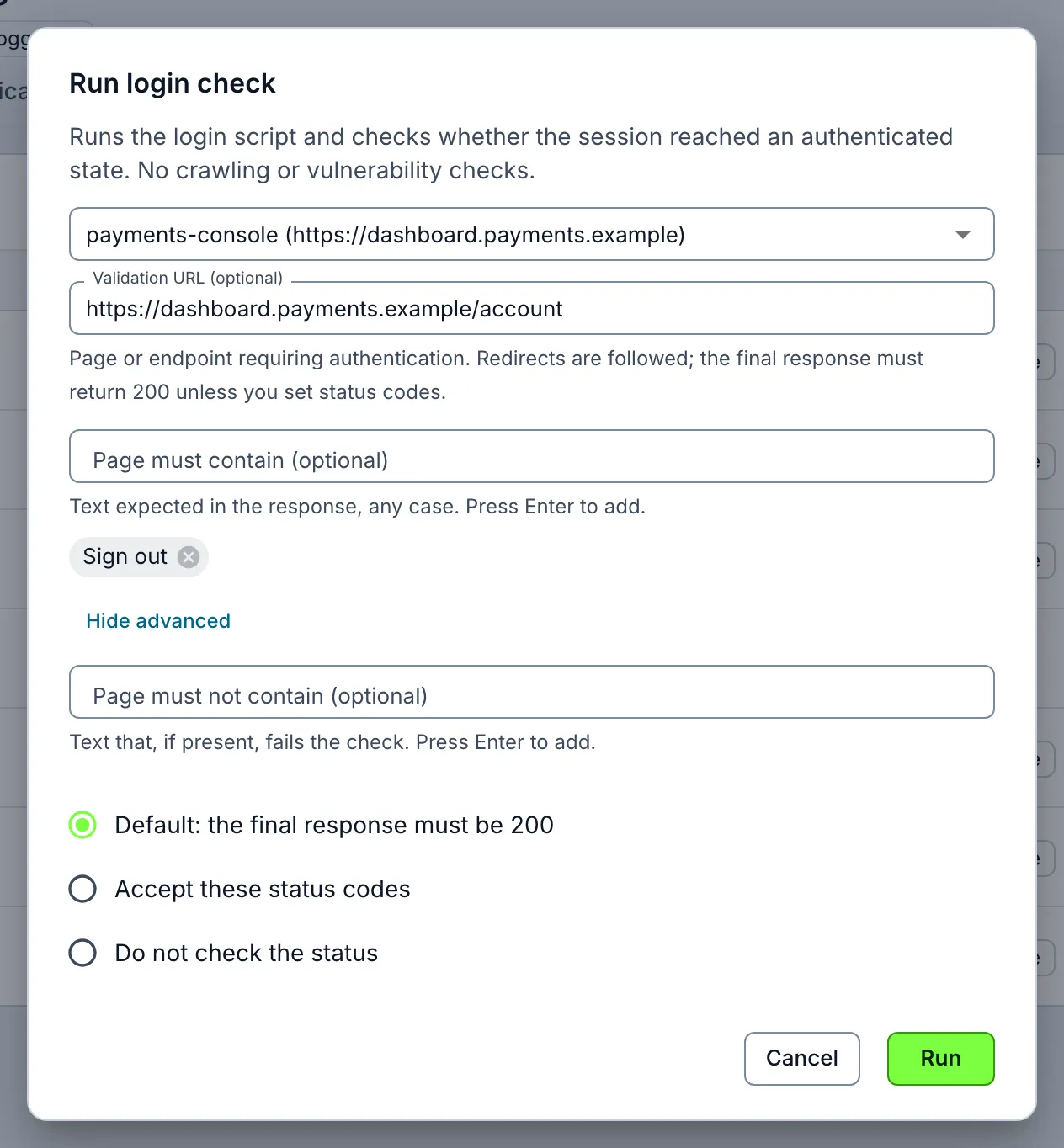
Text rules and status rules need a validation URL.
How matching works:
- Text is matched as plain text, ignoring case. There are no wildcards or regular expressions.
- NightVision reads the raw response body, not the rendered page. Pick text that is in the HTML the server sends. For a single-page application that renders after load, point the validation URL at a JSON endpoint instead.
- A redirect to another site makes the result inconclusive. Use a URL on the application itself.
- Do not put a username or password in the URL.
Save the rules on the authentication
Section titled “Save the rules on the authentication”You do not have to type the rules each time. Save them once on the authentication, and every login check that follows the authentication uses them, scheduled ones included.
- Open the recorded login and select Script and settings.
- In the Login validation section, select Edit.
- Fill in the Validation URL, Page must contain, Page must not contain and the status rule, then select Save.
The section then lists the saved rules. Until you save any, it reads “Not set”, and a login check only confirms that the recorded login finished.
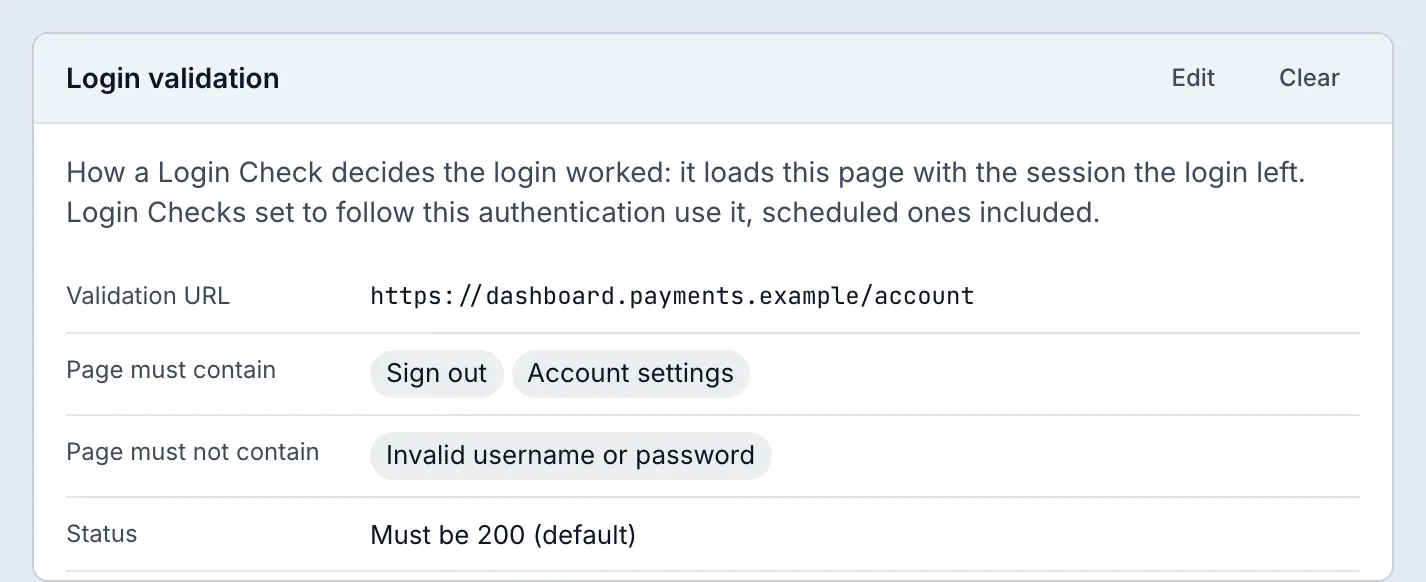
When rules are saved:
- Run login check opens with them filled in.
- If you change a field in the dialog, tick Update this authentication’s saved validation to save the change for every later check, or leave it unticked to use your values for this run only.
- When nothing is saved yet and you fill in the fields, Save to this authentication saves them as you run.
- An edit applies from the next run. A run that has started keeps the rules it started with.
- Clear removes the saved rules after a confirmation. Login checks that follow the authentication then run without validation until you save rules again.
When the authentication has no saved rules and the application has leaked credential check settings, the dialog fills in from those and says so.
A copy made with Duplicate does not take the saved rules, because it signs in at a different address.
Read the result
Section titled “Read the result”A login check lands on the scan’s Details tab, Login status section. Every scan that uses a recorded login has the same section, so this is also where you look when a full scan ran signed out.
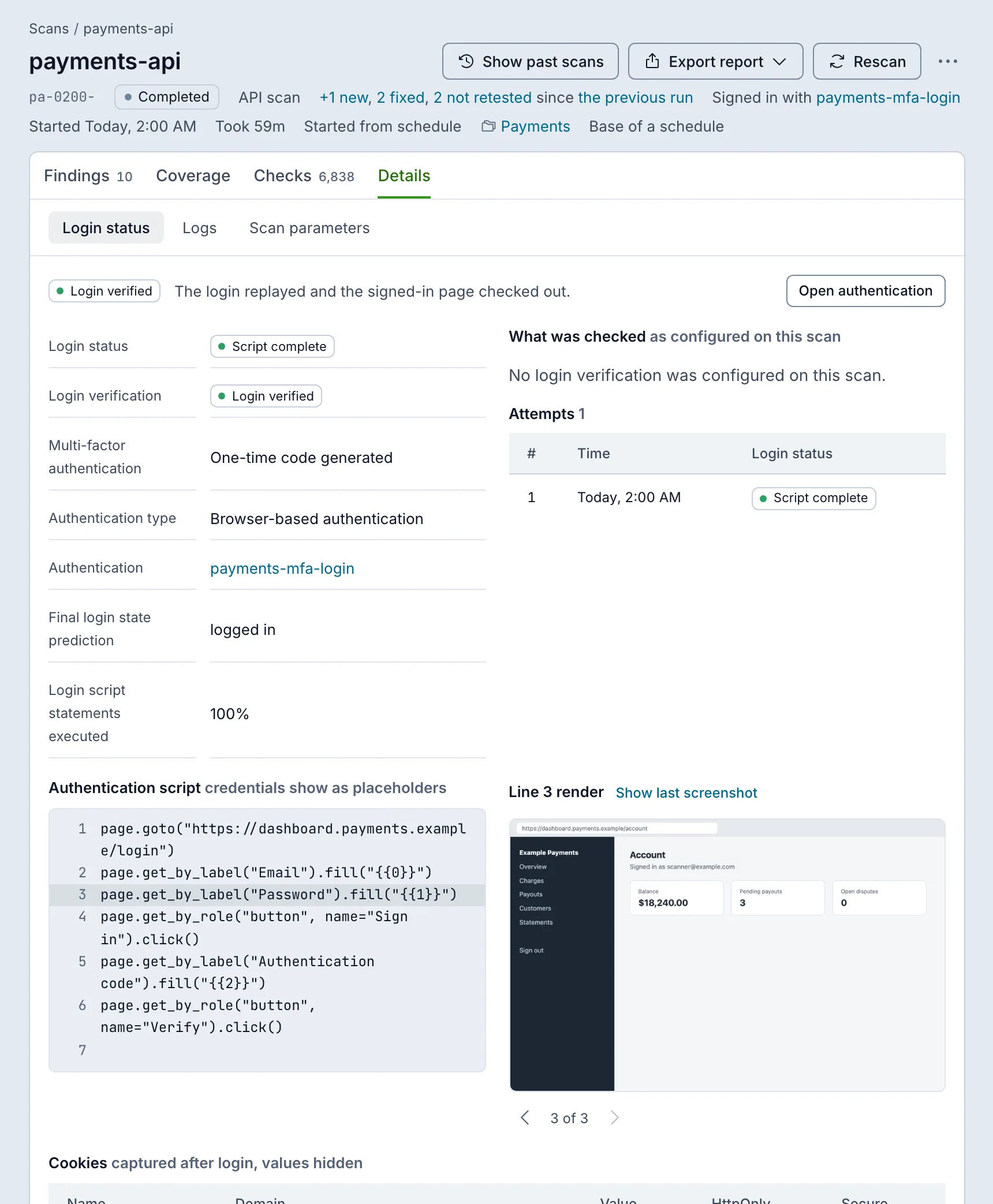
| Part | What it tells you |
|---|---|
| The chip and sentence at the top | The verdict: Login verified, Login failed or Inconclusive. With no rules, the login status of the replay |
| Login status | How the replay ended. See Login statuses |
| Login verification | The verdict again, with the reason when a rule failed |
| Multi-factor authentication | Whether a one-time code was generated. See MFA and TOTP |
| Login script statements executed | How far through the script the replay got |
| What was checked | The rules this run used. It reads “From the authentication” when the run followed the saved rules. The rule that failed is marked |
| Attempts | Each replay in this run. A scan with Re-authenticate before the active scan has two |
| Authentication script and the screenshot | The script with credentials as placeholders, and a screenshot for each step. Use the arrows to step through, or Show last screenshot to see where it ended |
| Cookies | The cookies captured after login, with values hidden and the HttpOnly and Secure flags |
A failed login looks like this:
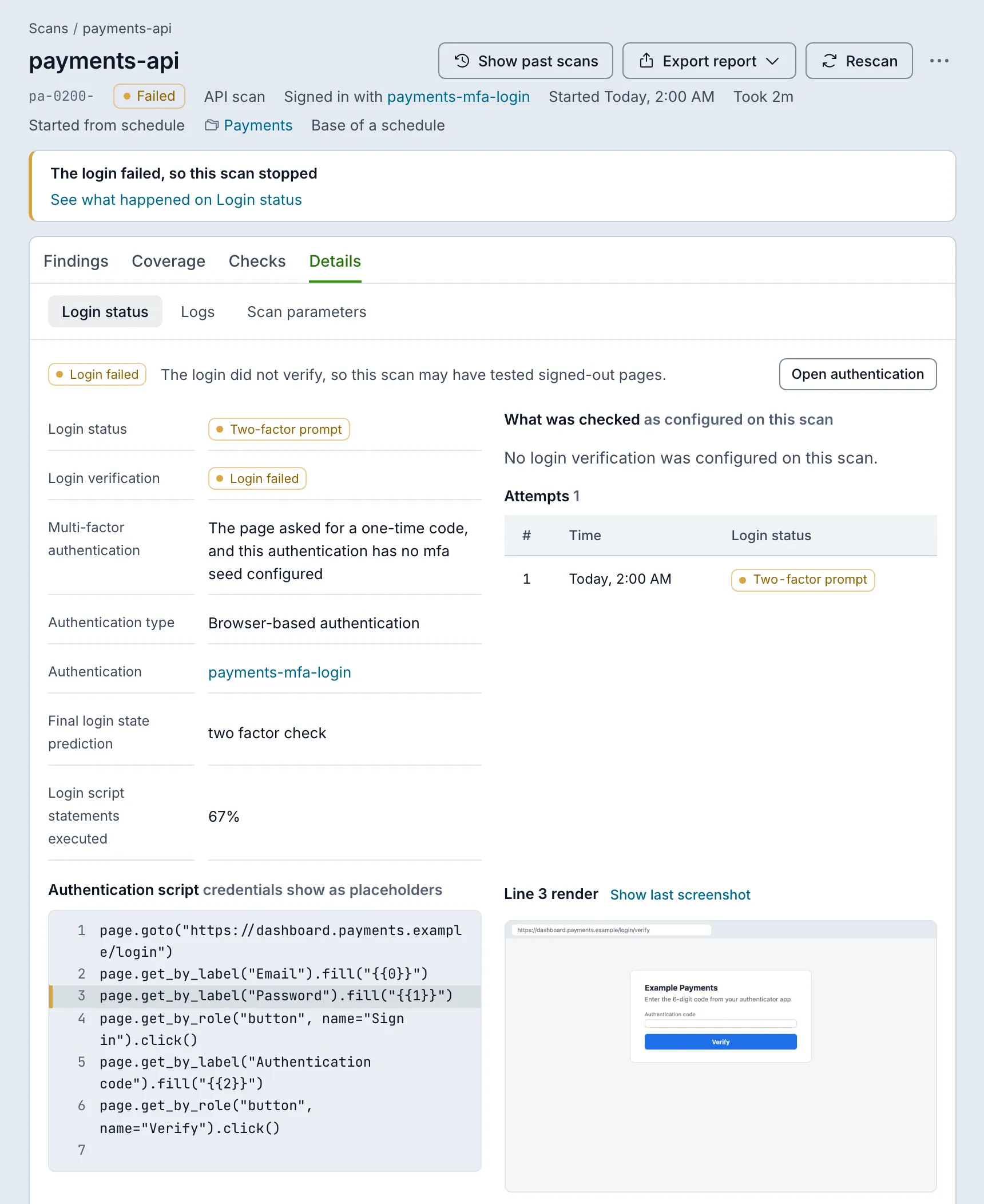
The three verdicts:
| Verdict | Meaning |
|---|---|
| Login verified | The session reached the validation URL and every rule held |
| Login failed | The login did not produce a session, or a rule failed. The reason is one of: HTTP status not allowed, Required text not found, Forbidden text present |
| Inconclusive | The probe could not decide. The reason is one of: Off-origin redirect, Redirect cap exceeded, Non-text response body, Verification URL timed out, Could not connect, Unexpected error |
Select Open authentication to go back and fix the login: re-record it, edit the script or configure MFA.
From the CLI
Section titled “From the CLI”The CLI runs the same check and returns an exit code a pipeline can branch on. The CLI calls an application a target.
nightvision scan my-app --login-check --auth my-loginAn authentication is required. Pass it with -c or --auth (name), -C or --auth-id (id), or the NIGHTVISION_CREDS_ID environment variable. --no-auth is rejected, and --max-duration-minutes is ignored.
Without --validation-url, exit code 0 means the login script ran and captured a session. It does not prove the session can reach a protected page.
Add validation rules
Section titled “Add validation rules”nightvision scan my-app \ --login-check \ --auth my-login \ --validation-url https://app.example.com/account \ --validation-must-contain "Sign out" \ --validation-must-not-contain "Please log in"| Flag | Dashboard field | Notes |
|---|---|---|
--validation-url |
Validation URL | http or https, with a host, and no user:pass@ in it |
--validation-must-contain |
Page must contain | Repeatable |
--validation-must-not-contain |
Page must not contain | Repeatable |
--validation-status |
Accept these status codes | Repeatable, 100 to 599. Without it the response must be 200 |
--validation-ignore-status |
Do not check the status | Cannot be combined with --validation-status |
The rule flags need both --login-check and --validation-url.
The CLI always sends its own rules. It does not follow the rules saved on the authentication, so pass the flags you want on each run.
Exit codes
Section titled “Exit codes”| Code | Verdict | Meaning | Typical cause |
|---|---|---|---|
| 0 | Verified | The login captured a session. With a validation URL, every rule held | Healthy login |
| 1 | Incomplete | The check could not finish | The API was unreachable, the run was aborted, or the application was offline. Not a verdict on the login. Run it again |
| 2 | Failed | The login did not work | No session, a status that is not allowed, or a text rule failed |
| 3 | Inconclusive | The probe could not decide | The validation URL was unreachable or redirected to another site |
Pipeline example
Section titled “Pipeline example”nightvision scan my-app \ --login-check \ --auth my-login \ --validation-url https://app.example.com/account \ --validation-must-contain "Sign out"
case $? in 0) echo "login healthy" ;; 1) echo "check did not finish, retry"; exit 75 ;; 2) echo "login is broken"; exit 1 ;; 3) echo "inconclusive, will retry next run"; exit 0 ;;esacRun it nightly against a long-lived authentication and you hear about a broken login before it costs you a scan. Scan from a pipeline covers tokens and CI setup.
From the API
Section titled “From the API”Start a login check by creating a scan with the login_check preset:
curl -X POST https://api.nightviz.ai/api/v1/scans/ \ -H "Authorization: Token $NIGHTVISION_TOKEN" \ -H "Content-Type: application/json" \ -d '[{ "target_id": "<application id>", "credentials_id": "<authentication id>", "preset": "login_check", "validation_url": "https://app.example.com/account", "validation_must_contain": ["Sign out"], "validation_must_not_contain": ["Please log in"], "validation_status_codes": [200] }]'The body is an array, with one object per scan. Only target_id, credentials_id and preset are required. An empty validation_status_codes list skips the status check.
The saved rules are the validation_url, validation_must_contain, validation_must_not_contain and validation_status_codes fields on the authentication (PUT /api/v1/credentials/{id}/). Send all four as null to clear them. To make a run follow them, create the scan with "validation_config_source": "authentication" and no validation fields.
Read the outcome from GET /api/v1/scans/{id}/login-status/.