

Scans
Scans
A scan is one run of NightVision’s checks against one application. NightVision signs in if you gave it an authentication, maps the application, attacks what it found, and reports each problem as a finding with the request and response that prove it.
In the dashboard: ScansScan activity
Open Scan activity (opens in a new tab)This page explains the kinds of scan and the Scans page in the dashboard. To start one, see Start a scan.
What a scan does
Section titled “What a scan does”- Checks the application answers. If it does not, the scan says so instead of reporting an empty result. See Troubleshoot scans.
- Signs in, when the scan has an authentication. A recorded login is replayed in a browser. A header or cookie authentication is sent with every request.
- Maps the application. A web scan crawls the application in a browser. An API scan reads every operation from the application’s API spec.
- Runs the checks. Passive checks read the traffic. Active checks send attack payloads to each parameter. Nuclei templates look for known vulnerabilities, exposures and misconfigurations. The full list is in the check catalog.
- Reports findings. Each finding has a severity, the affected paths, and the evidence. See Findings.
Each scan also records how every in-scope HTTPS host negotiates TLS and which algorithms sign the tokens in its traffic. Those results are on the application’s Quantum readiness tab, not in the scan’s findings. See Post-quantum readiness.
Kinds of scan
Section titled “Kinds of scan”The dashboard names the kind of each run next to its status.
| Kind | What it is |
|---|---|
| Web scan | A scan of a web application, started from its URL. NightVision crawls it in a browser and tests what the crawl reaches. |
| API scan | A scan of an API application. NightVision sends requests for every operation in the OpenAPI spec or Postman collection. If the spec was generated by Source intelligence, findings point back to the handler file and line. |
| Login check | Replays the authentication and reports whether the login works. It runs no crawl and no checks. See Login check. |
| AI endpoints | Looks for LLM-backed endpoints on an application. See AI and LLM testing. |
Login checks and AI endpoint scans never change an application’s open findings, the run later scans are compared with, or its last scanned date.
Where a scan runs
Section titled “Where a scan runs”- NightVision Cloud scans applications that are reachable from the internet. You can start these from the dashboard, the CLI, a pipeline or a schedule.
- Your network. For a private application, the NightVision CLI runs on a machine that can reach it and relays the scan’s traffic. See Scan private networks.
The Scans page
Section titled “The Scans page”Select Scans in the rail. The page has two tabs: Scan activity, every run NightVision made, and Schedules, the scans that repeat. Schedules are covered in Schedule scans.
The list follows the project scope in the top bar, and it refreshes every 10 seconds while a scan is running. Scans started from the CLI or a pipeline appear here too.
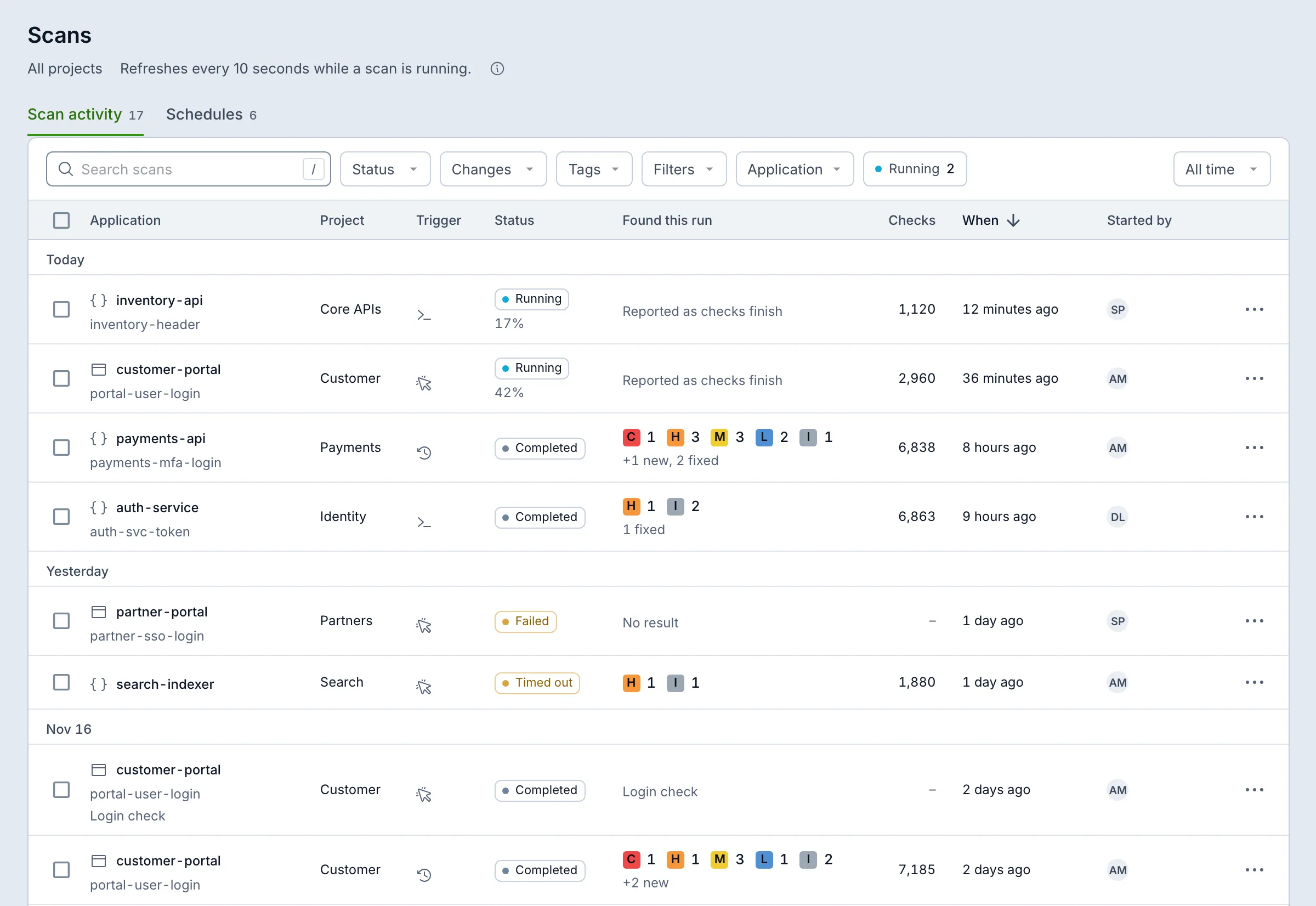
| Column | What it shows |
|---|---|
| Application | The application, with the authentication the run used under it. Login checks and AI endpoint scans are labeled. Select the name to open the run. |
| Project | The project the application belongs to. |
| Trigger | How the run started: CLI and pipelines, Console (someone started it in the dashboard) or Schedule. |
| Status | Running with a percent, Completed, Failed, Timed out, Aborted or Queued. |
| Found this run | The findings this run detected, by severity. Under the counts, what changed against the application’s previous completed run, such as +1 new, 2 fixed or No change. |
| Checks | How many checks the run executed. |
| When | When the run was created. Hover for the exact start and end times. |
| Started by | The person who started it. |
Found this run counts the findings each run detected, except those since marked false positive or won’t fix. A finding marked resolved still counts while the run detects it, so these numbers can differ from an application’s open count. A run that is still going shows Reported as checks finish. A run that stopped before reporting anything shows No result.
You can sort by Application, When or Started by. Day headings appear only when the list is sorted by date.
Find a run
Section titled “Find a run”Every filter is kept in the page address, so you can bookmark or share a filtered list.
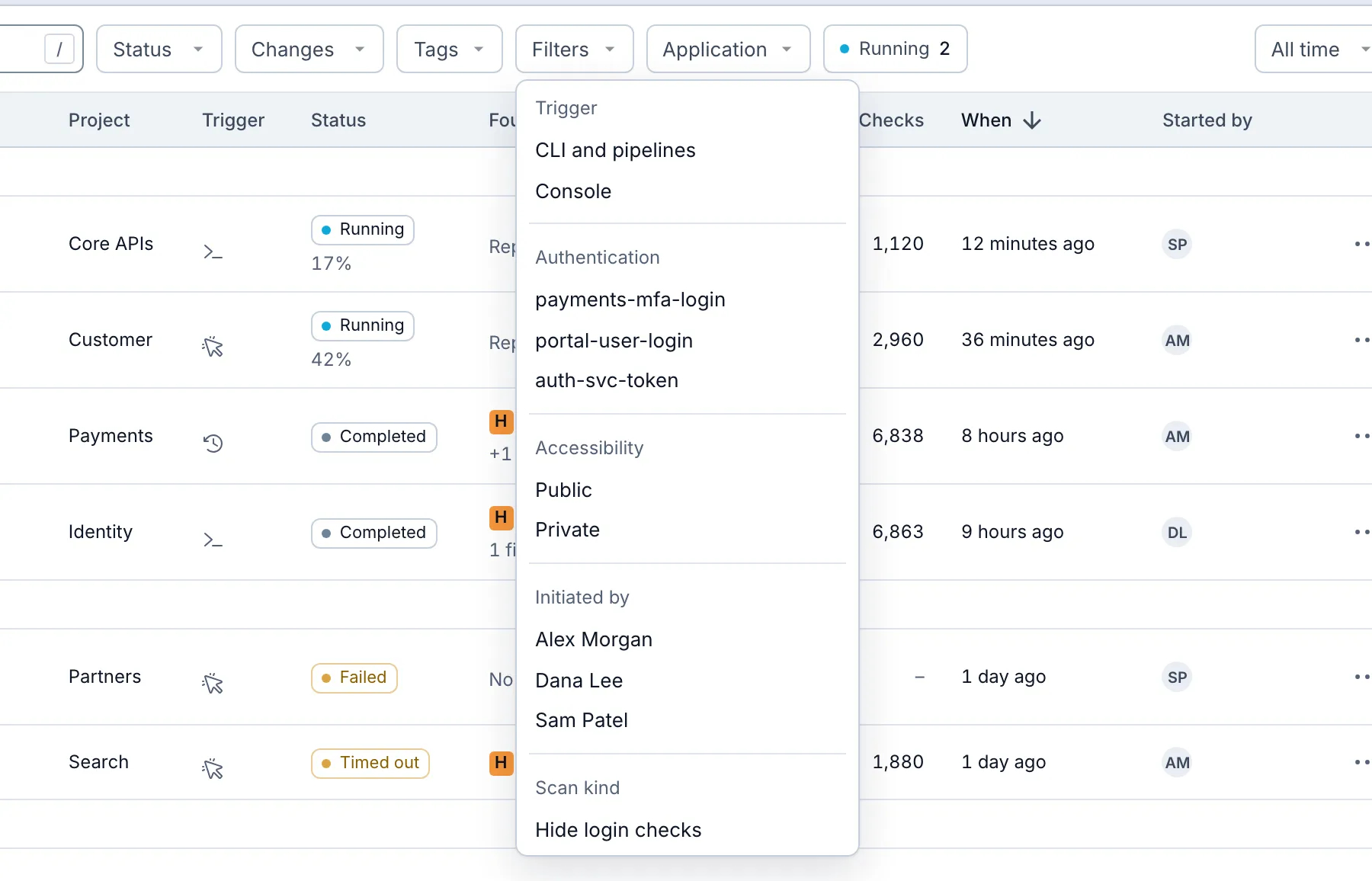
| Control | Narrows the list to |
|---|---|
| Search scans | Runs that match the text. Press / to jump to the box. |
| Status | One or more of Running, Completed, Failed, Timed out, Aborted. Archived shows the runs you archived. |
| Changes | Runs that have Fixed findings or New findings against their previous run. |
| Tags | Runs of applications that carry every tag you pick. See Tags, owners and teams. |
| Filters | Trigger (CLI and pipelines, or Console), Authentication, Accessibility (Public or Private), Initiated by, and Hide login checks. |
| Application | Runs of one application. |
| Running | Only the runs in progress. The number is the count of running scans. |
| All time | The period: last 24 hours, 7 days, 30 days, 90 days, all time, or a custom date range. |
Select Clear to remove every filter.
Rescan
Section titled “Rescan”Rescan starts a new scan of the same application with the same authentication and settings as the run you picked. That includes its duration, the checks that were turned off, and its crawl options.
- On the run’s row, open the … menu and select Rescan. On a run’s own page, select Rescan in the header.
- Select Start rescan.
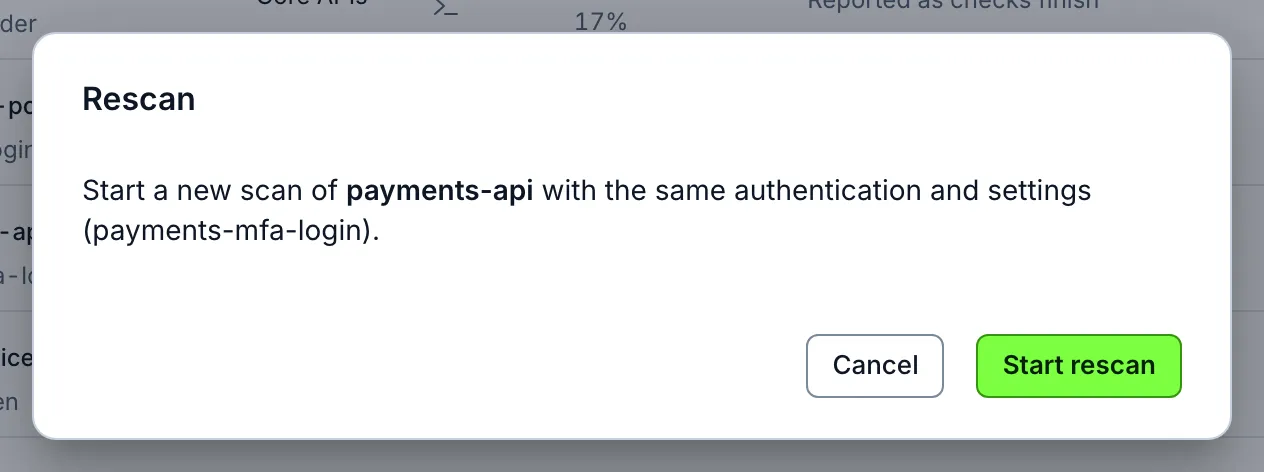
The new run opens as soon as it starts.
- For a private application, the dialog is titled Run this scan from the CLI and gives you the command to run from your network. See Scan private networks.
- For an API application, the rescan waits until the API spec has been validated.
- Rescan is unavailable when the run is archived, still running, or when the authentication it used has been deleted. In the last case, start a new scan and pick another authentication.
Abort a running scan
Section titled “Abort a running scan”Open the … menu on a running scan and select Abort scan, then confirm. The run stops and is marked Aborted. Findings it already reported stay on the scan.
Archive and delete
Section titled “Archive and delete”- Archive hides a run from the list without deleting anything. To see archived runs, set Status to Archived. Select Unarchive to bring one back. An archived run cannot be rescanned or scheduled until you unarchive it.
- Delete removes the run and its findings history for that run. A running scan is stopped first. This cannot be undone.
To delete several runs, tick their checkboxes and select Delete selected.
Which of these actions you see depends on your role in the run’s project. See Members and roles.
Compare two runs
Section titled “Compare two runs”Tick two completed runs of the same application and select Compare to see what was fixed, what is new, and what could not be retested. See Compare two scans.
From the CLI
Section titled “From the CLI”The CLI and the API call an application a target. They are the same thing.
# Scan an applicationnightvision scan my-app
# Scan with an authenticationnightvision scan my-app --auth my-login
# List scans in the current project, or in every projectnightvision scan listnightvision scan list --all
Every option is in Start a scan. To install the CLI, see Install the CLI.