
Get started
Tour of the dashboard
The dashboard lives at app.nightviz.ai. This page shows where things are and how the parts that appear on every page work.
The rail
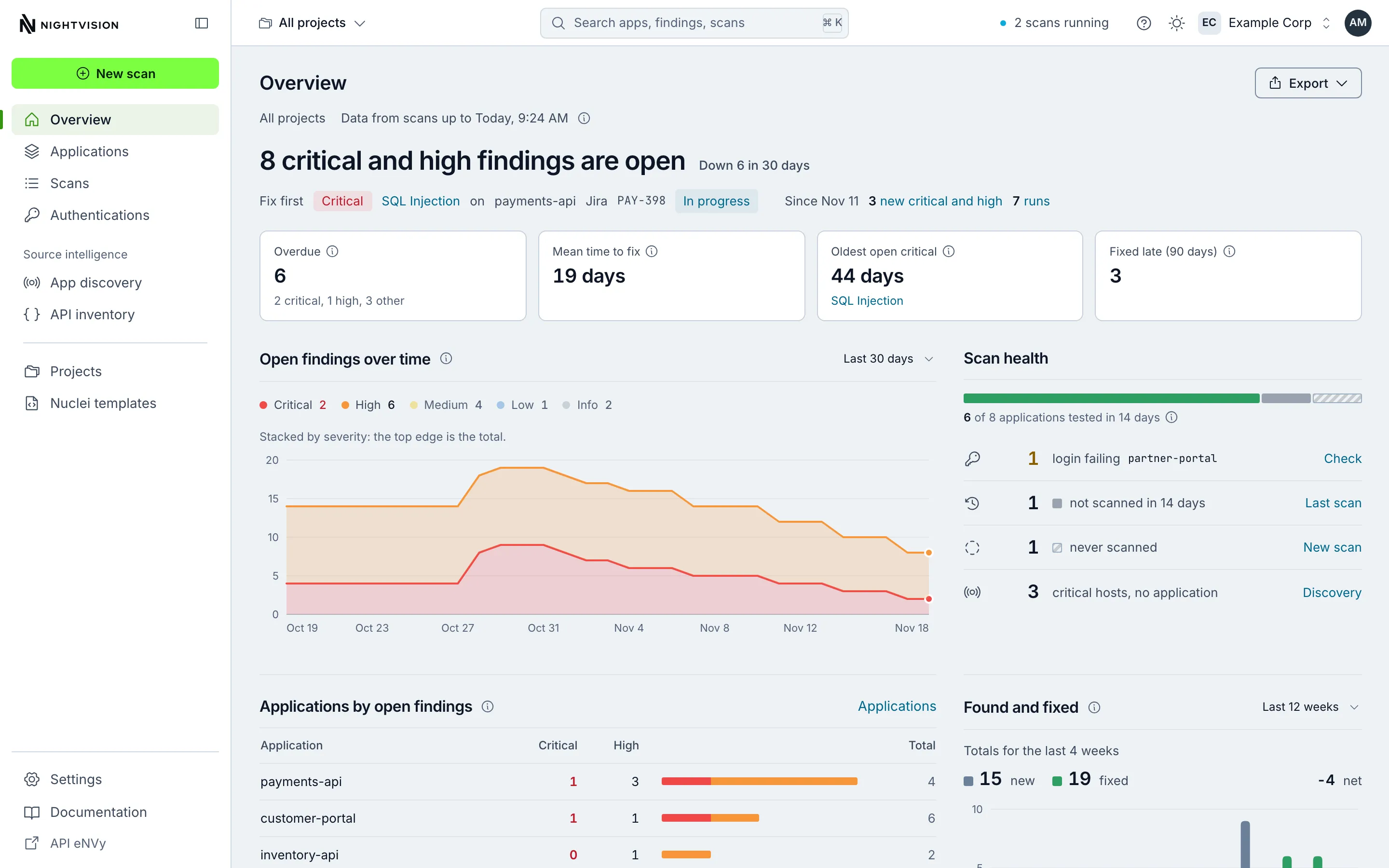
Section titled “The rail”The rail is the navigation on the left. It is the same on every page.
| Item | What it opens |
|---|---|
| New scan | The one primary action. Pick or add an application and start a scan. See Start a scan. |
| Overview | Open findings across your applications, what to fix first, and scan health. See The Overview page. |
| Applications | The web applications and APIs you scan. See Applications. |
| Scans | Scan activity and schedules. See Scans. |
| Authentications | The logins, headers and cookies scans sign in with. See Authentication. |
| App discovery | Hosts found for your domains. Shown when your plan includes it. See App discovery. |
| API inventory | The APIs NightVision knows from specs. See API inventory. |
| Projects | Groups of applications and who can reach them. See Projects. |
| Nuclei templates | Your own checks. See Custom Nuclei templates. |
| Settings | Profile, members, integrations and billing. See Settings. |
| Documentation | This site, in a new tab. The ? button in the top bar opens it too. |
| API eNVy | A separate NightVision product for API security from source code. It opens in its own tab. |
App discovery and API inventory sit under the heading Source intelligence. Projects and Nuclei templates sit below a divider because you set them up once and return to them rarely.
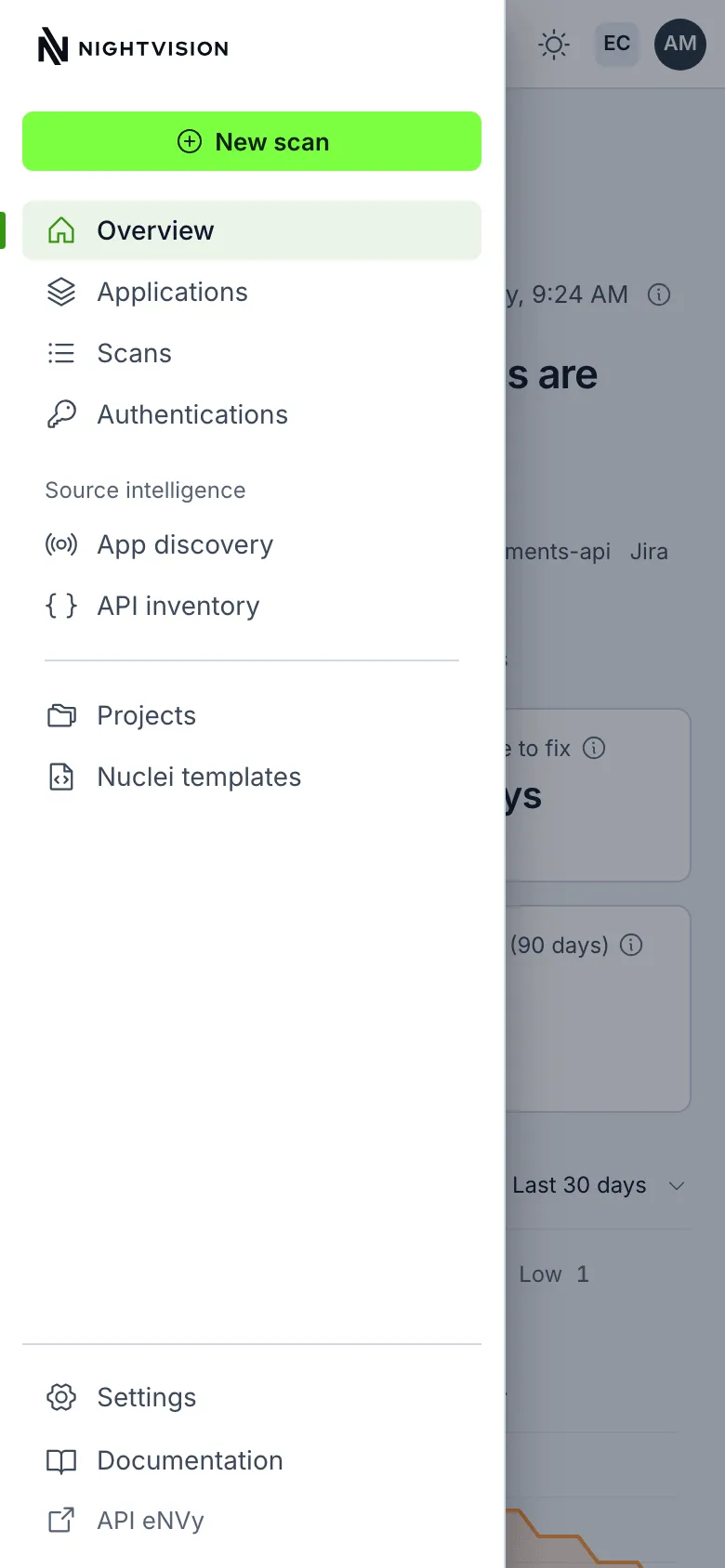
To give the page more room, select the button beside the logo to collapse the rail to icons. Hover over an icon to see its name. Your browser remembers the choice.
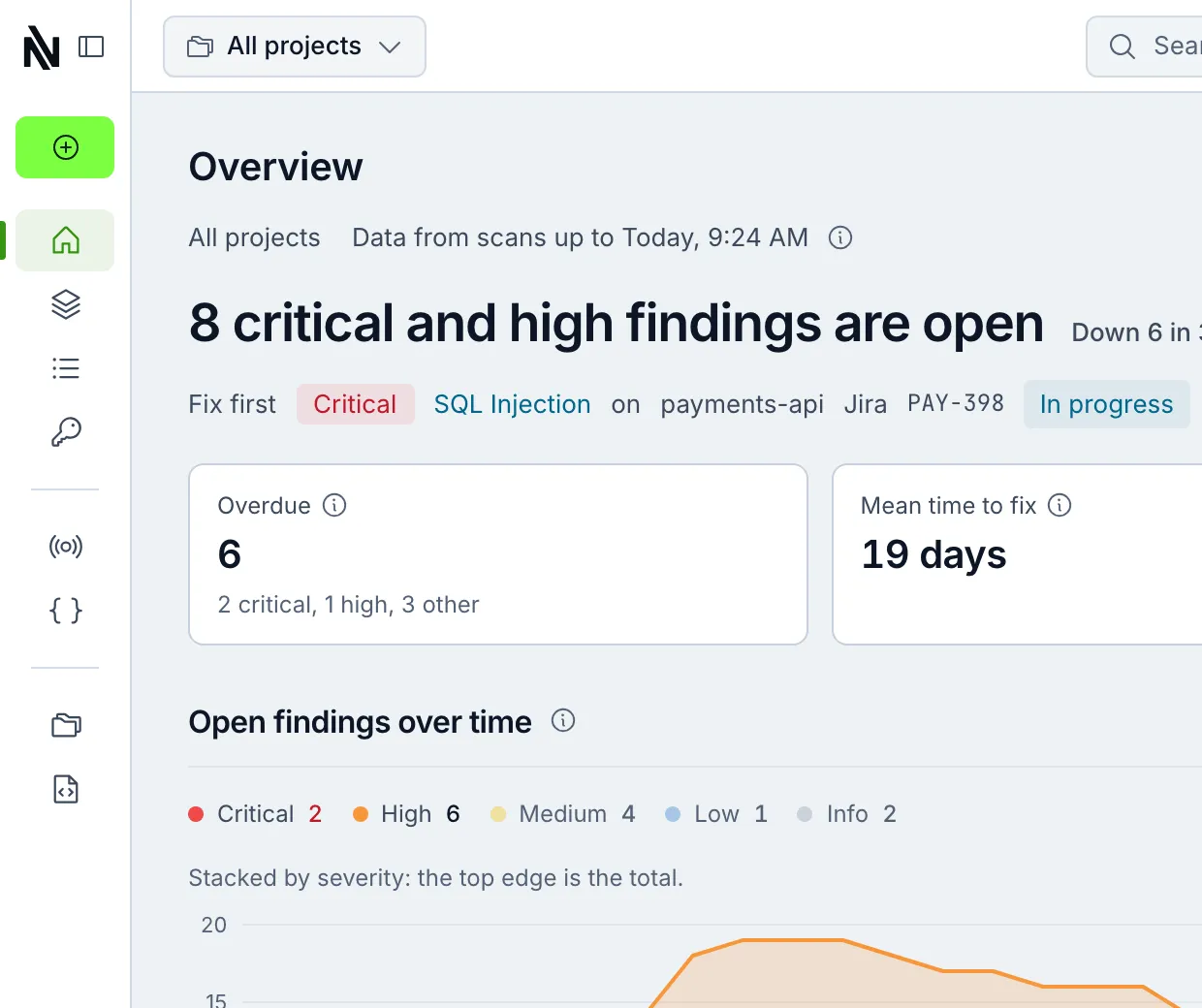
On a narrow window or a phone, the rail becomes a drawer. Open it with the menu button at the left of the top bar.
Project scope
Section titled “Project scope”The first control in the top bar sets which projects you are looking at. It starts at All projects.
- Select the scope control.
- Tick one or more projects. Type in Find a project to search by name.
- Select Apply.
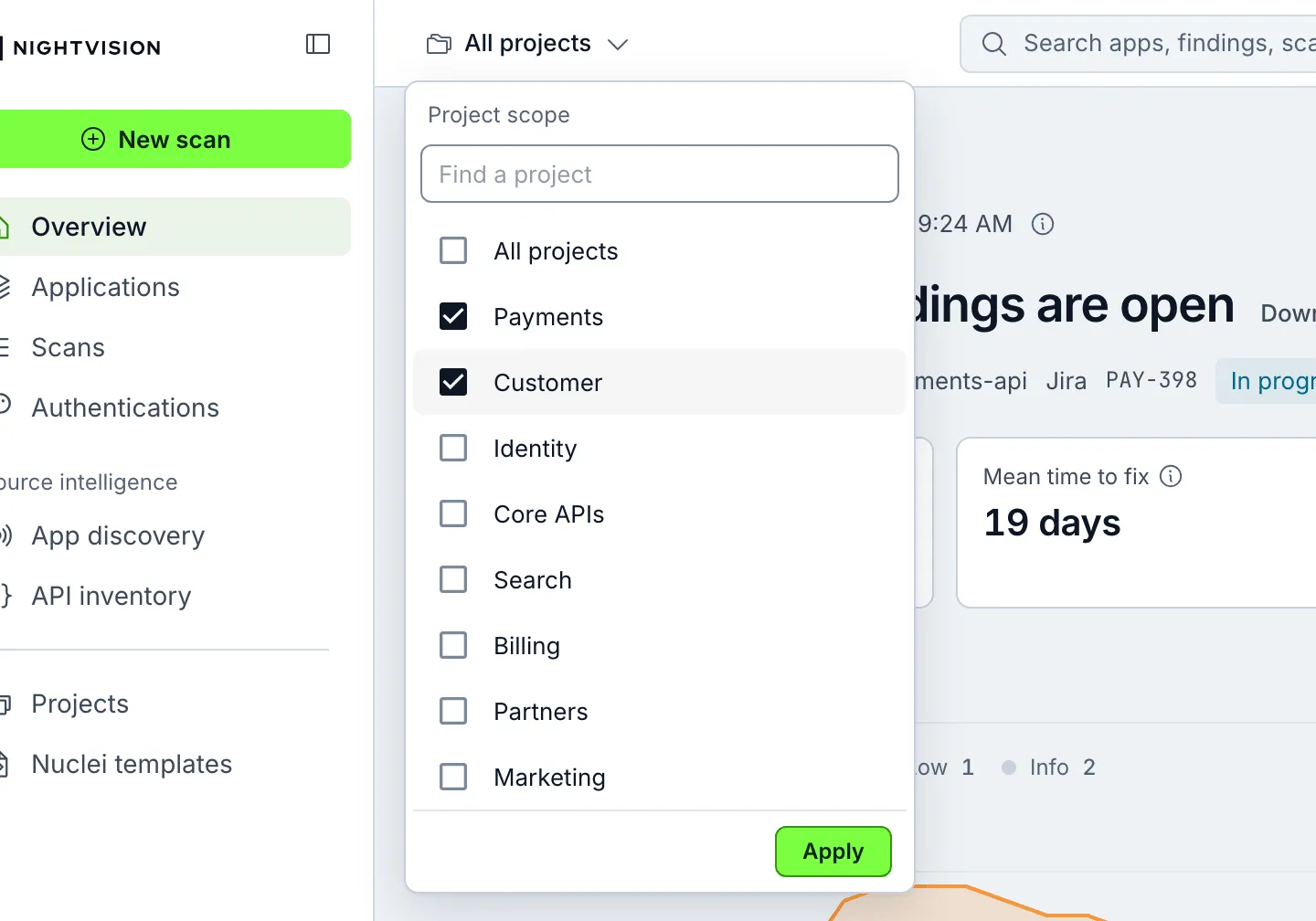
The scope follows you. Overview, Applications, Scans and every other list show only those projects, search looks only inside them, and the running scans count covers only them. The control reads the project’s name for one project, or a count such as “2 projects” for several. To clear it, tick All projects and apply.
The scope is part of the page address, so a link you copy carries it.
Search (Cmd/Ctrl+K)
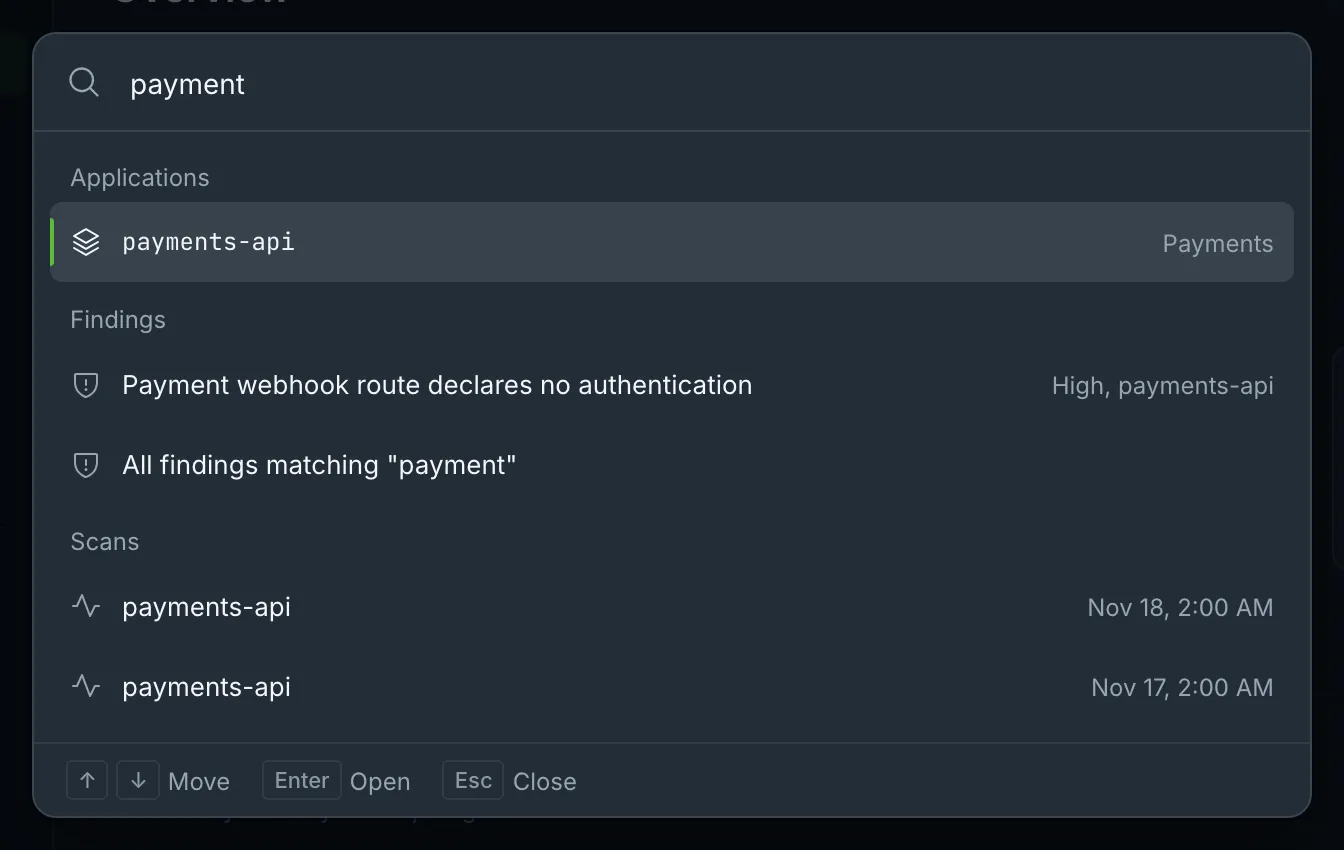
Section titled “Search (Cmd/Ctrl+K)”Press Cmd+K on a Mac or Ctrl+K on Windows and Linux, or select the search box in the top bar. Search opens from any page.
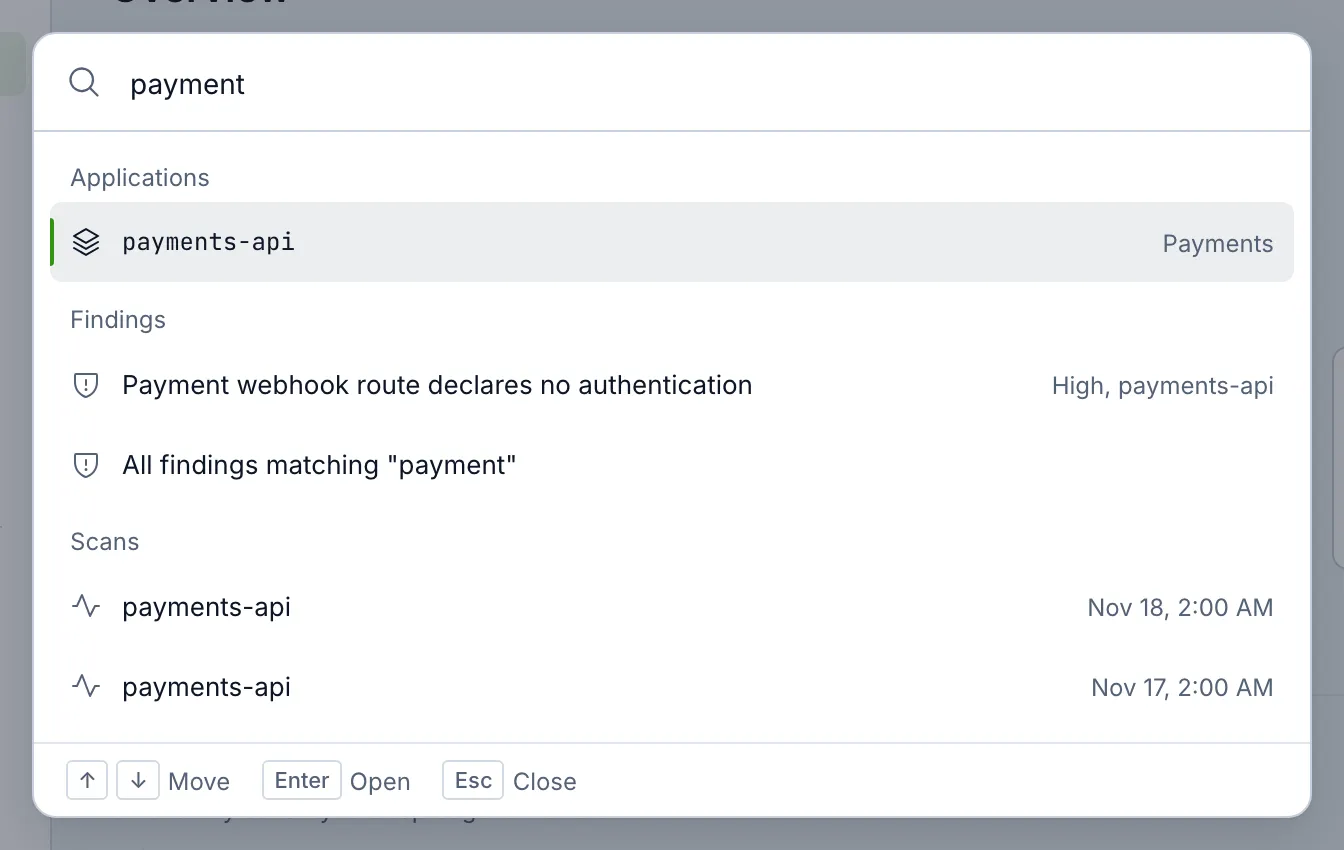
- Before you type, search lists pages and actions, such as New scan and switching the theme.
- Type two or more characters to find applications, findings and scans by name.
- Use the arrow keys to move, Enter to open and Esc to close.
- All findings matching opens the Overview findings table filtered to that name, in every status.
Organizations
Section titled “Organizations”Everything in NightVision belongs to an organization. The organization’s name is in the top bar. If you belong to more than one, select it to switch.
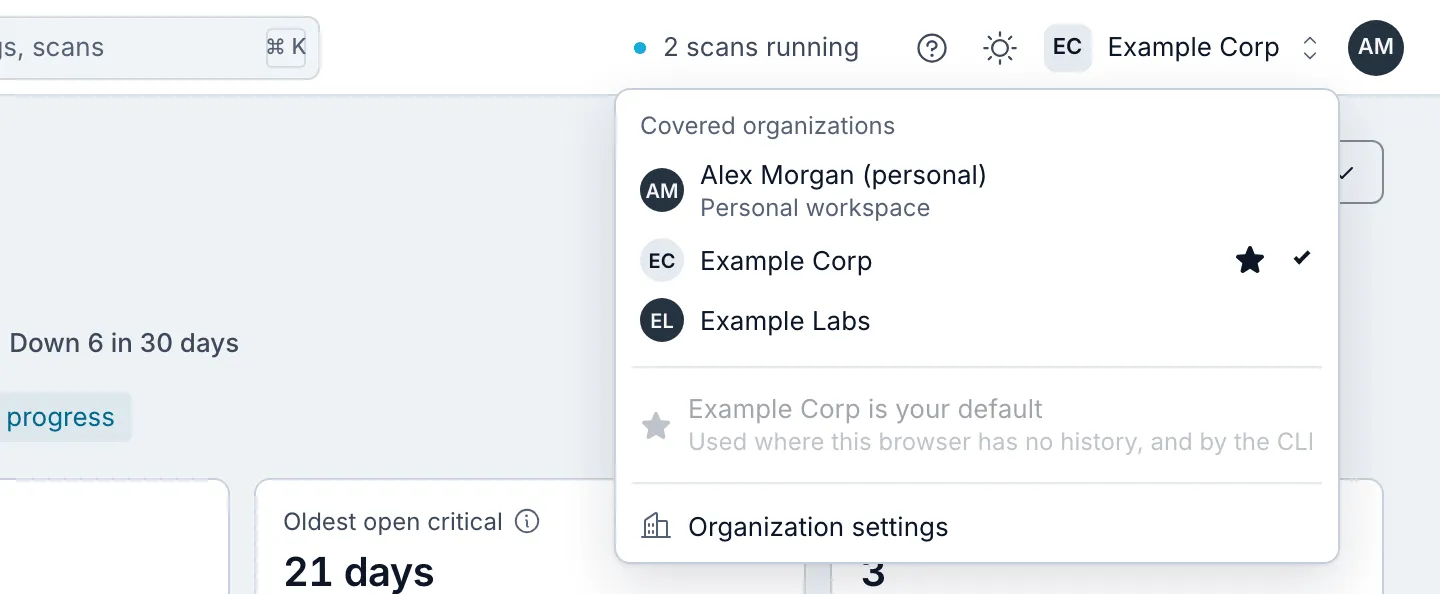
- Your personal workspace comes first, then the organizations you belong to.
- Switching reloads the dashboard in the other organization. A list stays on the same list. A page for one record, such as an application or a scan, goes back to its list, because that record belongs to the organization you left.
- Set <name> as default makes the current organization the one you start in on a browser with no history. The CLI uses the same default.
- Organization settings opens Settings.
The rest of the top bar
Section titled “The rest of the top bar”- Running scans. While scans are running in the current scope, the top bar says how many. Hover to see which applications. Select it to open Scans, filtered to running scans.
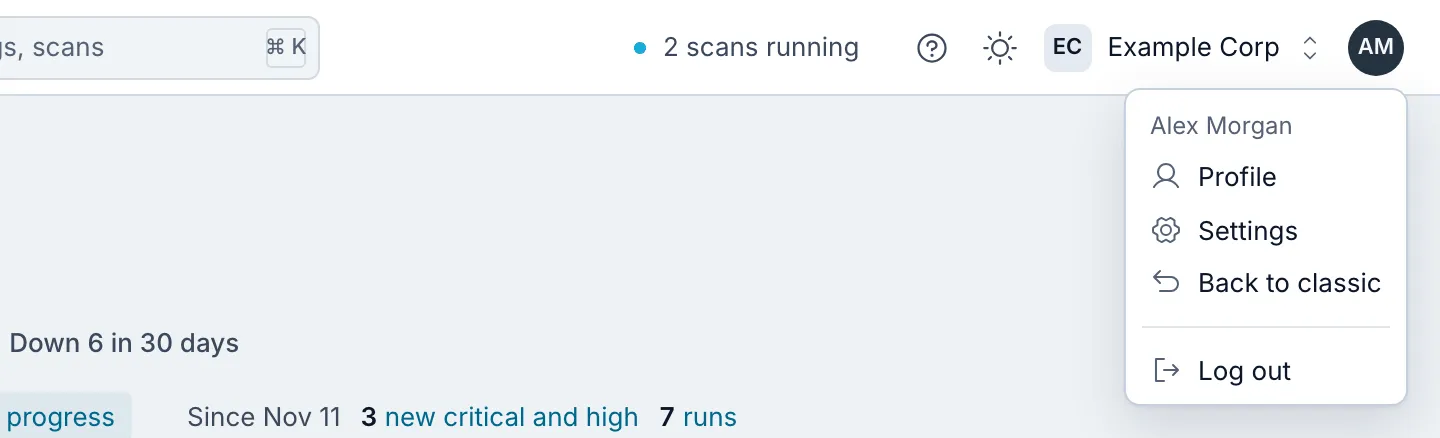
- Account menu. Your initials, at the far right. It holds Profile, Settings, Back to classic and Log out. In your personal workspace it also offers Change Subscription and Billing Portal.
Lists, filters and shareable links
Section titled “Lists, filters and shareable links”Applications, Scans, Authentications and the other lists work the same way.
- Search the list. Press
/to jump to the list’s search box. - Filter. The menus beside the search box narrow the list. On Applications, for example, you can filter by login status, schedule, tags and team.
- Choose columns. Where a list has a Columns menu, use it to show or hide columns.
- Sort. Select a column heading that shows an arrow.
- Share what you see. Filters, search text, the open tab and the project scope are all kept in the page address. Copy the address and the person who opens it sees the same view, as far as their access allows.
- Open in a new tab. Cmd+click or Ctrl+click a row.
Long lists load more rows as you scroll.
Side panels and keyboard
Section titled “Side panels and keyboard”Many details open in a panel at the right, beside the list, so you keep your place. An application’s settings, a finding on Overview and an endpoint in Coverage all open this way.
- Esc closes the panel.
- When a panel steps through the rows of a list, press
jfor the next row andkfor the previous one. - An open panel is part of the page address too, so you can link straight to it.
On a phone, a panel opens over the page instead of beside it.
| Key | What it does |
|---|---|
| Cmd+K or Ctrl+K | Open or close search |
/ |
Focus the search box of the current list |
j and k |
Next and previous row in a side panel |
| Esc | Close a panel, menu or dialog |
| Cmd+Enter or Ctrl+Enter | Start the scan on the scan form |
Light and dark
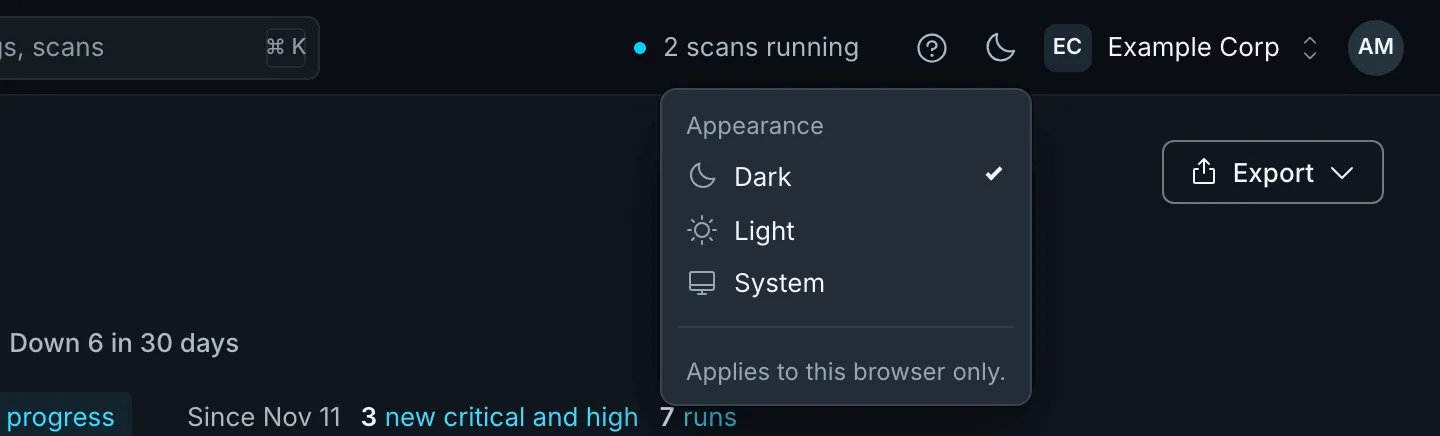
Section titled “Light and dark”Select the sun or moon in the top bar and choose Dark, Light or System. System follows your computer’s setting.
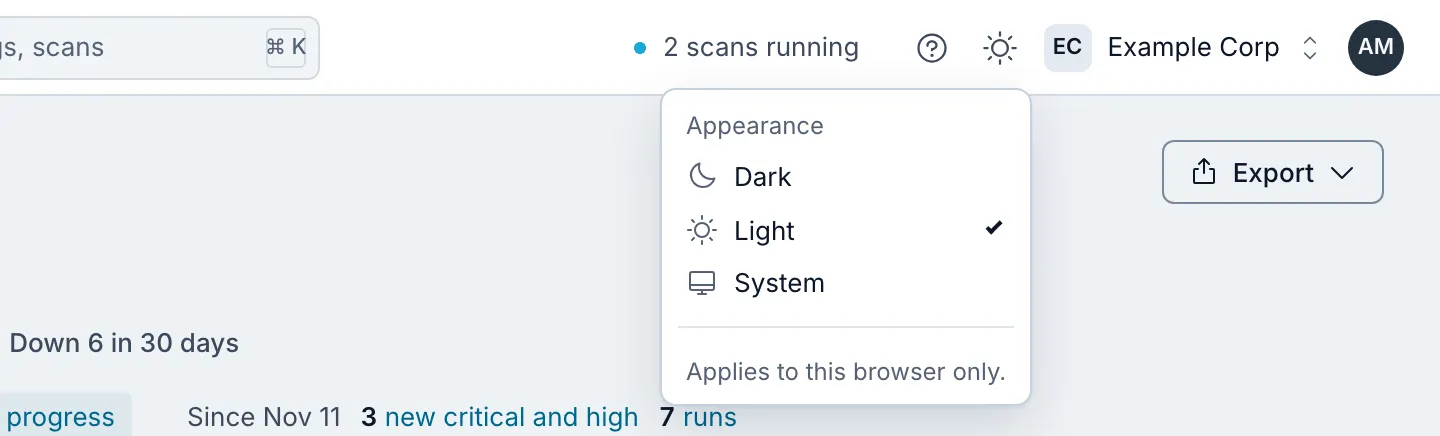
The choice is kept in this browser, not on your account, so another browser or device starts from its own setting.
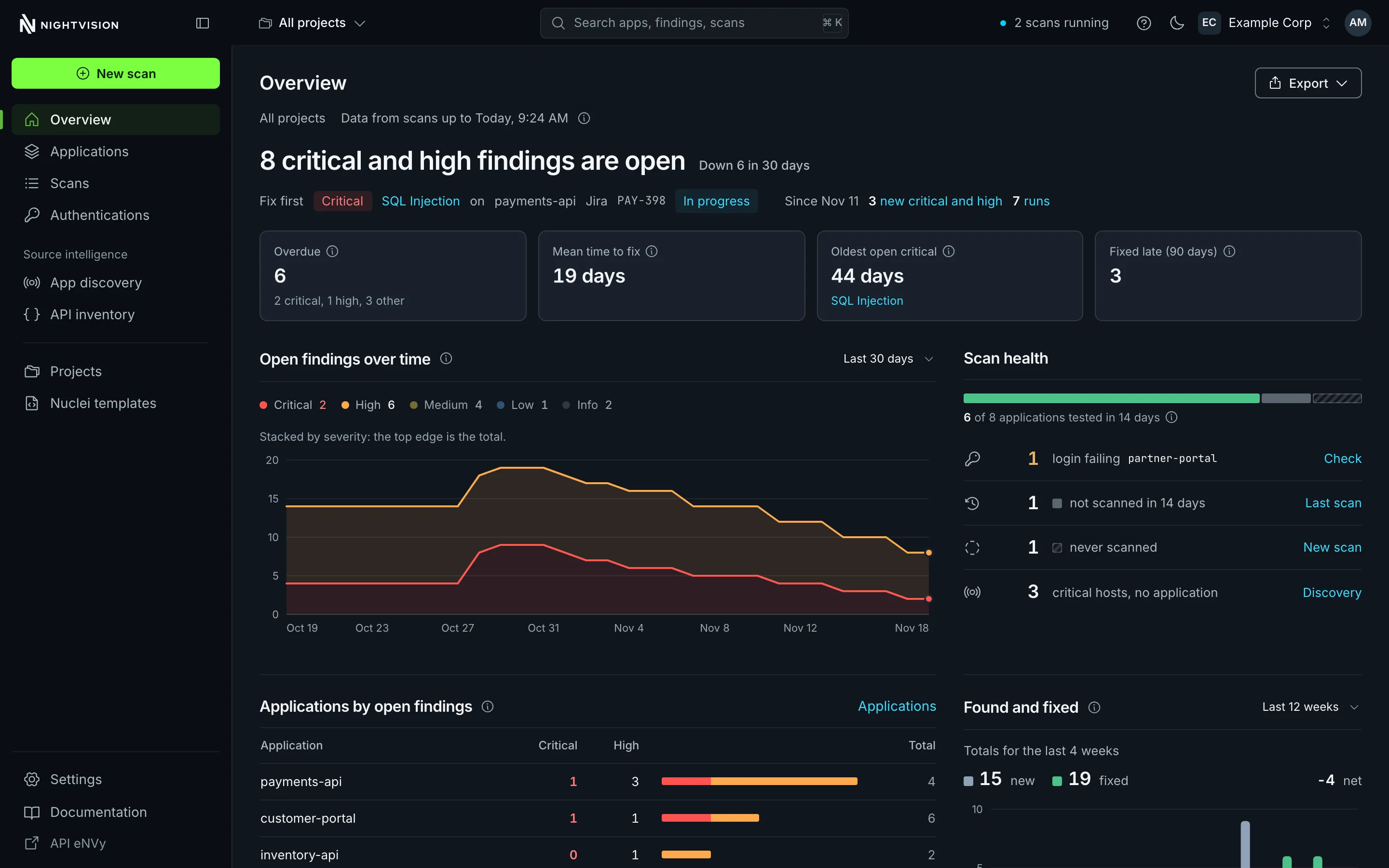
Menus, dialogs and search follow the theme. In the dark theme the top bar shows a moon in place of the sun.
Roles and plans: why a control is hidden or disabled
Section titled “Roles and plans: why a control is hidden or disabled”What you can do depends on your role, your organization’s plan and how its members are managed. The dashboard follows two rules.
If your role does not allow an action, the control is not shown. A Read-Only member sees no New scan button and no New application button. Where a whole page is view-only for you, a notice at the top says so.
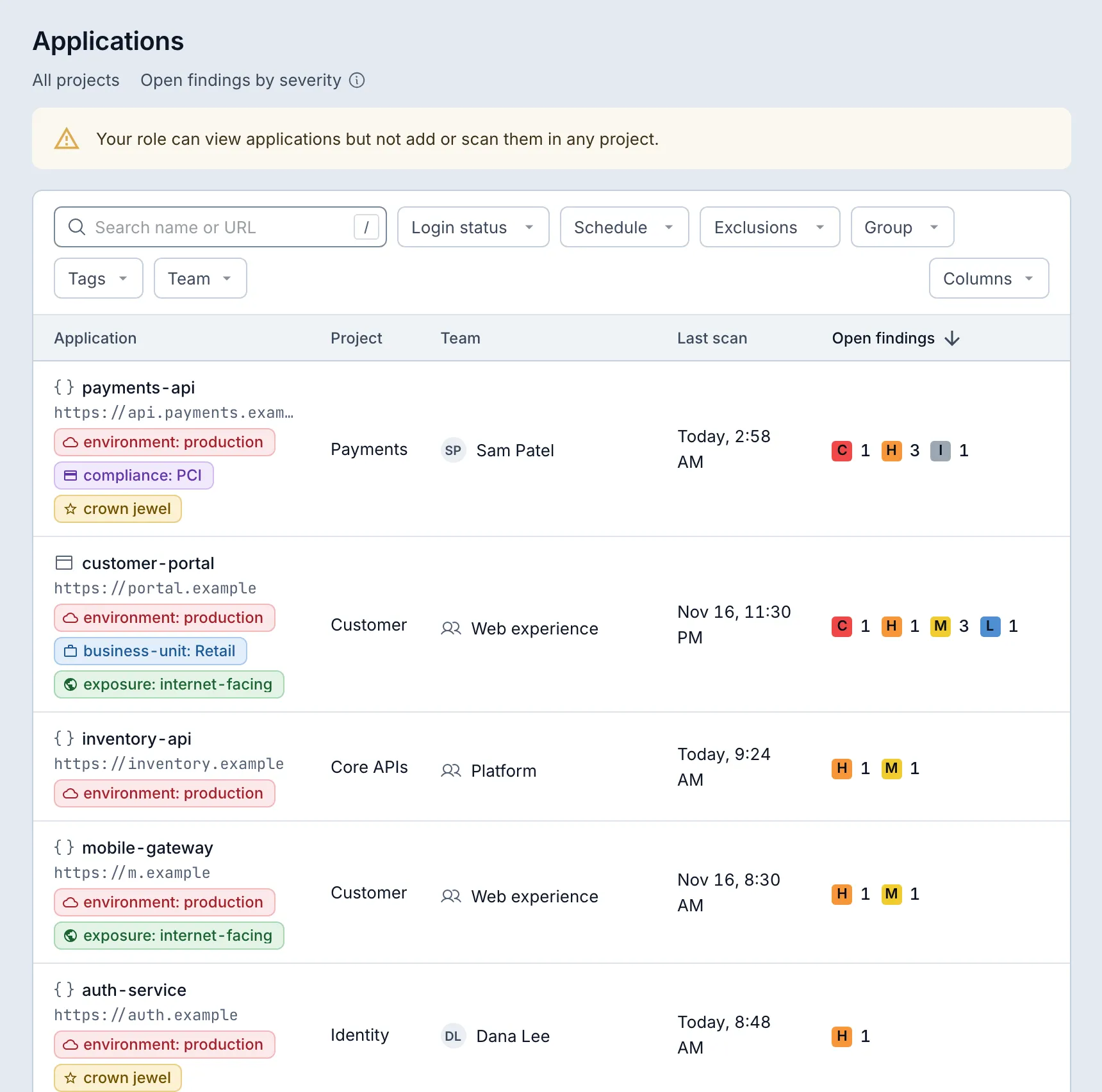
If something else blocks the action, the control is shown but disabled. Hover over it, or focus it with the keyboard, to read the reason:
| Reason shown | What it means |
|---|---|
| Your organization’s plan does not include this. | The organization has no active plan. Viewing still works. |
| Your trial has used all its scans. Upgrade to run more. | A free trial has a set number of scans. |
| Application discovery is not turned on for this organization. | App discovery is part of the Professional and Enterprise plans. |
| Members of this organization are managed by its identity provider. | Members are added and removed in your identity provider, not here. See Enterprise SSO. |
There are four roles: Org Admin, Project Manager, Scan Operator and Read-Only. A role can apply across the organization or to one project, so you may be able to scan in one project and only view another. Members, roles and groups lists what each role can do.
If you open a link to something your role cannot see, you get a No access page instead. Ask an Org Admin to give you access to its project.
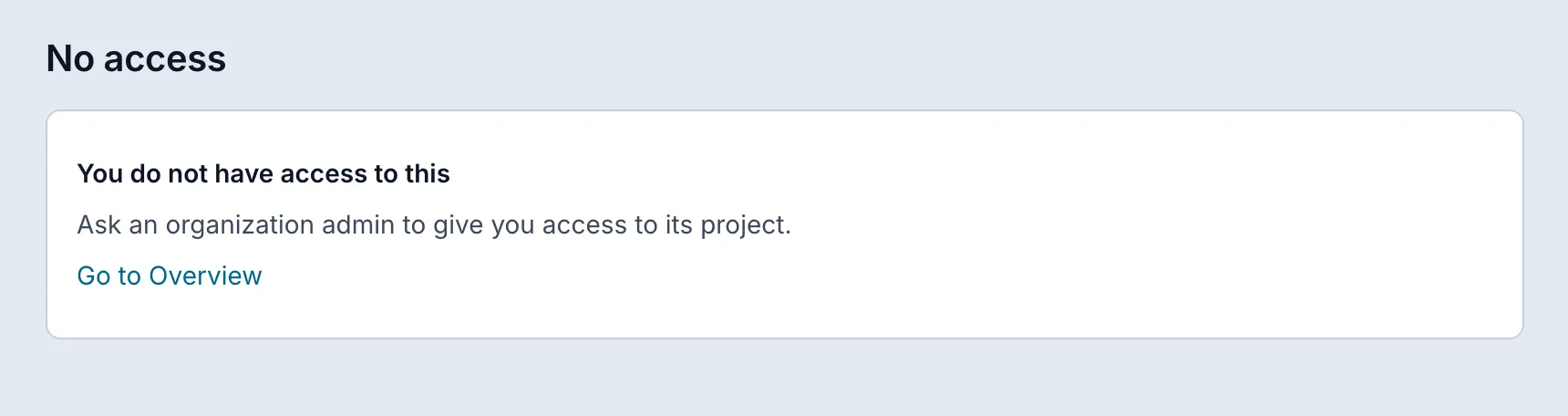
A link to something that was deleted, or a mistyped address, shows Page not found in the same way.
An organization on a free trial, or with a payment that needs attention, also sees one line above the top bar that says so. Settings covers plans, trials and billing.
Switching between the new and classic dashboards
Section titled “Switching between the new and classic dashboards”NightVision has two dashboards: the one this site describes, and the earlier one, called classic. Both show the same data, and both use the same page addresses, so a link works in either.
- To go to classic, open the account menu and select Back to classic. You land on the same page there.
- To come back, open the account menu in classic and select Switch to the new dashboard.
Your choice is saved on your account. The next time you sign in, on any browser, you land in the dashboard you chose.
If your session ends while you are working, sign in again and NightVision returns you to the page you were on.