

Scans
Compare two scans
Compare answers one question: what changed between two runs of the same application? It sorts every finding into Fixed, New, Still open or Not retested, and it says why for the ones it could not retest.
In the dashboard: ScansScan activity
Open Scan activity (opens in a new tab)Use it after a fix ships, to confirm the finding is gone, or after a release, to see what the release introduced.
Pick two runs
Section titled “Pick two runs”There are two ways in.
From a run. The header of a completed run says what changed since the previous one, for example +1 new, 2 fixed, 2 not retested since the previous run. Select any of the numbers to open the comparison on that tab.
From the Scans page. To compare any two runs:
- Select Scans in the rail.
- Find the application’s runs. Searching for its name or using the Application filter helps.
- Tick two runs.
- Select Compare.
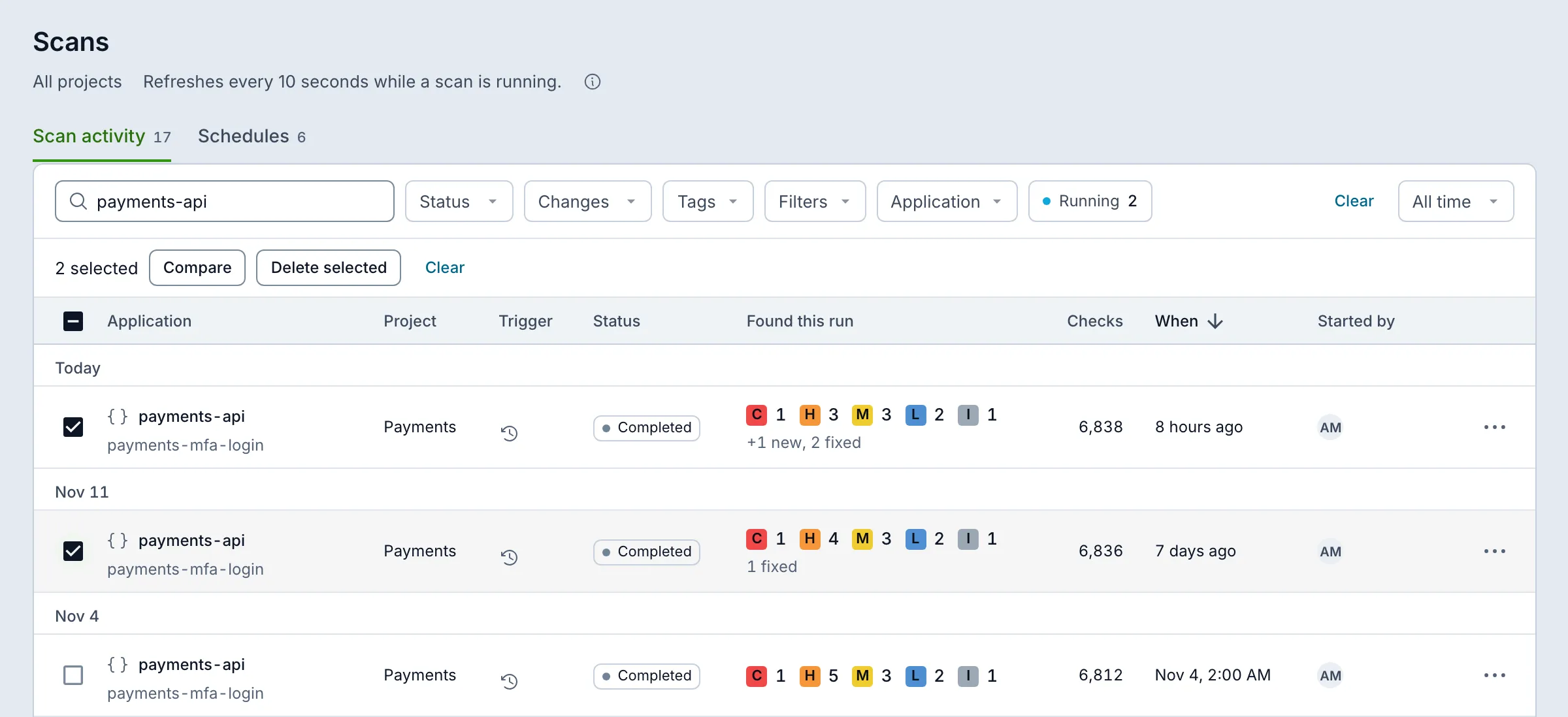
Compare is enabled when you tick exactly two completed scans of the same application. Otherwise the bar says what to change: Pick two runs of the same application or Pick two completed scans. Login checks cannot be compared.
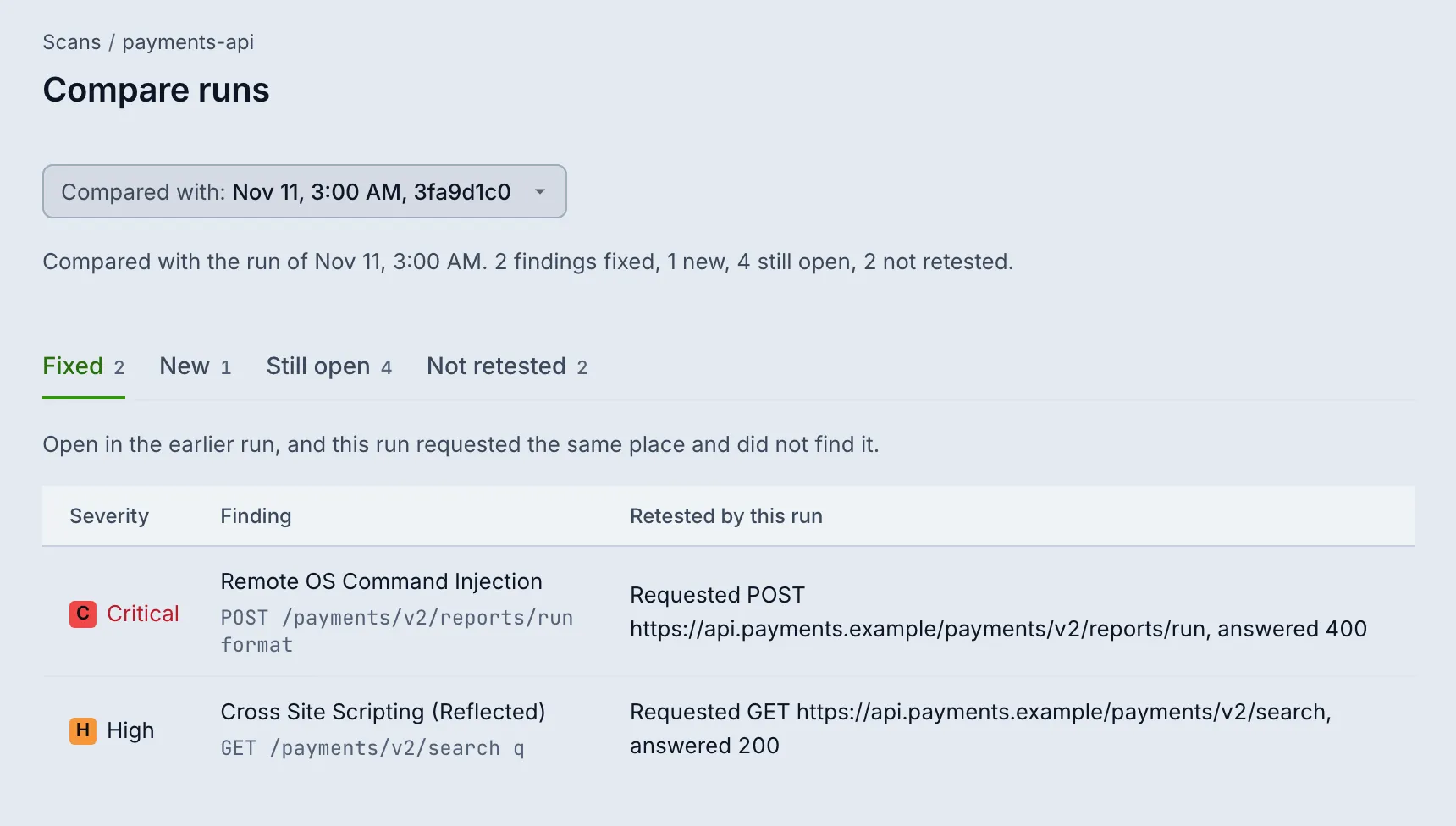
The comparison opens on the later run and holds it against the earlier one. To compare with a different earlier run, use the Compared with menu at the top of the page. It lists the application’s earlier completed runs.
Fixed, New, Still open, Not retested
Section titled “Fixed, New, Still open, Not retested”The line under the menu sums up the comparison, and each tab lists the findings in one group.
| Tab | A finding is here when |
|---|---|
| Fixed | It was open in the earlier run, and this run requested the same place and did not find it. |
| New | This run found it and the earlier run did not. |
| Still open | Both runs found it. |
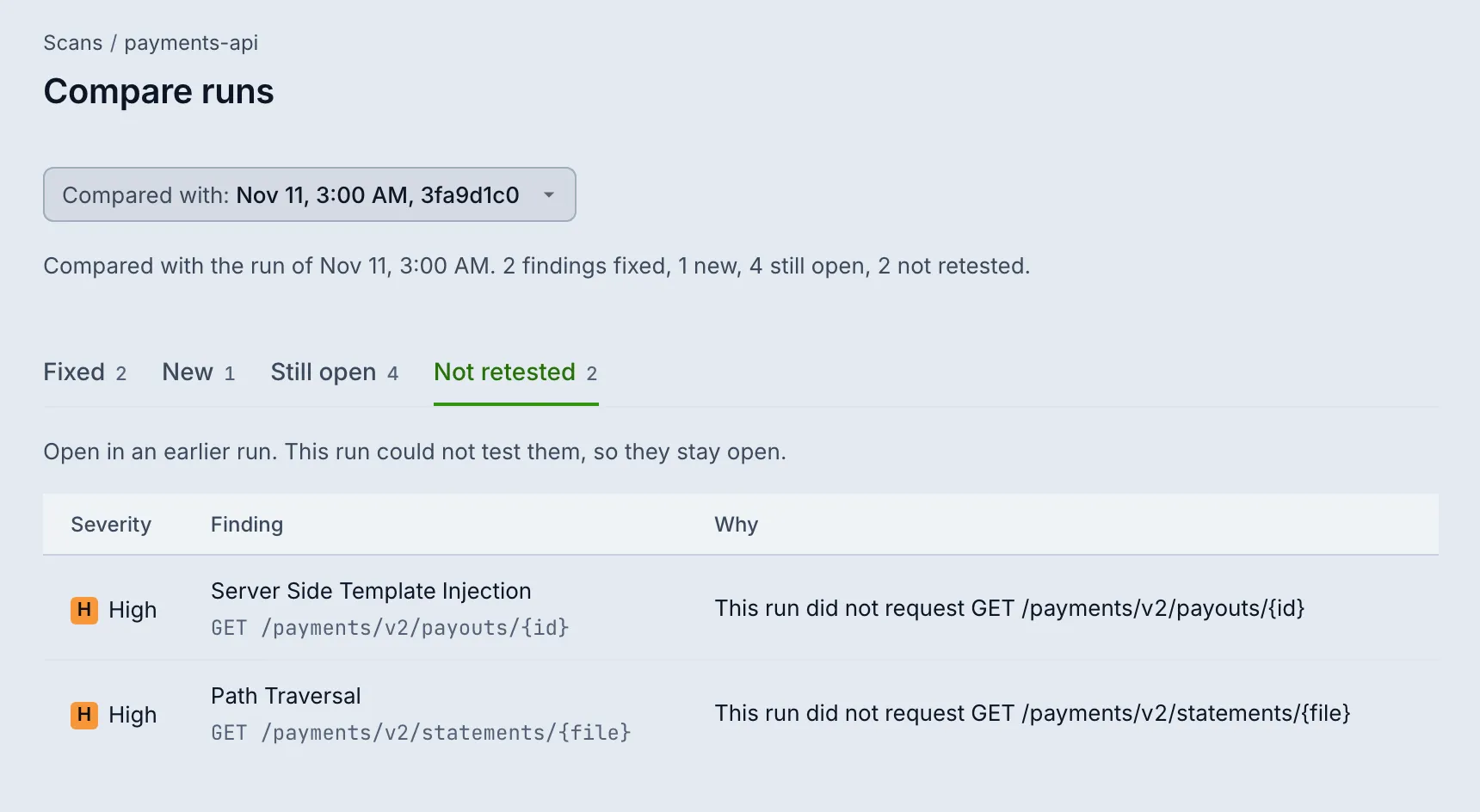
| Not retested | It was open in an earlier run, and this run could not test it. It stays open. |
Each row shows the severity, the finding, and the method, path and parameter it was found on. Select a finding to open it.
On the Fixed tab, the Retested by this run column shows the request the run sent to the same place and the status it got back, such as Requested POST with the URL, answered 400. A finding is counted as fixed only when the run went back to the same place and the problem was gone. A finding that simply did not show up is never counted as fixed.
If the two runs did not sign in the same way, a caution at the top says so. For example, when this run was signed out and the earlier one was signed in, findings behind the login could not be retested.
Why a finding was not retested
Section titled “Why a finding was not retested”The Not retested tab has a Why column. These are the reasons and what to do about each.
| Why | What it means | What to do |
|---|---|---|
| This run was signed out | The run had no session, so it could not reach what the earlier run tested. | Scan again with the authentication. |
| This run could not sign in | The login failed. | Fix the login. See Troubleshoot scans. |
| This run’s sign-in could not be confirmed | The login check was inconclusive. | Check Login status on the run. |
| This run signed in differently from the earlier one | The two runs used different sessions. | Compare runs that used the same authentication. |
| This run did not request the endpoint | The scan never sent a request to the endpoint the finding is on. | See Coverage for why, and add the path to the next scan. |
| This run did not test this parameter | The scan requested the endpoint but did not attack the parameter the finding is on. | Scan again. A longer duration gives the scan time to test more. |
| This check did not run in this run | The check that raised the finding was turned off, or did not run. | Scan again with the check on. See Start a scan. |
| This run has no path data | The run did not record the paths it requested. | Scan again. |
| Not retested for 30 days, so it no longer counts as open | No run has been able to test the finding for 30 days. | Scan again to find out whether it is still there. |
A finding that was not retested stays open, so a scan that reaches less never makes your numbers look better. The one exception is the last row: after 30 days without a retest, the finding stops counting as open.
The same findings appear on the later run’s Findings tab under Not retested in this run.
“Found this run” on the Scans list
Section titled ““Found this run” on the Scans list”You can see the change without opening a comparison. On the Scans page, the Found this run column shows what each run detected by severity, and under it, what changed against the application’s previous completed run:
- +1 new, 2 fixed counts the findings that are new and the findings that were fixed.
- No change means the same findings as before.
- Nothing is shown for an application’s first run, or for a run that did not complete.
To list only the runs that fixed or introduced something, set the Changes filter to Fixed findings or New findings. See Scans.
From the API
Section titled “From the API”GET /api/v1/scans/{id}/compare/ returns the same comparison. Pass against with the ID of the earlier run. Without it, the scan is compared with the run before it.
curl -H "Authorization: Token $NIGHTVISION_TOKEN" \ "https://api.nightviz.ai/api/v1/scans/$SCAN_ID/compare/?against=$EARLIER_SCAN_ID"The response has counts and four lists: fixed, new, still_open and not_retested. Rows in not_retested carry a reason. See Compare two scans in the API for the full response.
The Scans list API also returns new_issues_count, fixed_issues_count and not_retested_count on each scan, with the previous_scan_id they are measured against.