
Scans
Coverage: what a scan reached
A scan with no findings is only good news if the scan reached the application. The Coverage tab on a run shows what the scan requested, what it did not, and why.
In the dashboard: ScansScan activity
Open Scan activity (opens in a new tab)Open a run and select Coverage. Web scans, API scans and AI endpoint scans have the tab. Login checks do not.
What Coverage answers
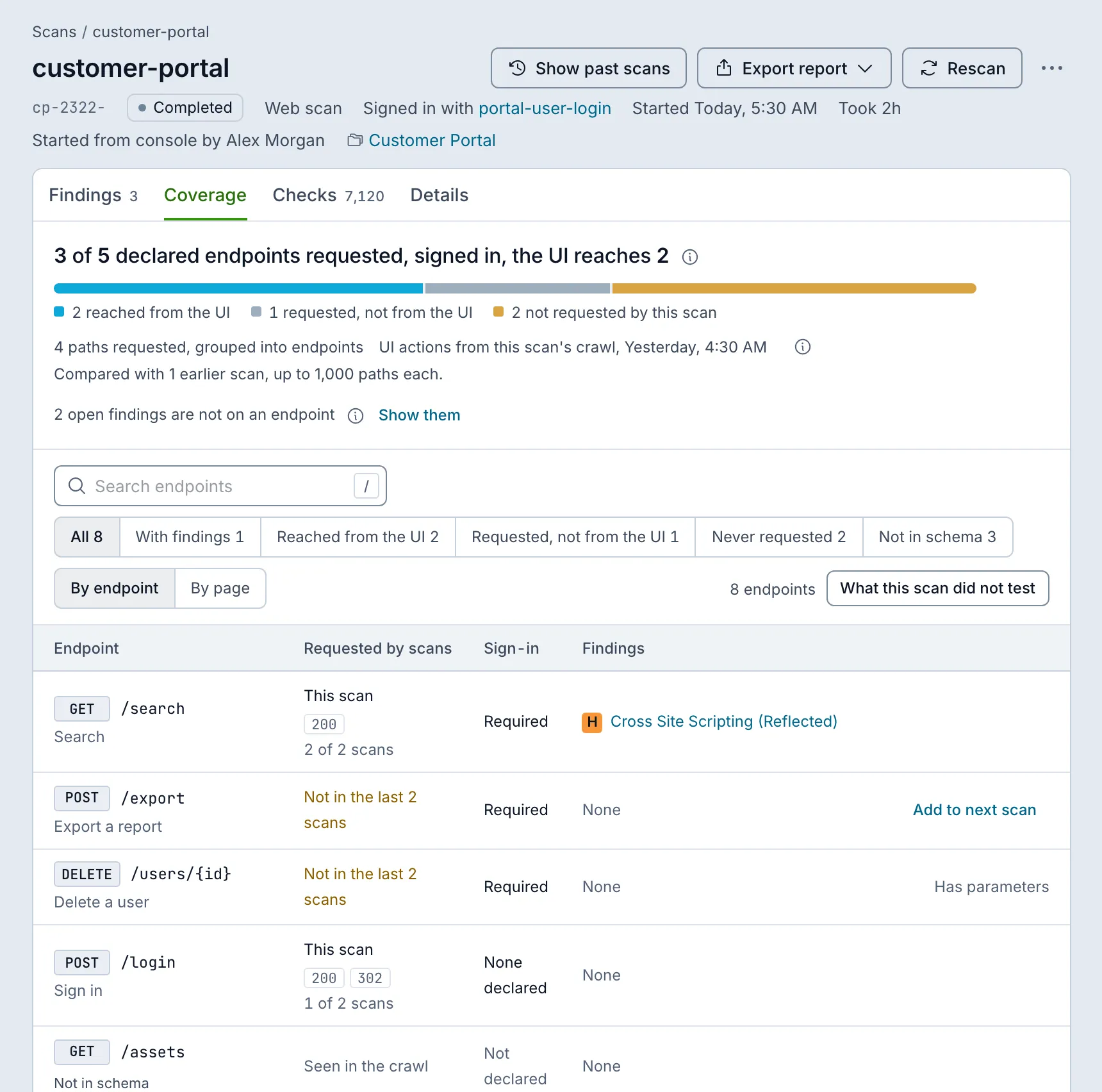
Section titled “What Coverage answers”The sentence at the top is the answer in short. For example: 3 of 5 declared endpoints requested, signed in, the UI reaches 2.
- 3 of 5 declared endpoints requested means the application’s API schema declares five endpoints and this scan sent requests to three of them.
- signed in means the scan held a session. A scan with no authentication, or one whose login did not finish, says so here.
- the UI reaches 2 means the crawl saw the application’s own screens call two of them.
The bar under the sentence splits the endpoints into three parts: reached from the UI, requested, not from the UI, and not requested by this scan. The last part is what to look at first.
The line under the bar says where the numbers come from: how many paths the scan requested, which crawl the UI actions come from, and how many earlier scans this one is compared with.
What it needs
Section titled “What it needs”Coverage works on every scan, and it gets more useful as you give NightVision more to compare with.
| You have | Coverage shows |
|---|---|
| A scan only | The endpoints the scan requested, with response codes and findings. It cannot show what the scan missed, because nothing says what exists. |
| An API schema attached to the application | Every declared endpoint, whether this scan or earlier scans requested it, its sign-in requirement, and the endpoints the scan found that the schema does not declare. |
| Network analysis turned on for the application | Which UI actions reach each endpoint, and the By page view. |
| A schema generated by Source intelligence | The handler file and line for each endpoint, and what the handler’s code reaches. |
Attach an API schema. Open the application, then API schemas under Setup, and add the OpenAPI document your application serves, as a file or a URL. On a web scan that has none, the run header shows No API schema with an Add one link. API applications already have their spec. See API specs.
Turn on network analysis. Open the application, then Advanced crawler settings. Network analysis runs on scans of 2 hours or more. See Crawler settings.
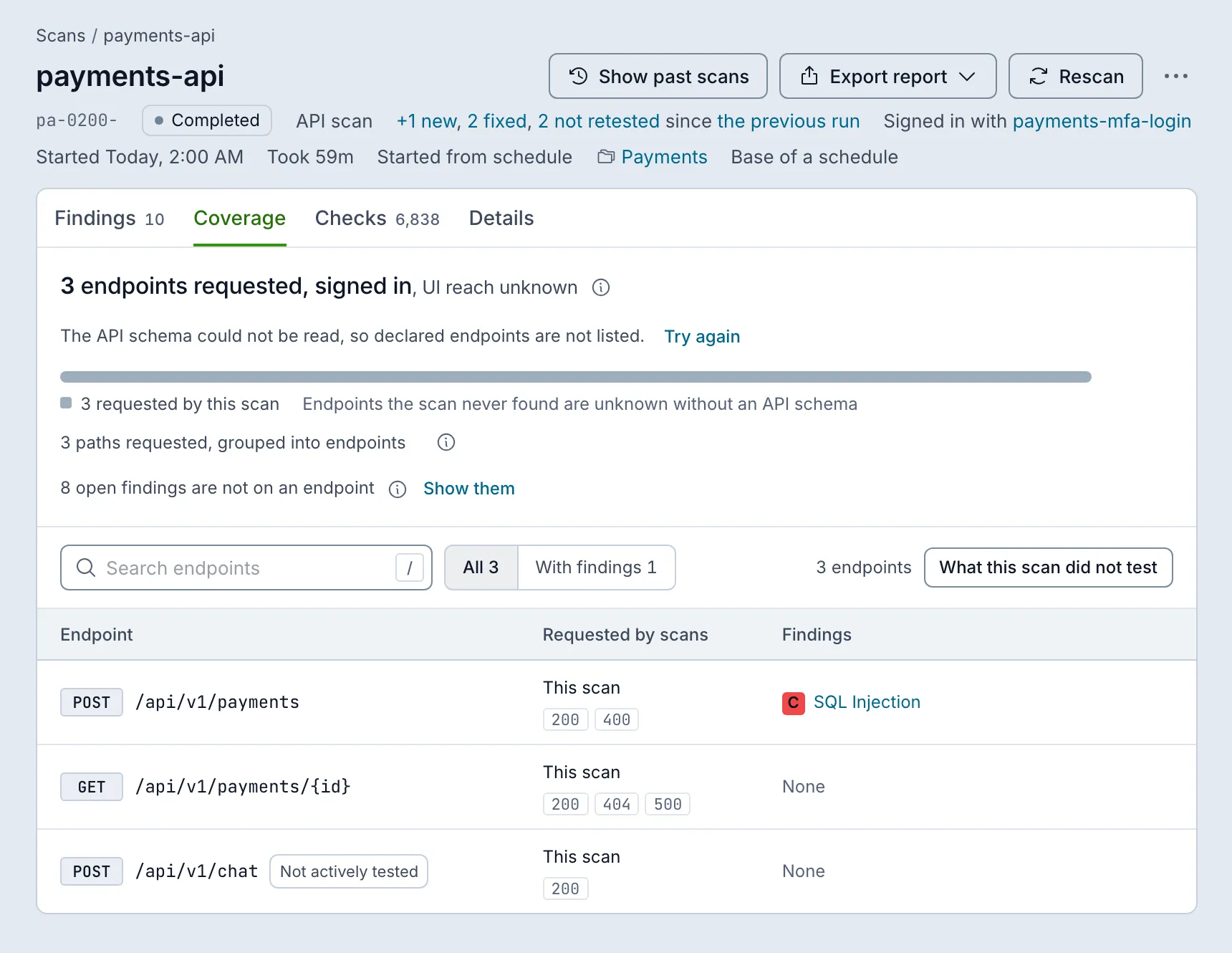
Without a usable schema, the tab lists only what the scan requested, and says that endpoints the scan never found are unknown:
The endpoint table
Section titled “The endpoint table”Each row is one endpoint: a method and a path. Paths that differ only by an ID are folded into one endpoint, so /users/42 and /users/7 appear as /users/{id}. Static files such as scripts, styles and images are left out.
| Column | Meaning |
|---|---|
| Endpoint | The method and path, with the summary from the schema. Not in schema marks an endpoint the scan requested that no attached schema declares. Not actively tested marks an LLM endpoint: ordinary active checks skipped it and the AI checks ran instead. See AI and LLM testing. |
| Requested by scans | This scan, with the response codes it received and how many of the compared scans requested it, such as 2 of 2 scans. Not in the last 2 scans means no compared scan requested it. Seen in the crawl means a UI action called it but the scan did not request it itself. |
| Reached from the UI | Yes, with the page and control that calls it, or No. Unknown means there is no network analysis for the application. |
| Sign-in | What the schema declares: Required, None declared, or Not declared when the endpoint is not in the schema. |
| Findings | The open findings on this endpoint in this scan. Select one to open it. |
| Handler | The source file and line that handles the endpoint. |
Use the chips above the table to narrow it: All, With findings, Reached from the UI, Requested, not from the UI, Never requested and Not in schema. Each shows its count. Search endpoints finds a path.
Select a row to open the endpoint in a side panel.
Reached from the UI
Section titled “Reached from the UI”With network analysis on, the crawler records which API calls each button, link and field fires. Coverage joins those calls to the endpoints, so you can tell an endpoint a user can reach by clicking from one that only answers direct requests.
NightVision names each UI action in plain words, such as Link to /assets/ or “Notifications” button. Hover over a name to see the selector.
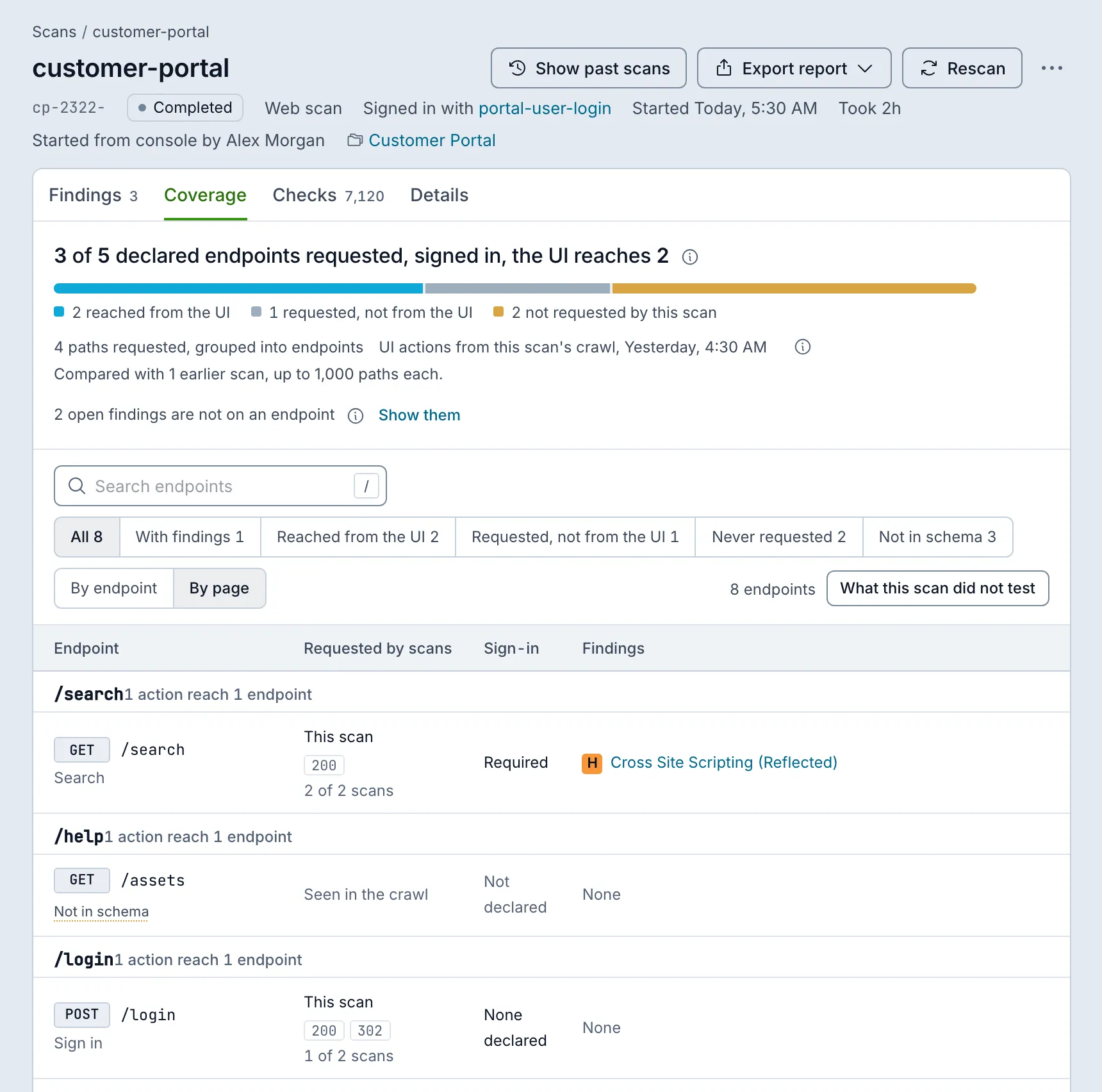
Select By page to group the endpoints under the pages whose actions call them. Navigation that works from every page is grouped under Every page (navigation), and endpoints no recorded action calls are grouped under Requested directly by the scan.
Handler file and line
Section titled “Handler file and line”When the application’s schema was generated by NightVision from your source code, each operation carries its source location. Select an endpoint to see it.
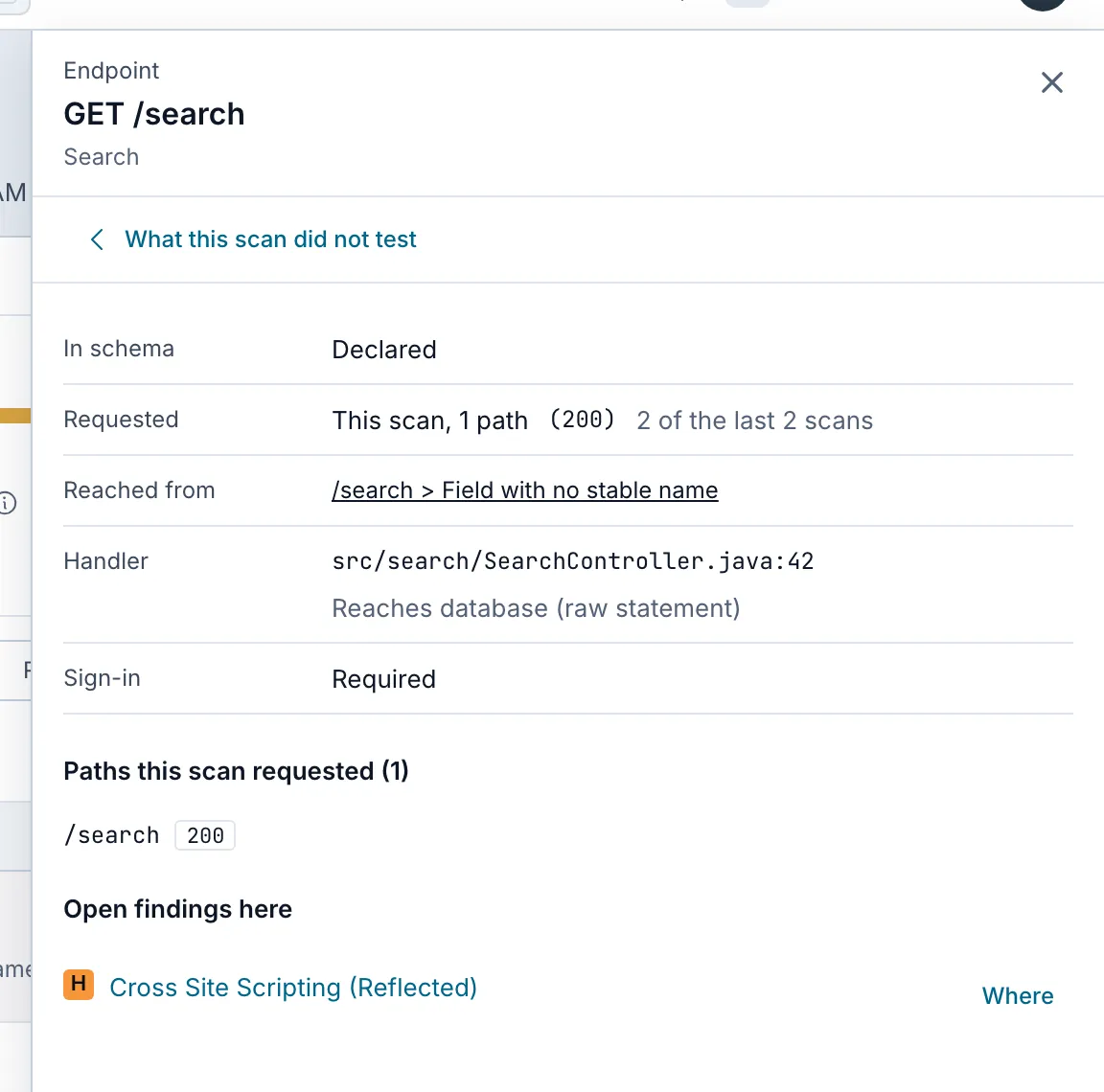
The panel shows:
- In schema: whether an attached schema declares the endpoint.
- Requested: how many paths this scan requested for it, with response codes, and how many recent scans requested it.
- Reached from: the UI actions that call it. Select one to see the action.
- Handler: the file and line, and what the handler’s code reaches, such as a database or an OS command. This describes reachability. It is not a finding.
- Sign-in: the requirement the schema declares.
- Paths this scan requested and Open findings here.
To generate a schema with source locations, see OpenAPI extract. To trace a finding to its code, see Code traceback.
What this scan did not test
Section titled “What this scan did not test”Select What this scan did not test for a list of the gaps NightVision can see, each with one next step.
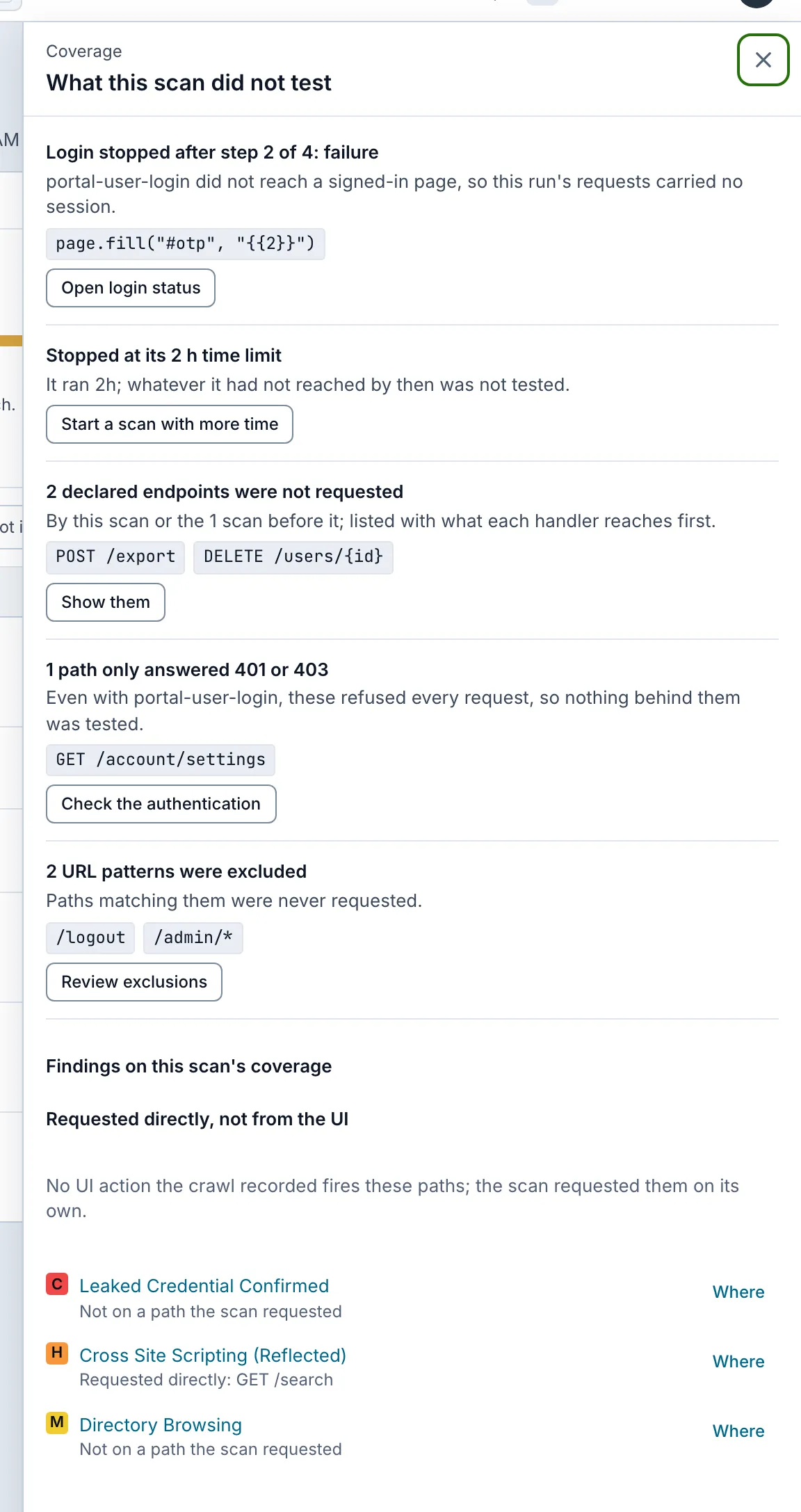
| Gap | What it means | Next step |
|---|---|---|
| Login stopped after step 2 of 4 | The login did not reach a signed-in page, so the run’s requests carried no session. | Open login status |
| Scanned signed out: no authentication is assigned | Pages and endpoints behind sign-in were not reached. | Assign an authentication |
| Stopped at its 2 h time limit | Whatever the scan had not reached by then was not tested. | Start a scan with more time |
| 2 declared endpoints were not requested | The schema declares them, and neither this scan nor the ones before it requested them. | Show them, then add them to the next scan |
| 1 path only answered 401 or 403 | The application refused every request to these paths, so nothing behind them was tested. | Check the authentication |
| UI actions were never exercised | The crawl found controls but did not see what they call. Disabled controls are not counted. | Show them |
| 2 URL patterns were excluded | Paths that match the application’s exclusions were never requested. | Review exclusions |
When none of these apply, the panel says there is nothing this scan left out that NightVision can see.
Below the gaps, Findings on this scan’s coverage groups the scan’s open findings by where they were found: on API calls the UI reaches, on page responses, or requested directly.
Add to next scan
Section titled “Add to next scan”For a web application, a declared endpoint that no scan requested has an Add to next scan button on its row and in its side panel. Select it to add the endpoint’s URL to the application, so the next scan requests it even if the crawler does not find it.
- To add all of them at once, filter to Never requested and select the button that adds every unrequested path to the next scan.
- Has parameters means the path has parameters to fill in, such as
/users/{id}, so it cannot be added as a plain URL. - In next scan means it is already added.
You do not need this for an API application. An API scan sends requests for every endpoint its spec declares.
From the API
Section titled “From the API”| To read | Call |
|---|---|
| The paths a scan requested, with response codes | GET /api/v1/scans/{id}/checked-paths/ |
| The UI actions and the API calls they fire | GET /api/v1/targets/{id}/network-analysis/bindings/ |
Each checked path lists the parameters the scan attacked on it, with each parameter’s name and where it sits in the request.
The API calls an application a target. See the API reference.