

Applications
Tags, owners and teams
Tags and owners answer two questions about every application: what is it, and who is answerable for it. Use them to slice the Applications and Scans lists, to route work, and to keep a large estate readable.
In the dashboard: Applications
Open Applications (opens in a new tab)- A tag is a label you define, such as
environment: productionorcompliance: PCI. An application can carry many. - An owner is one person or one team. An application has one owner at a time.
What a tag is
Section titled “What a tag is”A tag has four parts:
| Part | Notes |
|---|---|
| Key | Optional, up to 40 characters. Groups related tags: environment, compliance, business-unit |
| Name | Required, up to 50 characters. The value: production, PCI, Retail |
| Color | One of ten colors |
| Icon | One of fifteen icons, such as a shield, a lock, a cloud or a star |
A tag with a key reads environment: production. A tag without one is a plain label, such as crown jewel. Two tags cannot share the same key and name.
Tags belong to your organization, not to a project. Everyone in the organization picks from the same set, so a tag means the same thing on every application.
Tag one application
Section titled “Tag one application”You can tag an application from three places. All of them open the same Tags field.
- In the Applications list, open the row menu and choose Edit tags.
- On the application’s page, select Edit tags on the Application card.
- In the New application and Edit application forms, use the Tags field.
Then:
- Start typing. Existing tags that match are offered, and typing the start of a key, such as
env, suggestsenvironment:. - Pick a tag to add it. Remove one with the cross on its chip.
- To make a new tag in place, type a key and a value, such as
compliance: PCI, or a plain label. Choose its color and icon, then select Create tag. - Select Save tags. In the application forms, the tags save with the form.
Changing tags never changes the application’s other settings.
Tag in bulk
Section titled “Tag in bulk”- On Applications, tick the applications you want.
- In the bar above the table, select Add tag or Remove tag.
- Choose the tag. Remove tag offers only tags the selected applications carry.
- Select Add tag or Remove tag to confirm.
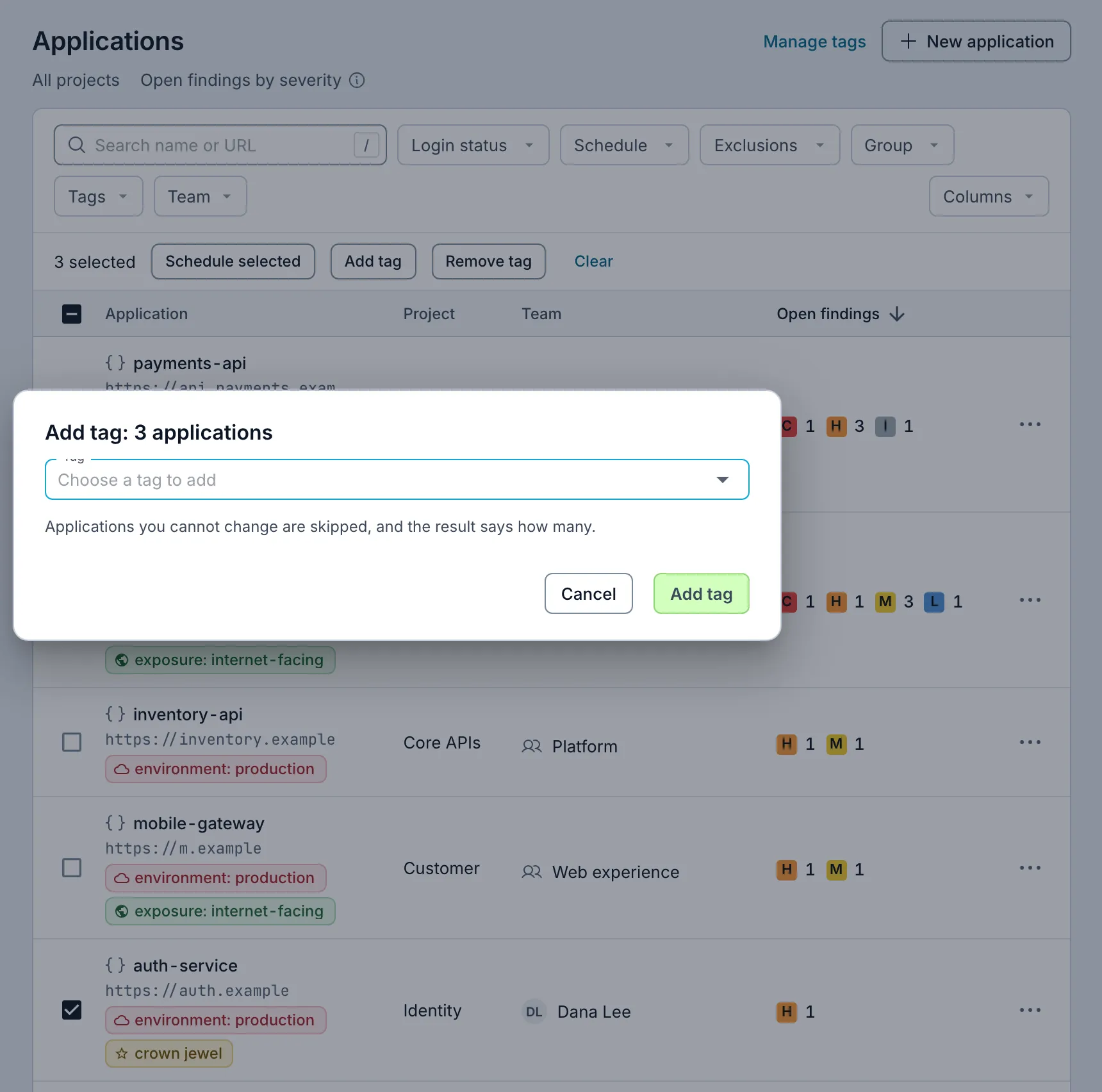
A message tells you how many applications changed and how many were skipped. Applications you are not allowed to change are skipped, and applications that already match are left as they are. Anything the change did not reach stays selected so you can try again.
Manage tags
Section titled “Manage tags”Manage tags, at the top of the Applications page, lists every tag in the organization with the number of applications that carry it.
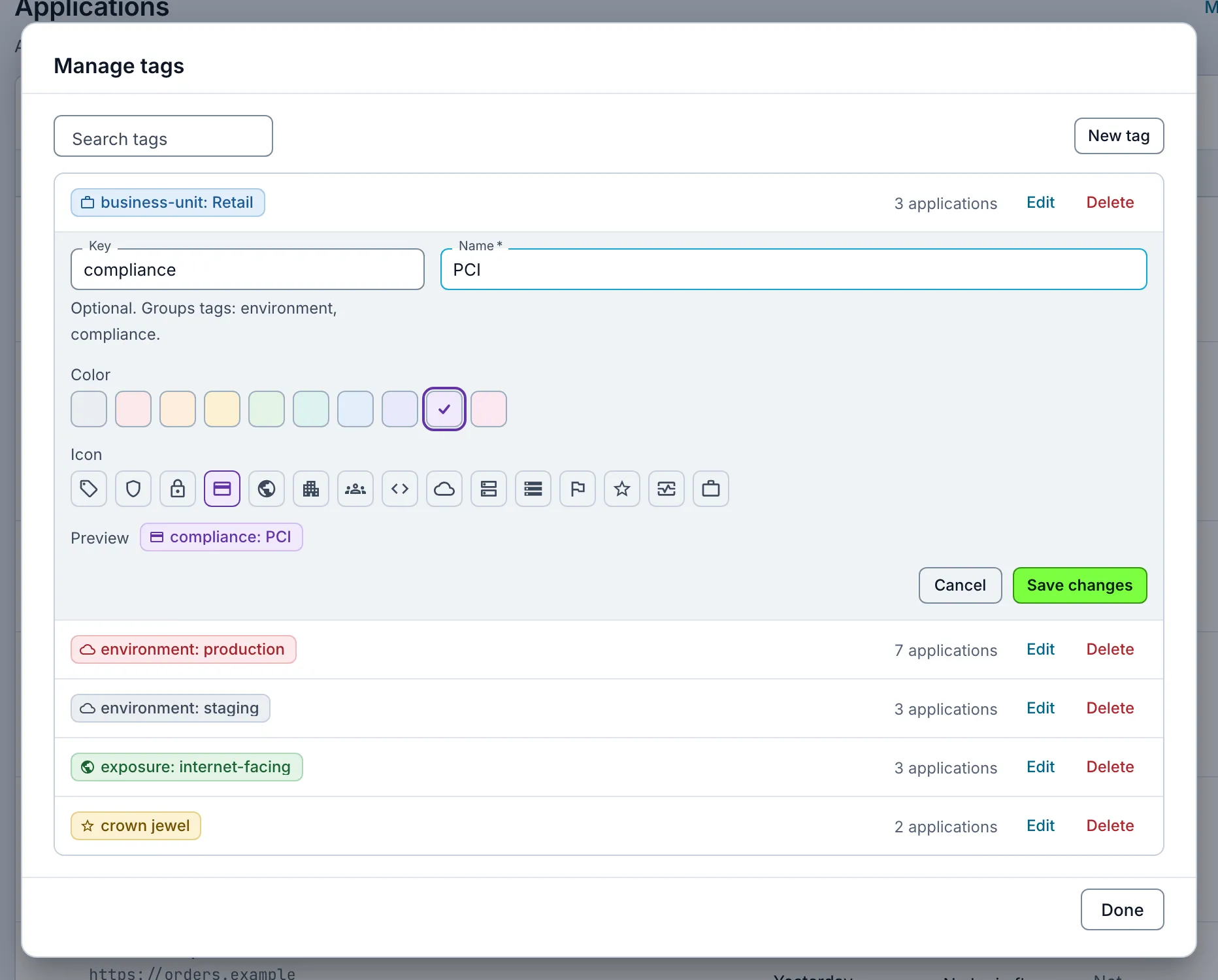
- New tag creates a tag before any application uses it.
- Edit changes a tag’s key, name, color or icon. The change shows on every application that carries the tag.
- Delete removes the tag from every application in the organization, including ones you cannot see. The count in the dialog covers only the applications you can see. Deleting cannot be undone.
Use Search tags to find one in a long list.
Filter by tag
Section titled “Filter by tag”On Applications
Section titled “On Applications”- Open the Tags filter.
- Tick one or more tags. The number beside each tag is how many applications carry it.
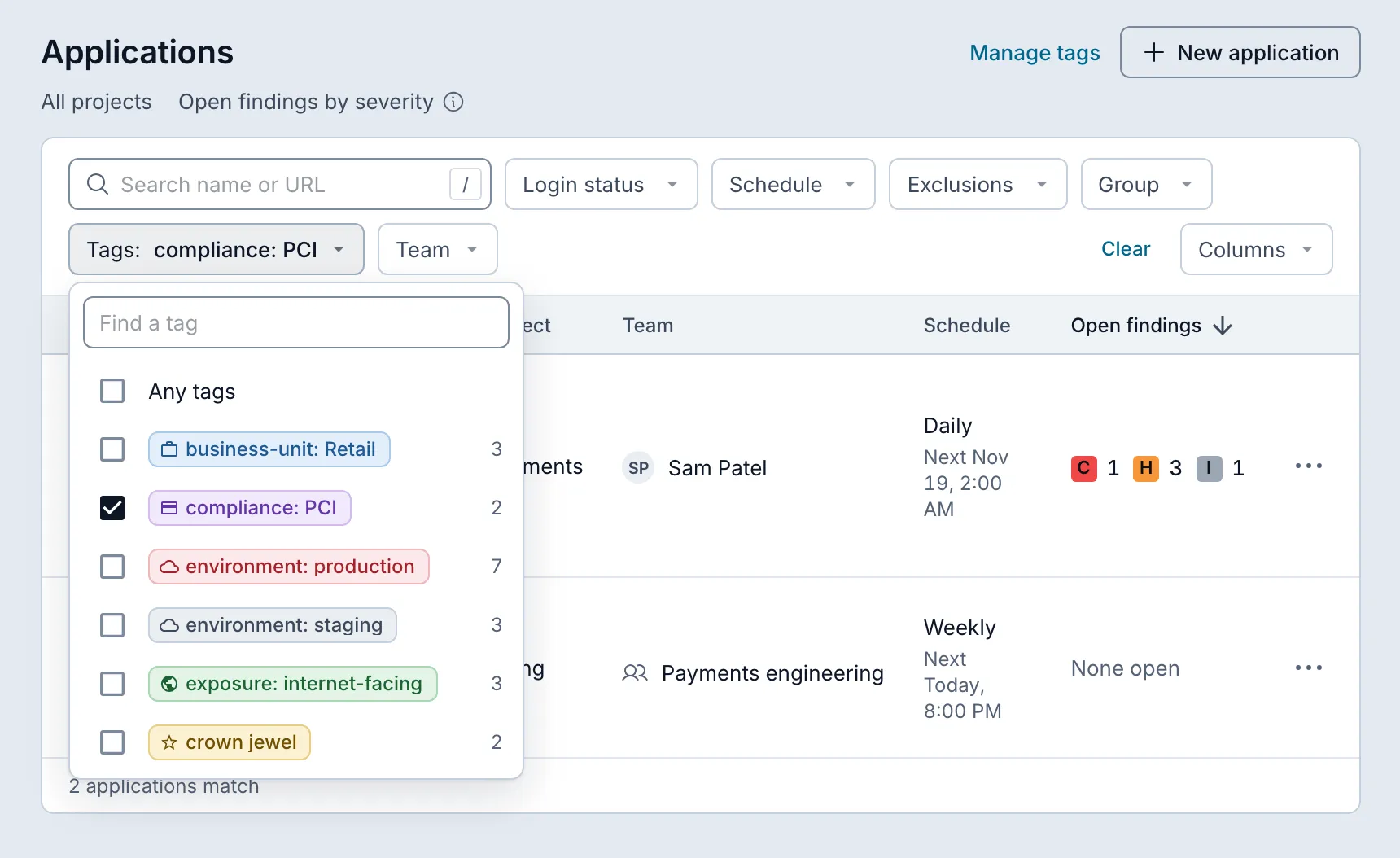
With several tags ticked, the list shows applications that carry all of them. You can choose up to 20 tags at a time. Choose Any tags to clear the filter.
The filter is part of the page address, so a link you share opens the same view. The Applications page also remembers your last tag filter in this browser and brings it back on your next visit.
On Scans
Section titled “On Scans”The Scans list has the same Tags filter. It shows scans of applications that carry the tags you tick, so you can review every scan of your production or PCI estate in one view. See Scans.
Tags on scans and findings
Section titled “Tags on scans and findings”An application’s tags travel with its work. Every scan and every finding carries the tags of the application it belongs to, so the tag filter narrows findings the same way it narrows applications and scans.
Tags also set priority. Your organization marks the tags that carry business weight, for example a tag for regulated data or for your most important systems. A finding on an application with one of those tags is ordered above an equally severe finding elsewhere, so the list you work from starts with what matters most to the business. See Findings.
Set an owner or a team
Section titled “Set an owner or a team”An owner is the person or team answerable for an application. A team is a group in your organization. Groups are managed under Settings, in Members, roles and groups.
To set the owner when you create an application, use the Owner field in the form. To set or change it later:
- Open the application.
- On the Application card, beside Owner, select Set owner or Change.
- Choose People or Teams, then search for and pick the owner. Pick No owner to clear it.
- Select Save.
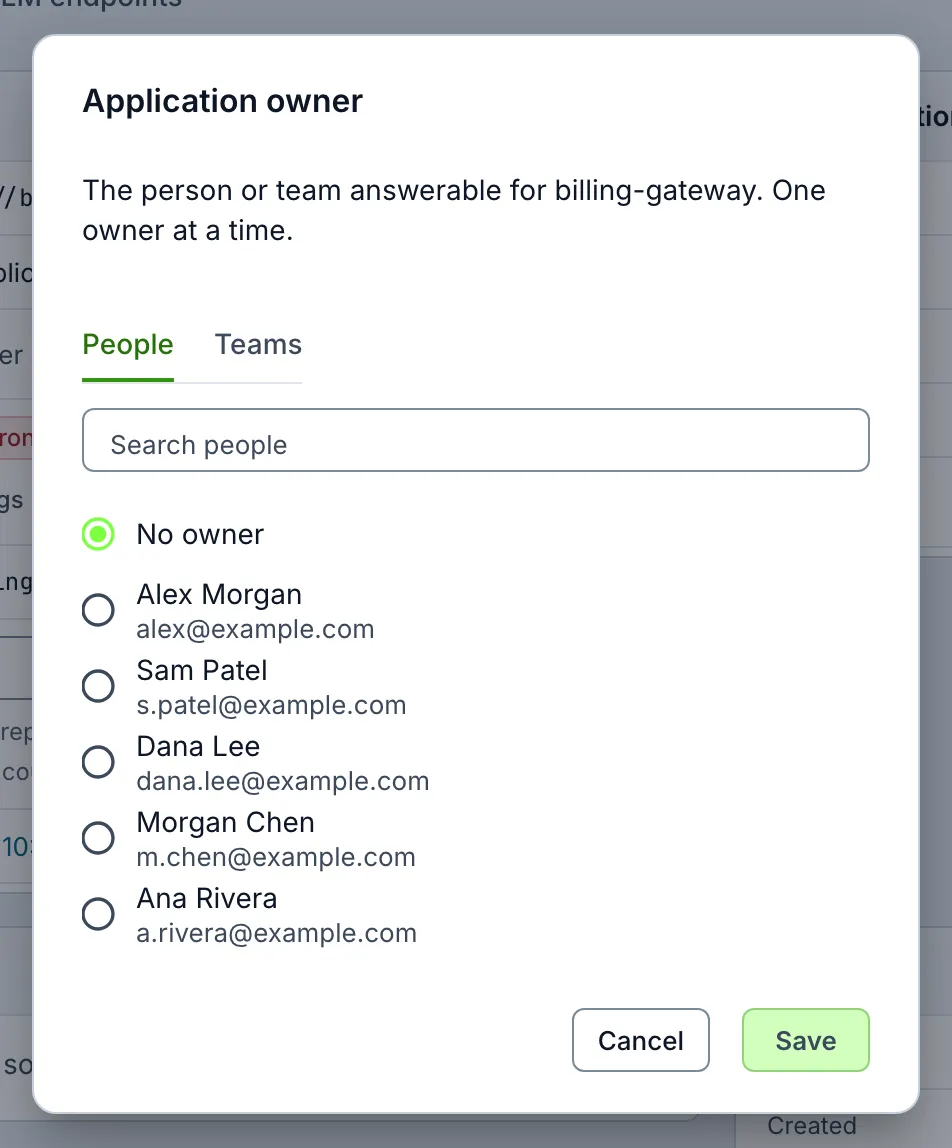
The owner shows in the Team column of the Applications list. If an owner leaves the organization, the application is marked as having a former owner until you choose a new one.
Filter by owner
Section titled “Filter by owner”Open the Team filter on Applications.
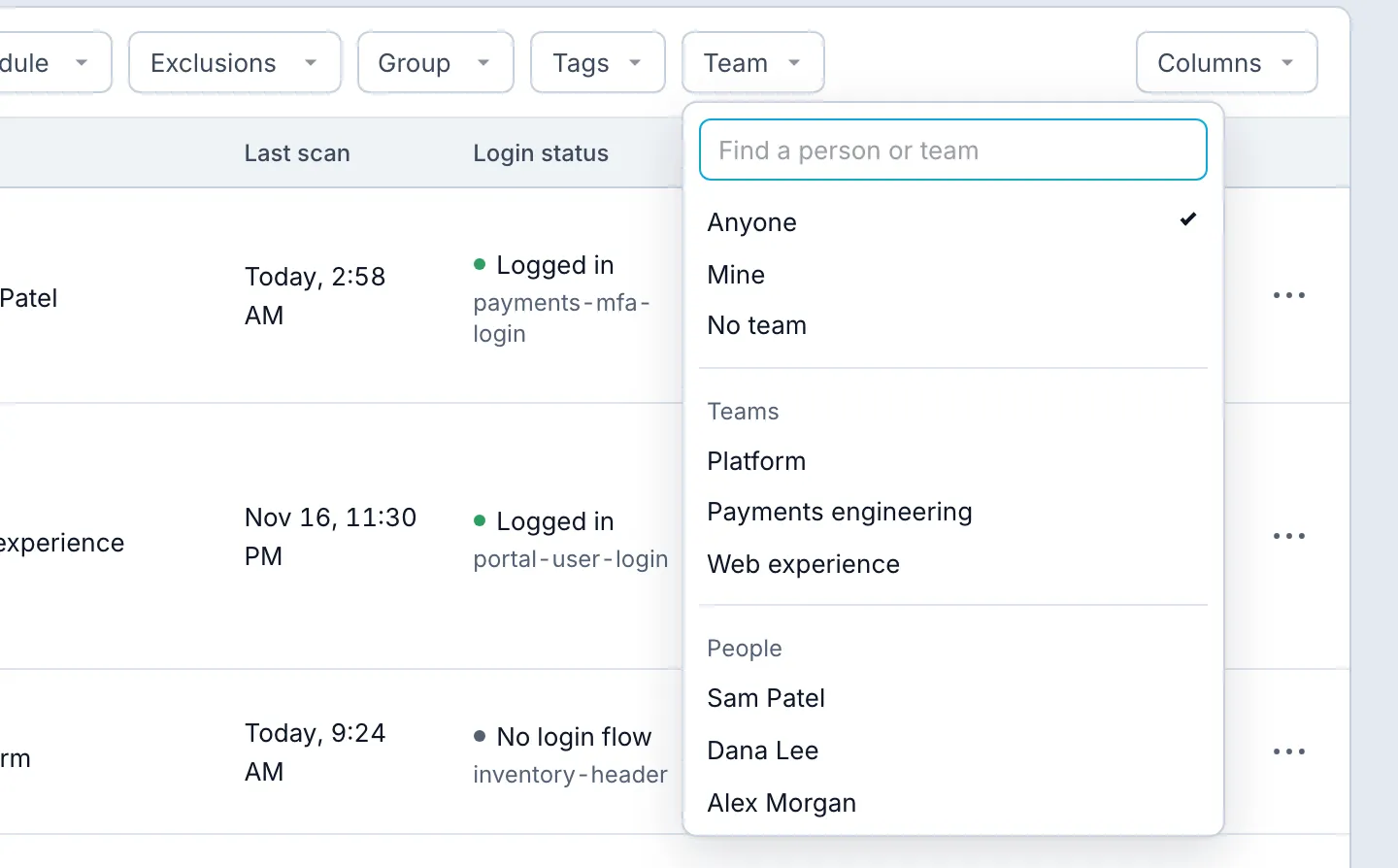
- Mine shows applications you own.
- No team shows applications with no owner, which is a quick way to find what still needs one.
- Pick a team or a person to see theirs. Use the search box when the list is long.
Group by team
Section titled “Group by team”Set Group to By team. Each owner gets a heading with a count, and applications with no owner are grouped last under No team.
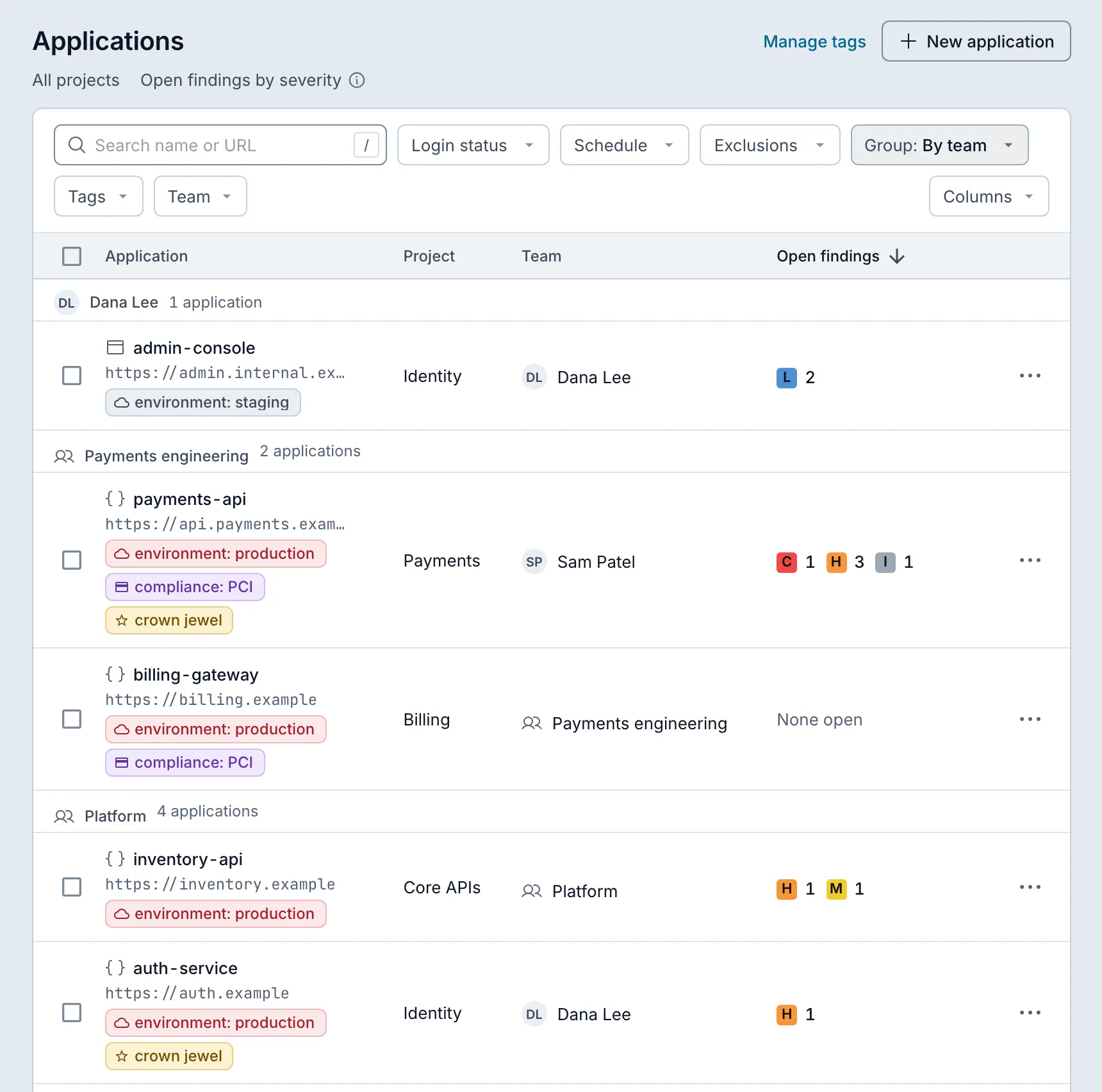
You can also sort by the Team column without grouping.
Who can do what
Section titled “Who can do what”Tags are shared across the organization, so changing one is limited to roles that see the whole organization.
| Action | Org Admin | Project Manager | Scan Operator | Read-Only |
|---|---|---|---|---|
| See tags and filter by them | Yes | Yes | Yes | Yes |
| Add or remove tags on an application | Yes | In their projects | No | No |
| Create a tag | Yes | Yes | No | No |
| Rename, restyle or delete a tag | Yes | No | No | No |
| Set an application’s owner | Yes | In their projects | No | No |
Two more rules apply:
- You tag and assign owners only in your own organization. An application shared with you from another organization shows no tag actions.
- Where your plan does not allow changes, the controls show disabled with the reason.
Members, roles and groups describes the roles in full.
From the API
Section titled “From the API”The API calls applications targets. Base URL: https://api.nightviz.ai/api/v1/.
| Method and path | What it does |
|---|---|
GET /tags/, POST /tags/ |
List and create tags |
GET, PUT, DELETE /tags/{id}/ |
Read, change or delete one tag |
POST /tags/{id}/assign-to-targets/ |
Add a tag to up to 500 applications |
POST /tags/{id}/remove-from-targets/ |
Remove a tag from up to 500 applications |
PUT /targets/{id}/tags/ |
Replace an application’s tags |
GET /targets/?tag=<id> |
List applications that have every tag given |
GET /targets/?owner=me |
List applications by owner. Also owner=none and owner_group=<id> |
GET /targets/{id}/owner-candidates/ |
People who can own this application |
GET /targets/{id}/owner-group-candidates/ |
Teams that can own this application |
Set an owner by sending owner_id or owner_group_id when you create or update an application.
Applications: tags, owners and bindings has full requests and responses for each of these.