

Applications
Scope
Scope is the set of URLs a scan is allowed to request. By default a scan stays on the application’s own host and requests anything it finds there. You change that in two ways:
- Exclusions take things out: URLs the scan must never request, and on a web application, elements it must never click.
- User-defined domains put things in: other hosts that are part of the same web application.
In the dashboard: Applications
Open Applications (opens in a new tab)Both are settings on the application, so every scan of it uses them, whether it starts from the dashboard, a schedule or the CLI.
To see what a scan actually requested, open the scan’s Coverage tab.
Exclusions
Section titled “Exclusions”Scans send real requests and click real buttons. A request to a logout link ends the session, and a request to a delete or reset endpoint does what it says. Exclude those before you scan.
What a new application starts with
Section titled “What a new application starts with”Every new application starts with a default list that keeps scans away from pages that end or change a session: log out, sign out, password and registration pages. The list is written as patterns such as .*logout.* and .*password.*. You can remove a default, and you can add your own.
Edit an application’s exclusions
Section titled “Edit an application’s exclusions”- Open the application, then More settings and Exclusions.
- Under Excluded URL patterns, type a pattern and select Add, or press Enter. Remove a pattern with the cross on its chip.
- On a web application, do the same under Excluded clicks based on XPath.
- Select Save exclusions. The next scan uses them.
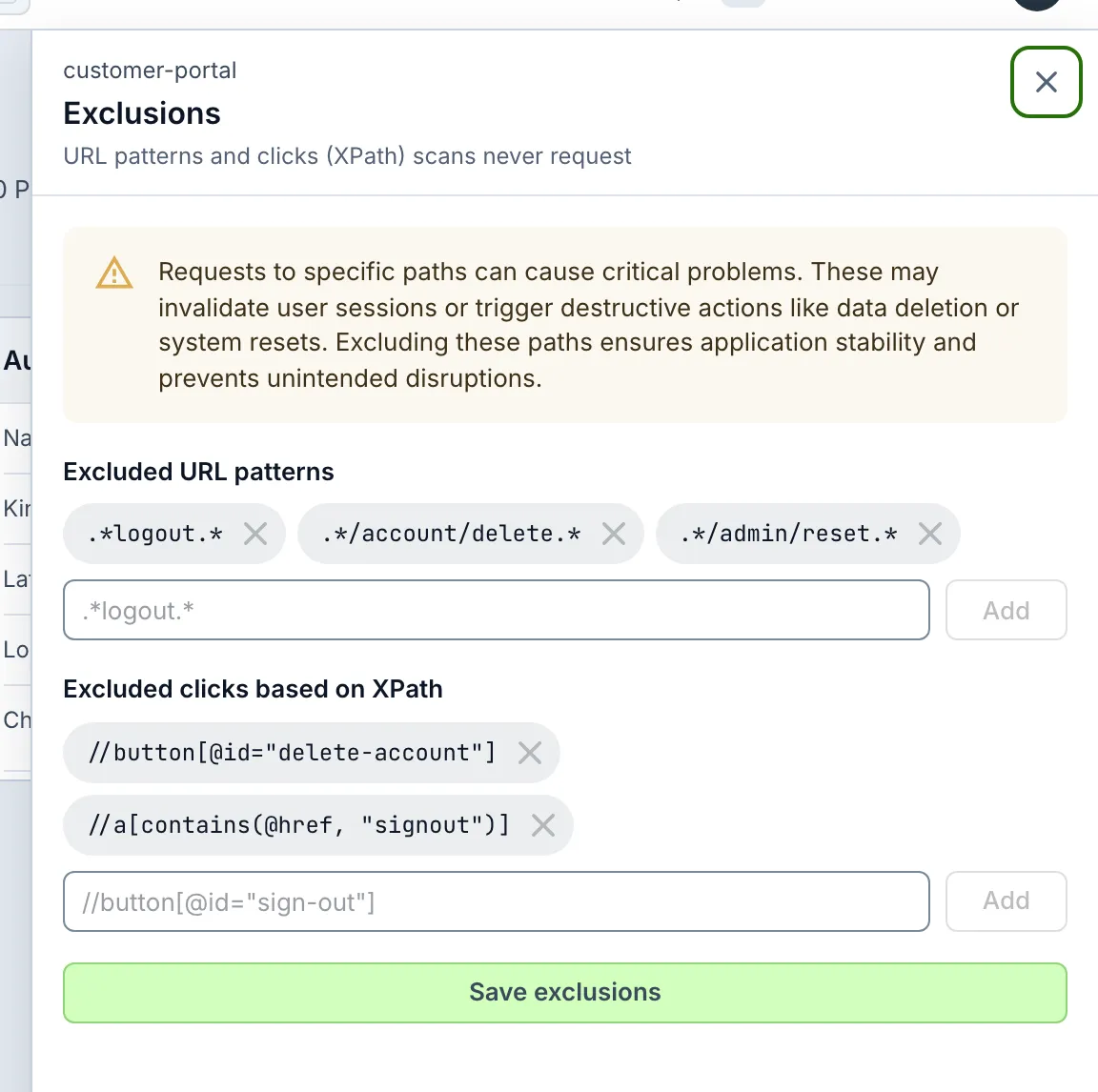
API applications have URL patterns only. There is nothing to click.
You can also set exclusions when you add an application, under Exclusions in the form.
Change exclusions as you start a scan
Section titled “Change exclusions as you start a scan”The New scan setup has an Exclusions field, one pattern per line, and on a web application Exclude clicks based on XPath. Anything you change there is saved on the application when the scan starts, so it applies to later scans too.
Write a URL pattern
Section titled “Write a URL pattern”A URL pattern is a regular expression. Three rules explain almost every surprise:
- It is matched against the whole URL, scheme and host included, without the query string or fragment. A bare word matches nothing. Wrap it in
.*to match it anywhere. - It is not case sensitive.
- It follows Java regular expression syntax, which is what the scan engine reads.
| To exclude | Pattern |
|---|---|
| One exact page | https://portal\.example\.com/account/close |
| Everything under a path | https://portal\.example\.com/admin/.* |
| Any URL that contains a word | .*logout.* |
| Any URL that ends a certain way | .*\.pdf |
| A path on any host | .*/account/delete.* |
Escape a literal dot as \.. An unescaped dot matches any character, which usually still works but matches more than you meant.
Each list holds up to 500 entries of up to 5,000 characters each.
Exclude a click
Section titled “Exclude a click”On a web application, the crawler clicks buttons and links to find pages. An XPath exclusion names an element it must leave alone. Use it when an action has no URL of its own to exclude, such as a button that signs the user out or deletes something through a script.
//button[@id="delete-account"]//a[contains(@href, "signout")]When an exclusion blocks the whole application
Section titled “When an exclusion blocks the whole application”Because a pattern is matched against the whole URL, a pattern meant for a path can also match the application’s own address. .*portal.* is meant to skip a portal page, but it matches every URL of an application at https://portal.example.com. The scan then excludes the entire application and fails.
NightVision checks for this and warns you wherever you can fix it:
- In the Applications list, the row is marked Exclusion conflict. Hover over it to see which pattern is the cause.
- At the top of the application’s page, a warning names the pattern and offers Remove exclusion.
- In the Exclusions panel, the New application form and the New scan setup, the same warning appears as you type.

To find every affected application, set the Exclusions filter on the Applications list to Conflict with the address.
Remove exclusion removes that one pattern from that one application and leaves the rest of the list as it is. Then write a narrower pattern, for example .*/portal/.*, if you still need one.
User-defined domains
Section titled “User-defined domains”Many web applications are spread over more than one host: the pages on one, an API on another, sign-in on a third. A scan stays on the application’s own host unless you tell it the others belong. User-defined domains are that list.
User-defined domains apply to web applications.
- Open the application, then More settings and User-defined domains.
- Select Add domain.
- Enter the Domain URL, for example
https://static.portal.example.com/, and select Add.
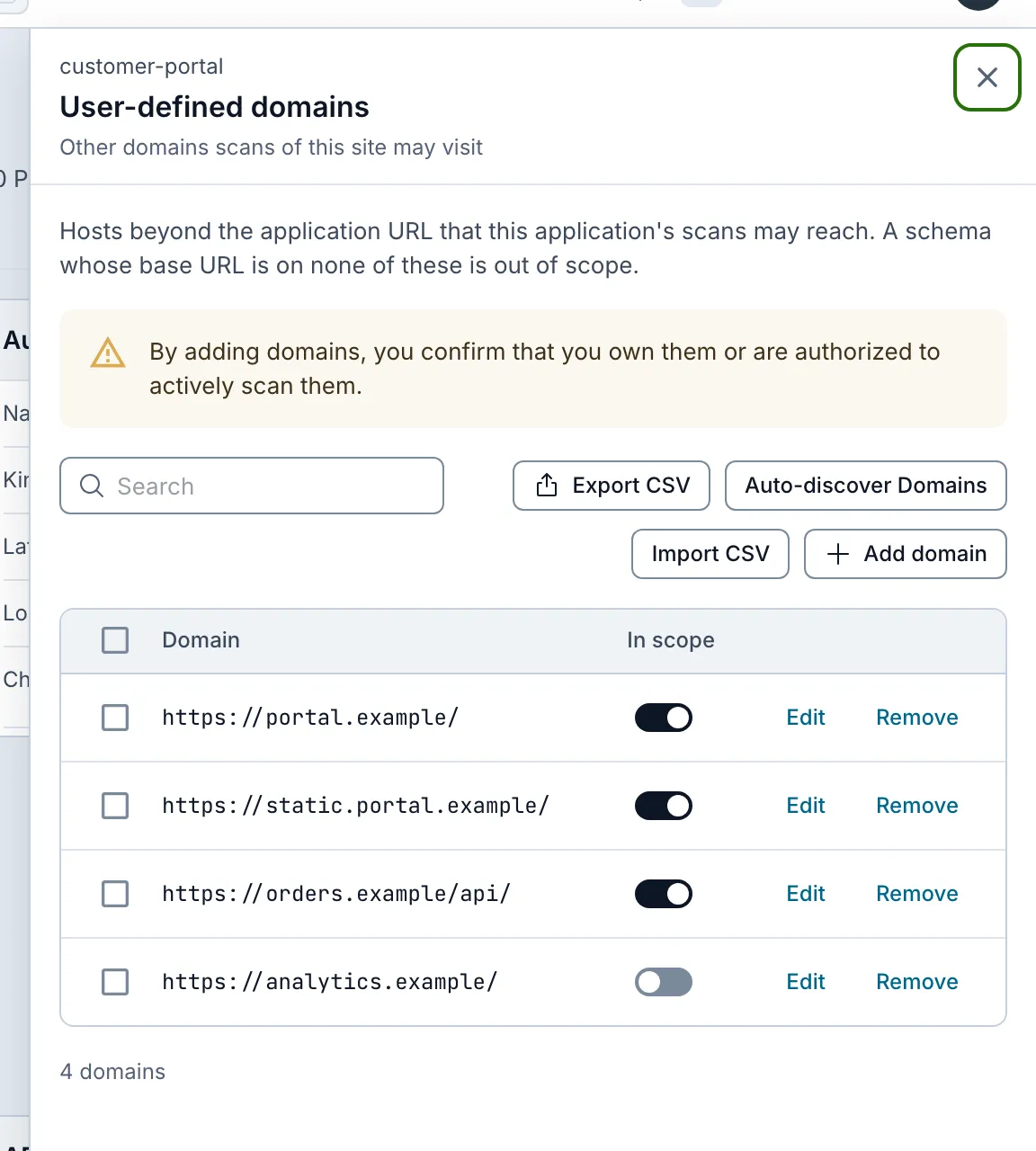
For each domain you can:
- Turn In scope off to keep the entry but stop scans from visiting it, and on again later.
- Edit its address, or Remove it.
- Tick several rows and select Delete selected.
An API schema attached to a web application is used only when its base URL is on the application’s own host or on one of these domains.
Import and export
Section titled “Import and export”- Import CSV adds many domains at once. The file needs a header row with a
pathcolumn and one domain URL per row. - Export CSV saves the current list in the same format.
pathhttps://static.portal.example.com/https://orders.example.com/api/Find the domains automatically
Section titled “Find the domains automatically”You do not have to know every host your application talks to. The CLI can watch it and tell you.
- In the panel, select Auto-discover Domains. The dialog shows the command for this application, for macOS and Linux or for Windows.
- Run the command on a machine that can reach the application. A Chrome window opens.
- If the application needs a login, log in. Then browse it. Loading the home page after you log in may be enough.
- Close the Chrome window. The CLI lists the domains it saw and asks which ones to include.
- The domains you keep are uploaded to the application. Ones it already has are skipped.
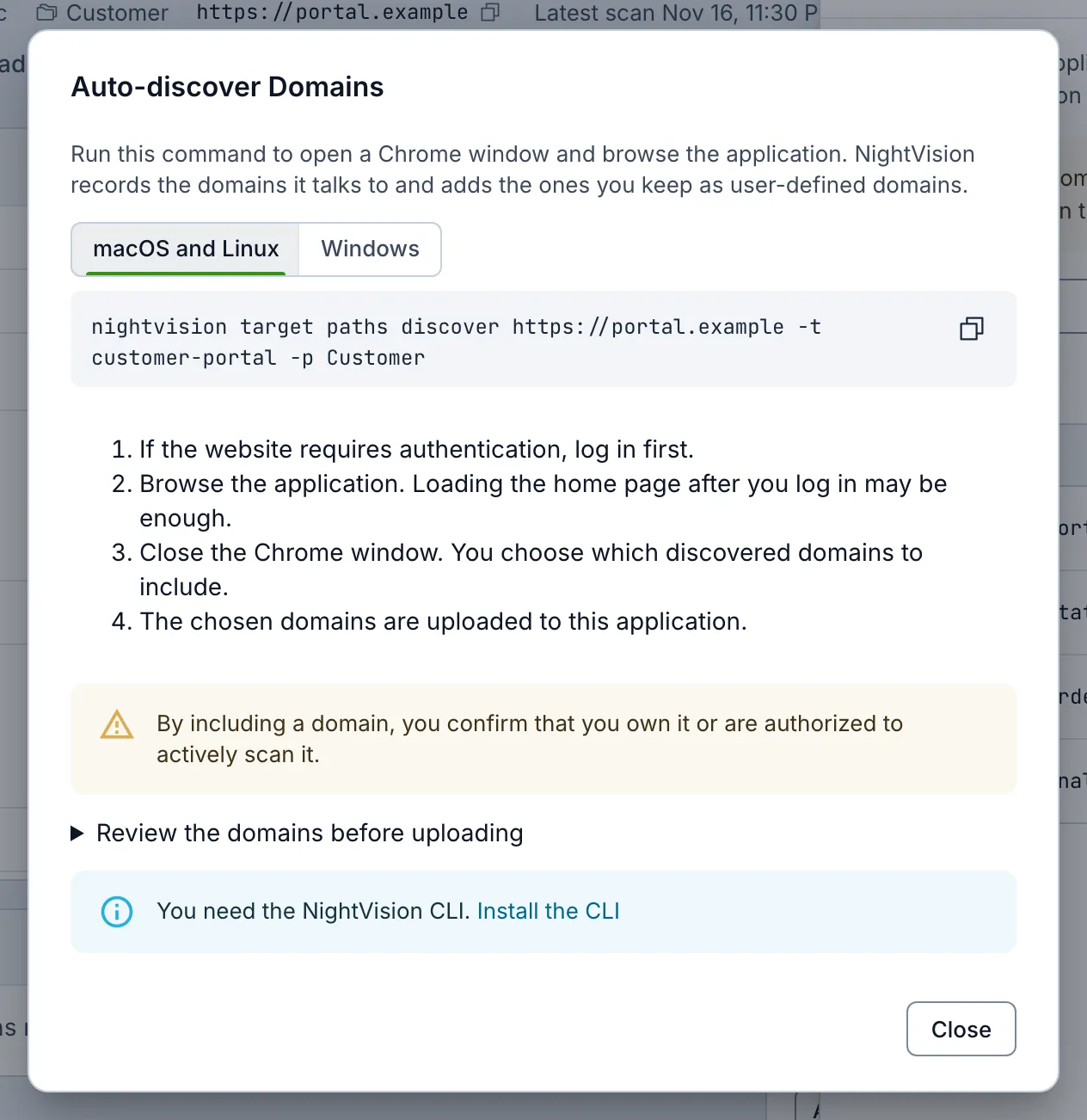
The command looks like this:
nightvision target paths discover https://portal.example.com \ --target customer-portal -p "Customer"To review the domains before anything is uploaded, save them to a file first, then upload the file:
nightvision target paths discover https://portal.example.com \  --target customer-portal -p "Customer" --no-upload -o paths.csv
nightvision target paths upload paths.csv --target customer-portal -p "Customer"
You need the CLI for this. See Install the CLI.
From the CLI
Section titled “From the CLI”The CLI calls an application a target.
Set exclusions when you create an application or on an existing one. Repeat a flag to give several values:
nightvision target create customer-portal https://portal.example.com --type WEB \  --exclude-url ".*logout.*" \  --exclude-url ".*/account/delete.*" \  --exclude-xpath '//button[@id="delete-account"]'
nightvision target update customer-portal \  --exclude-url ".*logout.*" \  --exclude-url ".*/admin/reset.*"
On target update, the values you give become the application’s list. To clear a list, pass an empty value:
nightvision target update customer-portal --exclude-url ""nightvision target update customer-portal --exclude-xpath ""Leave a flag out to keep that list as it is. On target create, leaving --exclude-url out gives the application the default list. If you do pass it, your values replace the defaults, so include a logout pattern of your own.
User-defined domains use nightvision target paths discover and nightvision target paths upload, shown above.
From the API
Section titled “From the API”Base URL: https://api.nightviz.ai/api/v1/. See the API overview for authentication.
Exclusions are part of an application’s configuration:
{ "configuration": { "excluded_url_patterns": [".*logout.*", ".*/account/delete.*"], "excluded_x_paths": ["//button[@id=\"delete-account\"]"] }}Send it with PUT /targets/url/{id}/ for a web application or PUT /targets/openapi/{id}/ for an API application. GET /common/exclusions/ returns the default list new applications start with.
User-defined domains are additional-paths on a web application:
| Method and path | What it does |
|---|---|
GET /targets/url/{id}/additional-paths/ |
List the domains |
POST /targets/url/{id}/additional-paths/ |
Add domains. The body is a list of objects with a path |
PUT /targets/url/{id}/additional-paths/{path_id}/ |
Change one domain’s path, or set disabled to take it out of scope |
POST /targets/url/{id}/additional-paths/delete |
Remove domains |
The API reference lists every field.