

Authentication
Editing scripts
When a small part of a login changes, such as a renamed button or a new login path, you can edit the recorded script in the dashboard. You do not need the CLI or a new recording.
In the dashboard: Authentications
Open Authentications (opens in a new tab)Edit for small changes. Re-record when the flow itself changes or you need a new password.
Open the editor
Section titled “Open the editor”- Select Authentications and open the recorded login.
- Select the Script and settings tab. The Authentication Script panel shows the script with line numbers.
- Select Edit script. The panel becomes an editor and shows an Editing chip.
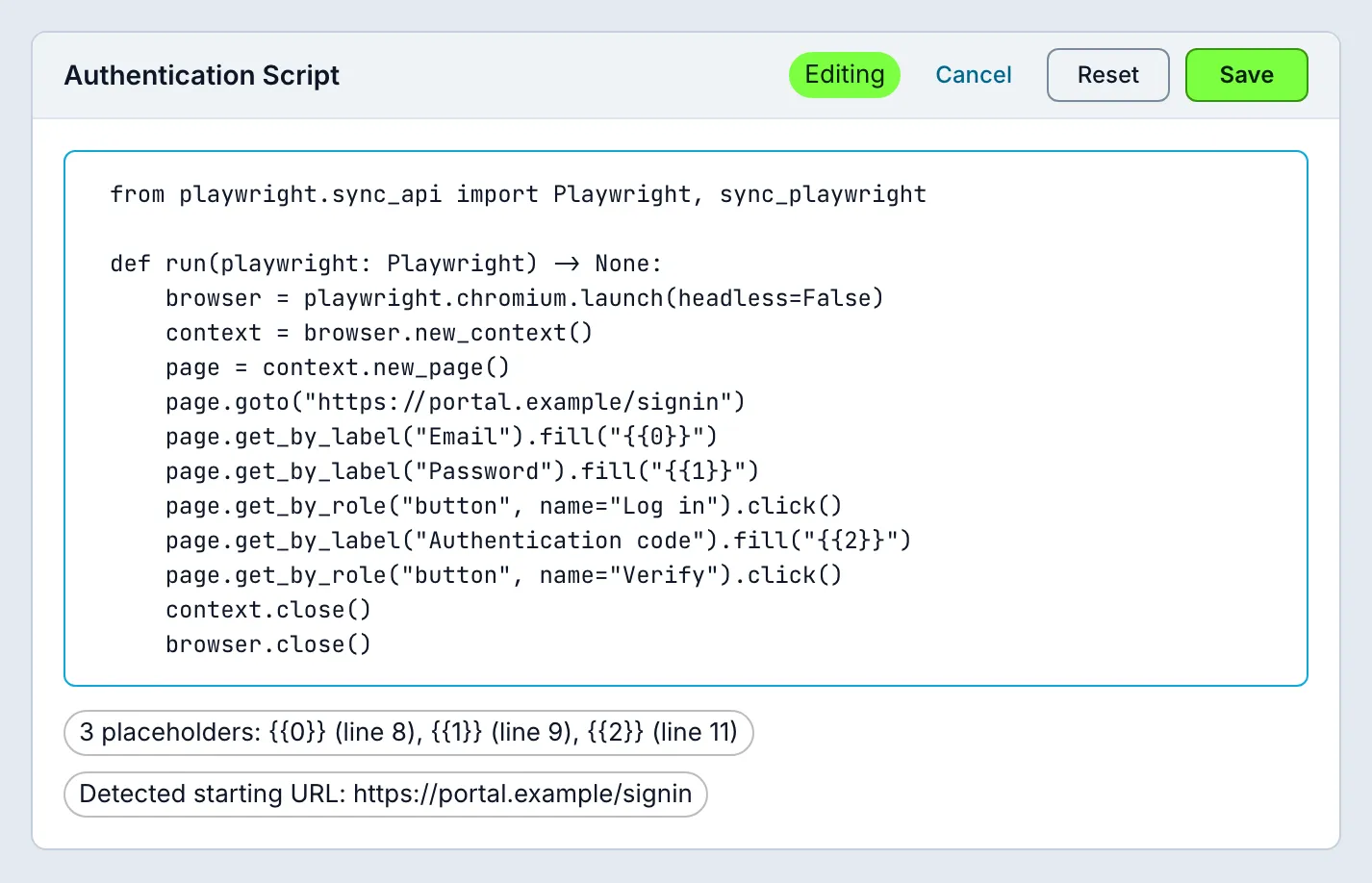
You can also reach the editor from Edit on the authentication, then Edit script in browser.
Make the change
Section titled “Make the change”The script is Playwright code in Python. Edit it as text.
Two chips under the editor update as you type:
- The placeholders found and their line numbers, for example
3 placeholders: {{0}} (line 8), {{1}} (line 9), {{2}} (line 11). - Detected starting URL, the address of the first
page.goto().
The editor stops you from saving a script that is empty, longer than 5,000 characters, or has no page. call. It warns when a placeholder looks malformed. A placeholder is {{N}}, where N is a number.
Reset puts back the saved script. Cancel leaves the editor, and asks before it discards unsaved edits.
Review and save
Section titled “Review and save”- Select Save.
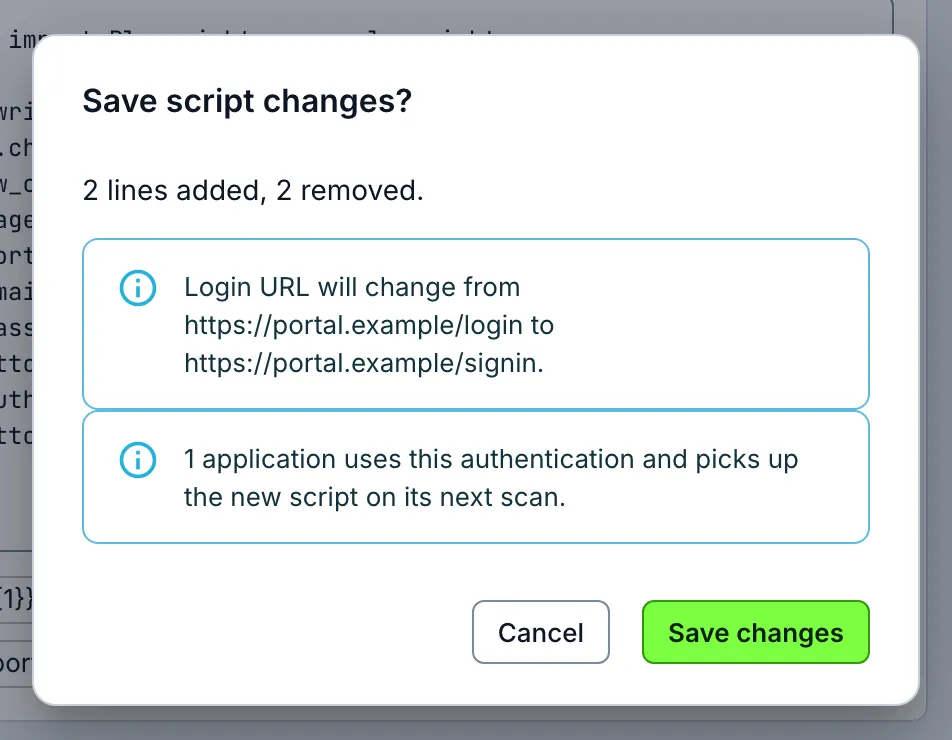
- Read the Save script changes? summary:
- How many lines were added and removed.
- Whether the Login URL changes. It follows the first
page.goto()in the script. - Whether the change clears the MFA placeholder.
- How many applications use the authentication. They pick up the new script on their next scan.
- Select Save changes.
Then select Run login check to confirm the edited script still signs in. See Login check.
What to keep in mind
Section titled “What to keep in mind”- Placeholders. A line such as
page.get_by_label("Password").fill("{{1}}")is filled with the stored value when a scan runs. If you remove a placeholder, that stored value is no longer used. You cannot see or change the values themselves here. - Login URL. Changing the first
page.goto()changes the authentication’s login URL. To change only the login URL, use Edit on the authentication. That rewrites the firstpage.goto()for you. - MFA. If you change the line that fills the one-time code, the MFA placeholder selection is cleared and the panel shows MFA placeholder unset. Scans run without a code until you select Edit MFA and pick the placeholder again. See MFA and TOTP.
- Leaving the page. The browser warns you if you close or reload the page with unsaved edits.
When to re-record instead
Section titled “When to re-record instead”Select Re-record when:
- The login moved to a new identity provider, or the page was redesigned.
- The login gained or lost a step, such as a new one-time code prompt.
- The password or another typed value changed. Stored values can only be replaced by recording.
The two are interchangeable on the same authentication. You can edit a recorded script and later re-record it.
From the API
Section titled “From the API”Send the new script as script_content in PUT /api/v1/credentials/{id}/. Send script_first_url with it when the first page.goto() changes.