

Organization and access
API tokens and API keys
An API token, also called an API key, signs in the NightVision CLI, a CI pipeline, the REST API or an AI agent without a browser. A token acts as you: it reaches exactly the projects you can reach, with the role you hold on each.
In the dashboard: SettingsIntegrationsAPI tokens
Open API tokens (opens in a new tab)Where tokens live
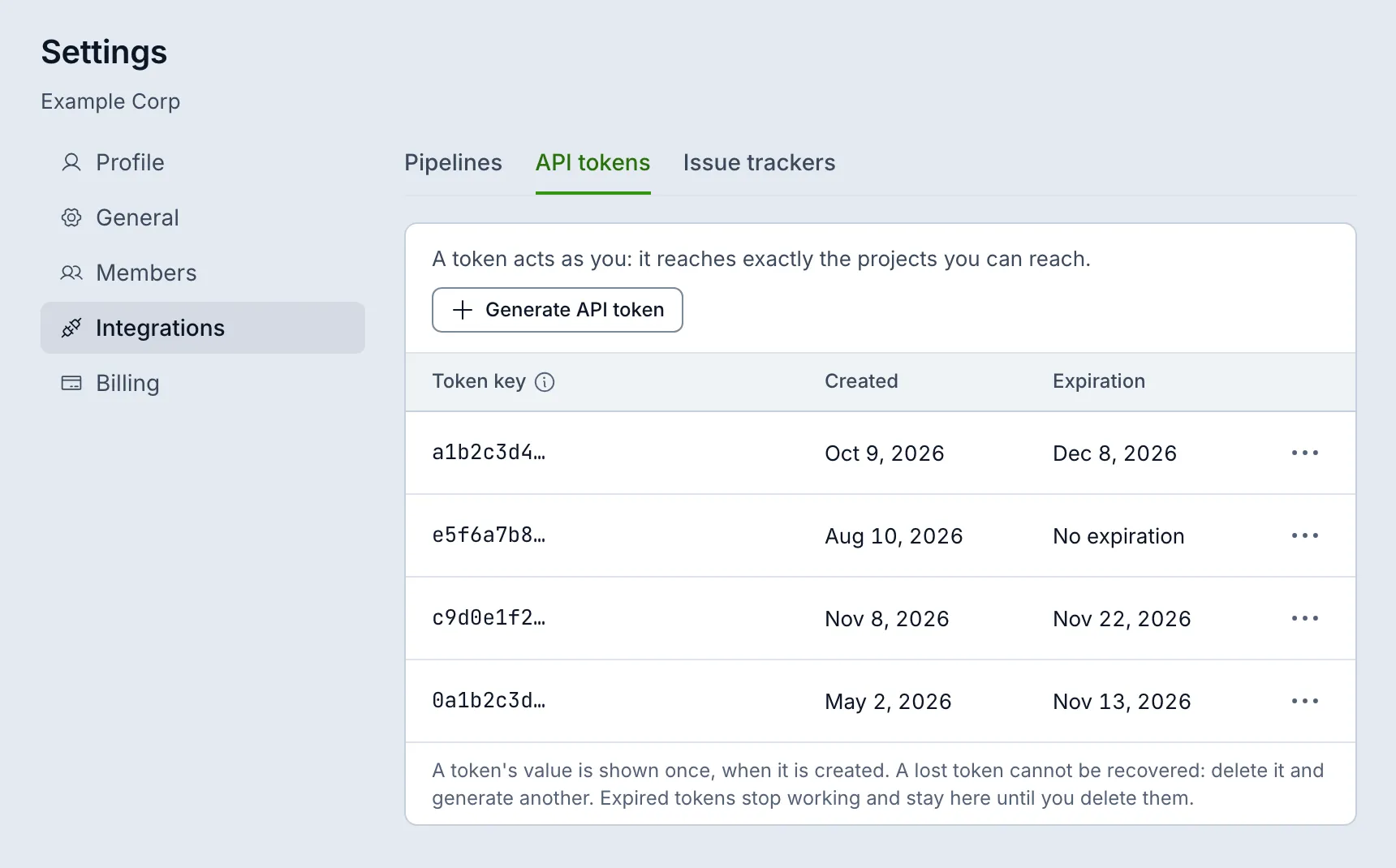
Section titled “Where tokens live”Select Settings in the left rail, then Integrations, then the API tokens tab.
| Column | What it shows |
|---|---|
| Token key | The first 8 characters of the token, so you can tell tokens apart. The rest is never kept in a form that can be shown. |
| Created | The day the token was generated. |
| Expiration | The day it stops working, or No expiration. |
| Status | Active, Expires within 7 days or Expired. |
You see only your own tokens. Expired tokens stop working and stay in the list until you delete them.
Generate a token
Section titled “Generate a token”-
On the API tokens tab, select Generate API token.
-
Choose an Expiration: 7 days, 30 days, 60 days, 90 days, No expiration or Custom. The default is 30 days. With Custom, pick any date after today.
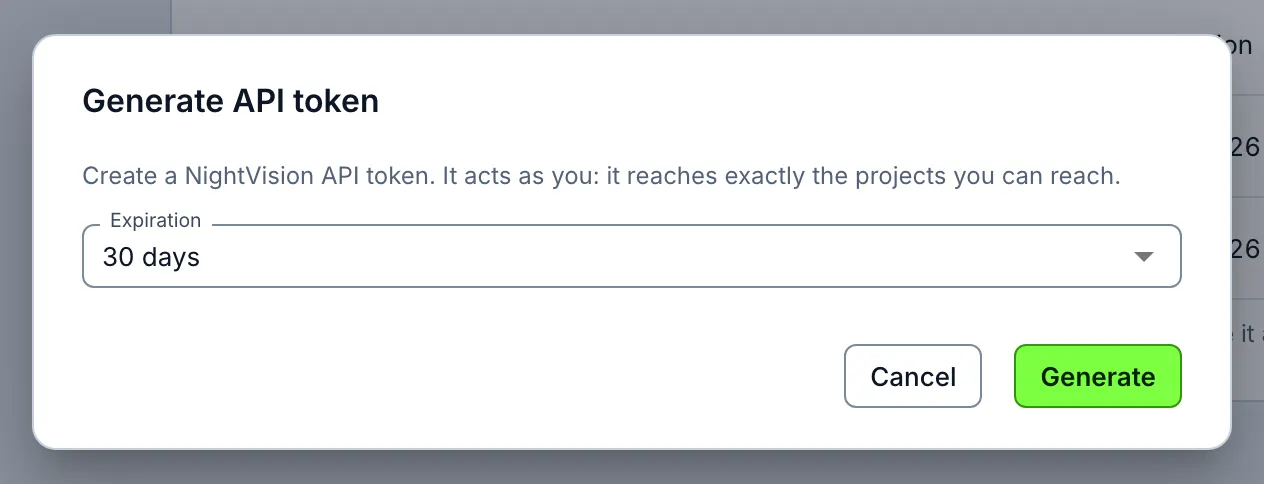
Choose when the token expires. -
Select Generate.
-
Select Copy token and store it somewhere safe, such as your CI system’s secret store or a password manager.
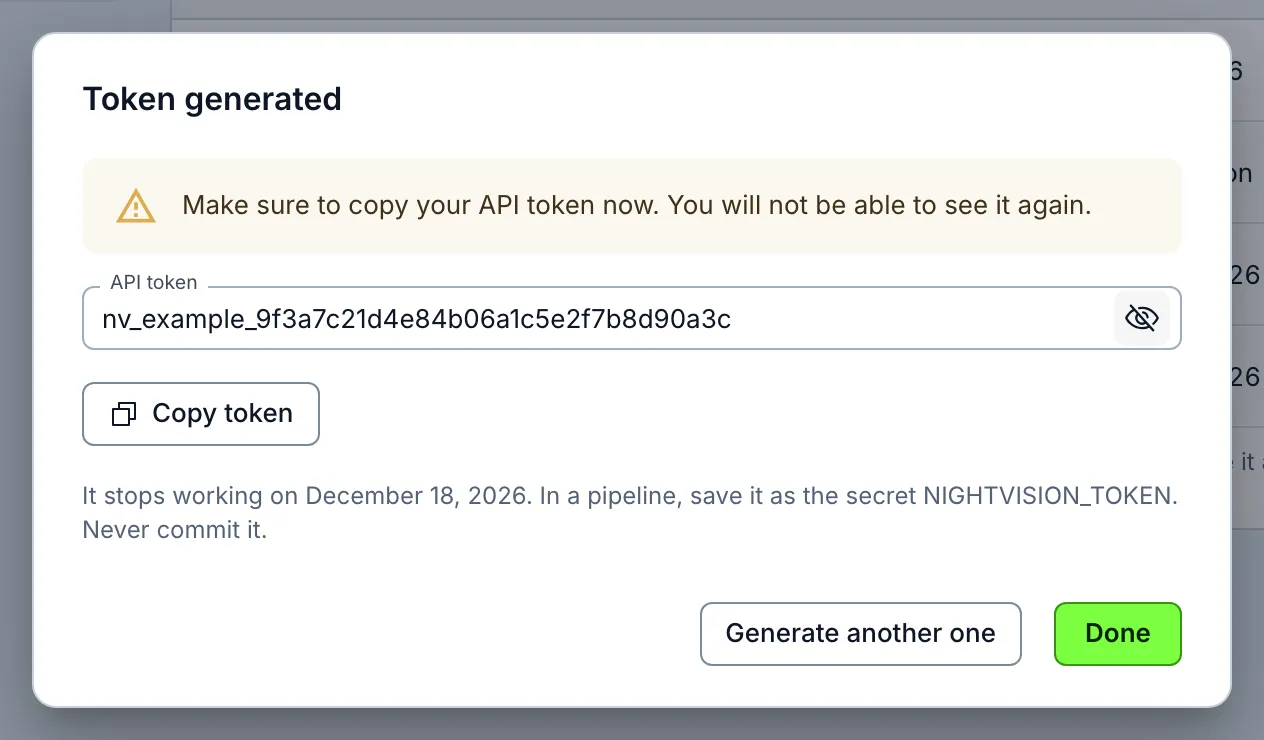
The token is shown once. Copy it before you select Done. -
Select Done, or Generate another one if you need a second token.
Prefer a token with an expiration. A token that never expires keeps working if it leaks.
Generating a token needs an active subscription or trial. Without one, Generate API token is disabled.
Use a token
Section titled “Use a token”In the CLI and in CI
Section titled “In the CLI and in CI”Set the token in the NIGHTVISION_TOKEN environment variable. The CLI uses it instead of a browser sign-in.
export NIGHTVISION_TOKEN=<your token>nightvision scan <application name>In a pipeline, save the token as a secret named NIGHTVISION_TOKEN and never commit it. Scans started this way appear on Scans with the CLI trigger. Each CI system has its own guide:
NIGHTVISION_TOKEN takes precedence over a saved nightvision login session. You can also pass a token for one command with --token.
In the REST API
Section titled “In the REST API”Send the token in the Authorization header with the Token prefix:
curl -H "Authorization: Token $NIGHTVISION_TOKEN" \ https://api.nightviz.ai/api/v1/projects/See the API overview.
With an AI agent
Section titled “With an AI agent”The NightVision MCP server and agent skills sign in with an API token too. See MCP server.
Revoke a token
Section titled “Revoke a token”- On the API tokens tab, open the … menu on the token’s row and select Delete.
- Confirm with Delete.
Anything signed in with that token stops working at once, including CI jobs that use it. To rotate a token, generate the new one, update your secret, then delete the old one.
Manage tokens from the CLI
Section titled “Manage tokens from the CLI”Sign in with nightvision login first.
# Create a token that does not expirenightvision token create
# Create a token that expires on a datenightvision token create --expiry-date 2027-02-15
# List your tokens: key, digest, created and expirynightvision token list
# Delete a token by its digestnightvision token delete <digest>
--expiry-date (short form -d) takes yyyy-mm-dd or a full ISO 8601 timestamp. token create prints the token once. token list never prints token values. Use the digest it shows to delete a token.
Manage tokens from the API
Section titled “Manage tokens from the API”| Method and path | What it does |
|---|---|
GET /api/v1/auth/cli/token/ |
Lists your tokens. |
POST /api/v1/auth/cli/token/ |
Creates a token. Send {"expiry": "<date-time>"}, or null for no expiration. The response holds the token value once. |
DELETE /api/v1/auth/cli/token/{digest}/ |
Deletes a token. |
What a token can reach
Section titled “What a token can reach”A token carries no permissions of its own. It has yours.
- If your role changes, so does what your tokens can do.
- If you are removed from an organization or a project, your tokens lose that access.
- A pipeline that only needs to start scans is best run with a token from an account that holds the Scan Operator role on the projects it scans. Scan Operator works when the application was created from the same repository the pipeline scans from. If the repository differs from the application’s stored source, the scan tries to update the application and needs Project Manager. See Members, roles and groups.
- A pipeline that also runs
nightvision openapi extract --targetchanges the application, because it uploads the spec. That token needs the Project Manager role on the project.
To see what a token can do, run nightvision whoami --all with it set in NIGHTVISION_TOKEN.