

Authentication
MFA and TOTP
NightVision can sign in to applications that ask for a time-based one-time code (TOTP) at login. If the application calls this MFA or two-factor authentication (2FA), this page is the one you want. You give a recorded login the TOTP seed, and each scan generates the current code and types it into the right step of the script. Nobody has to stand by with a phone.
In the dashboard: Authentications
Open Authentications (opens in a new tab)This works with any standard authenticator app. If the application shows a QR code when you enroll a device, it is almost certainly TOTP.
What you need
Section titled “What you need”- A recorded login that goes all the way through the one-time code step.
- The seed for the account NightVision signs in with. It is the base32 string behind Can’t scan it?, Enter setup key manually or Show secret on the application’s MFA enrollment screen. An
otpauth://URI works too. - An authenticator app enrolled with the same seed, to confirm the setup once.
Record the login with the code step
Section titled “Record the login with the code step”Record the login as usual. When the application asks for the code, open your authenticator, type the current code, and continue until you are signed in. Then close the browser.
The saved script has one .fill() line for each value you typed, with the values replaced by placeholders in the order you typed them:
page.get_by_label("Email").fill("{{0}}")page.get_by_label("Password").fill("{{1}}")page.get_by_label("Authentication code").fill("{{2}}")The code you typed while recording has expired by the time a scan runs. Configuring MFA tells NightVision which placeholder to fill with a fresh code.
Configure MFA
Section titled “Configure MFA”-
Select Authentications and open the recorded login.
-
Select the Script and settings tab. In the Details panel, Multi-factor reads Not configured.
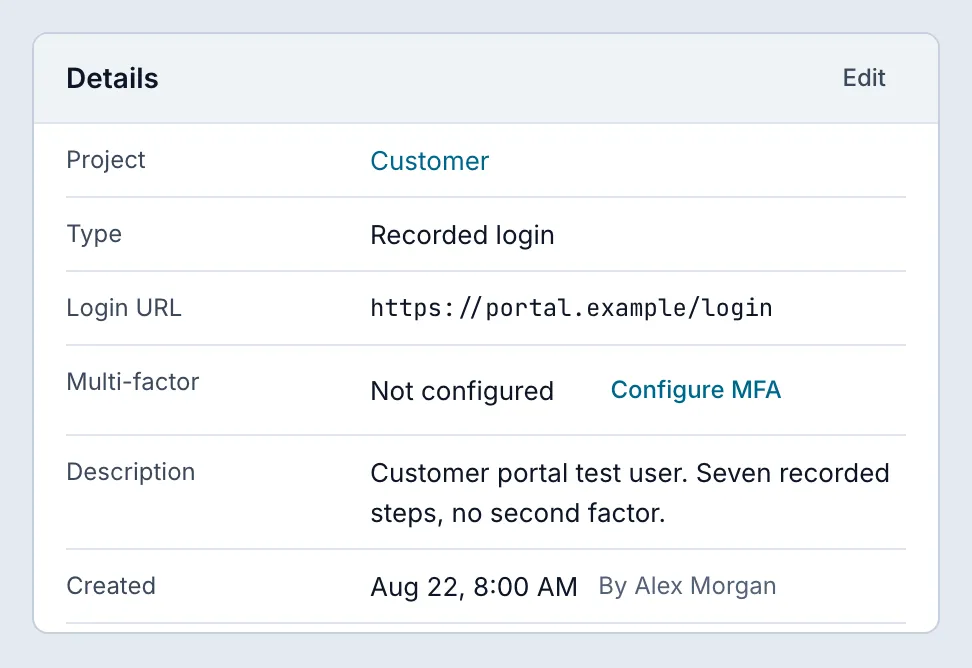
Multi-factor reads Not configured until a seed is saved. -
Select Configure MFA.
-
On the Raw seed tab, paste the seed into Seed (base32). Or switch to the otpauth:// URI tab and paste the full URI.
-
Leave Algorithm (SHA1), Digits (6 digits) and Period (s) (30) alone unless the application uses other values. Algorithm can be SHA1, SHA256 or SHA512, digits 6 to 8, and period 15 to 120 seconds.
-
Under Placeholder designation, select the placeholder that holds the one-time code. Each button names a placeholder and its line, and the script preview marks the line you pick. Nothing is selected for you, so that a wrong guess never sends the password into the code field.
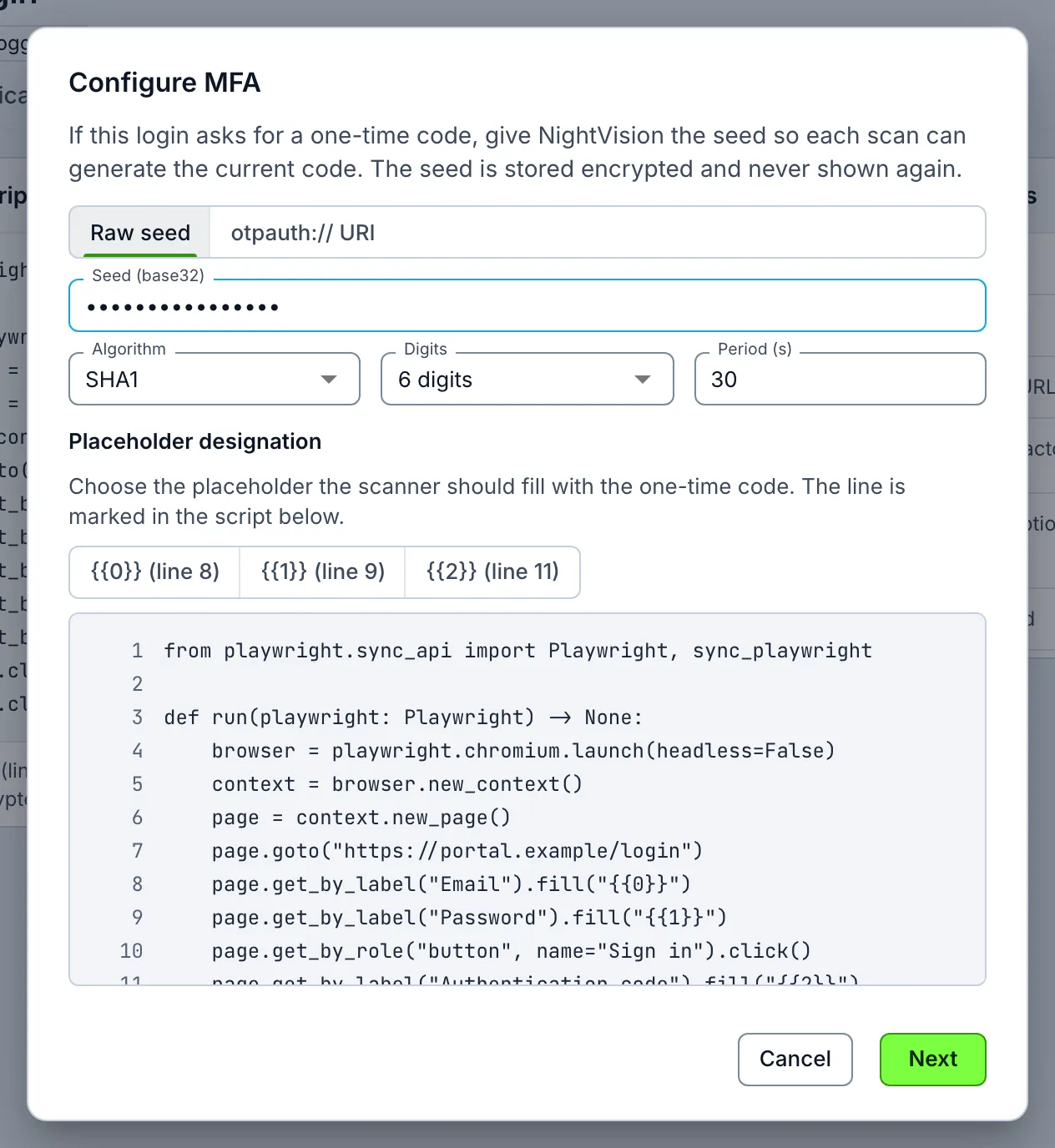
Enter the seed and choose the placeholder for the one-time code. -
Select Next.
-
Open your authenticator, type the current code into Verification code, and select Verify and save.
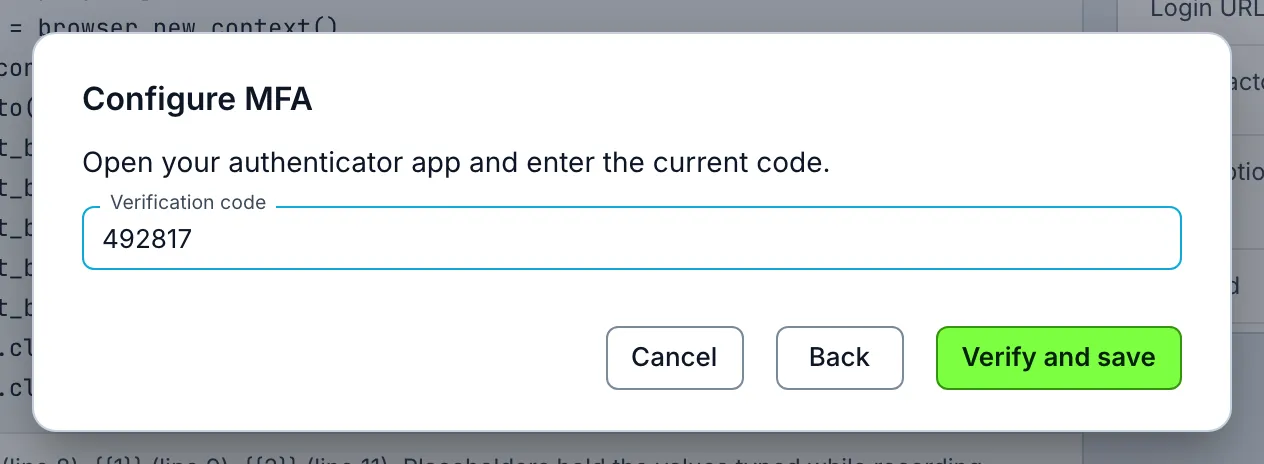
A current code proves the seed is right before it is saved.
If the code does not match, nothing is saved. Check the seed and the three parameters and try again.
You can also select Configure MFA right after recording, in the dialog that reports Recording received.
Confirm it is set
Section titled “Confirm it is set”The Authentication Script panel shows an MFA configured chip and marks the code line with an MFA tag. Multi-factor in the Details panel summarizes the settings and the placeholder. The authentication also carries an MFA chip in the Authentications list.
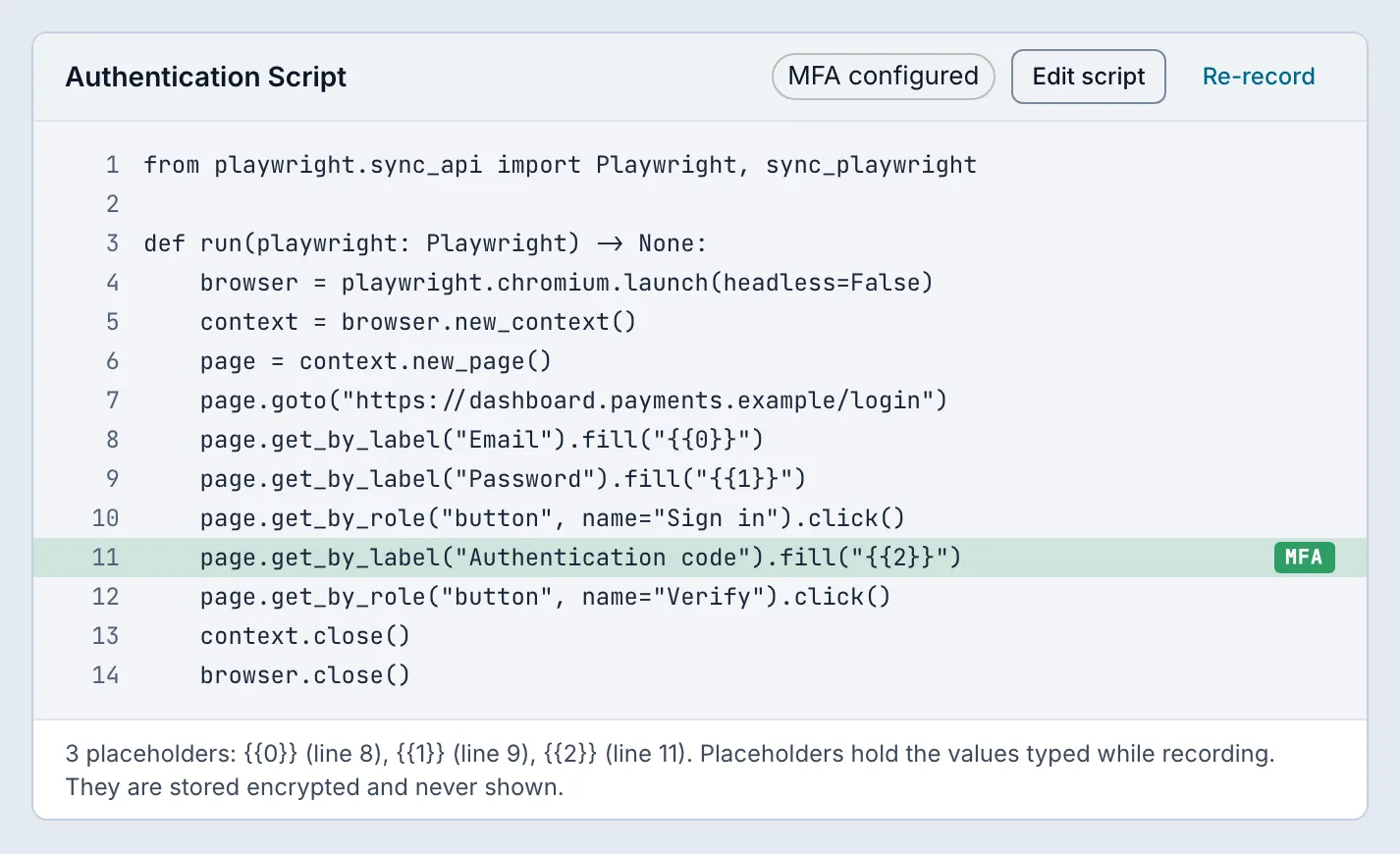
Then select Run login check to replay the login with a generated code. See Login check.
What you see on a scan
Section titled “What you see on a scan”Open a scan that used the authentication, select Details, then Login status. The Multi-factor authentication row reports what happened:
| Row reads | Meaning |
|---|---|
| One-time code generated | NightVision generated a code and filled the placeholder |
| Seed not stored | No seed is saved. Configure MFA again |
| Seed could not be parsed | The saved seed is not valid base32. Enter it again |
| One-time code placeholder not designated | MFA is configured but no placeholder is selected. Select Edit MFA and pick one |
| Code generation failed | Run the scan again. If it repeats, contact support@nightviz.ai |
A login status of Two-factor prompt means the login stopped at the code step, usually because MFA is not configured or the wrong placeholder is selected.
Change or remove MFA
Section titled “Change or remove MFA”- Edit MFA reopens the dialog. Leave the seed blank to change only the algorithm, digits, period or placeholder. A new seed or changed parameters need a current code to verify. A placeholder-only change saves at once.
- Remove MFA deletes the stored seed. Scans then run without a one-time code. This cannot be undone.
The placeholder selection is cleared when the line that fills the code changes. That happens when you edit that line, when a new recording changes it, or when a new login URL rewrites the script. The script panel then shows MFA placeholder unset. Select Edit MFA and pick the placeholder again. The seed is kept.
Limits
Section titled “Limits”- TOTP only. Codes sent by SMS or email, push approvals and hardware keys cannot be replayed. Use a scan account with TOTP, or an environment where the second factor is off for that account.
- The leaked credential check needs a recorded login without MFA.
From the API
Section titled “From the API”| Task | Endpoint |
|---|---|
| Read the MFA status | GET /api/v1/credentials/{id}/mfa/ |
| Configure or replace | POST /api/v1/credentials/{id}/mfa/ with seed or otpauth_uri, optional algorithm, digits, period, placeholder_index, and a current verification_code |
| Change only the placeholder | POST /api/v1/credentials/{id}/mfa/placeholder/ with placeholder_index |
| Remove | DELETE /api/v1/credentials/{id}/mfa/ |
The seed is write-only. No endpoint returns it.