

Authentication
Reusing authentications
You rarely need to record the same login twice. There are two ways to reuse one:
- Assign it to more applications. One authentication can serve every application in its project that signs in the same way, at the same address.
- Duplicate it. Make an independent copy with its own name and login URL, for another environment or another application behind the same identity provider.
In the dashboard: Authentications
Open Authentications (opens in a new tab)Use one authentication for several applications
Section titled “Use one authentication for several applications”Assign the same authentication on each application:
- Open the application from Applications.
- In the Authentication section of the Setup tab, select Assign authentication.
- Pick the authentication and select Save.
Only authentications in the application’s project are listed. To see everything an authentication serves, open it and select the Applications tab.
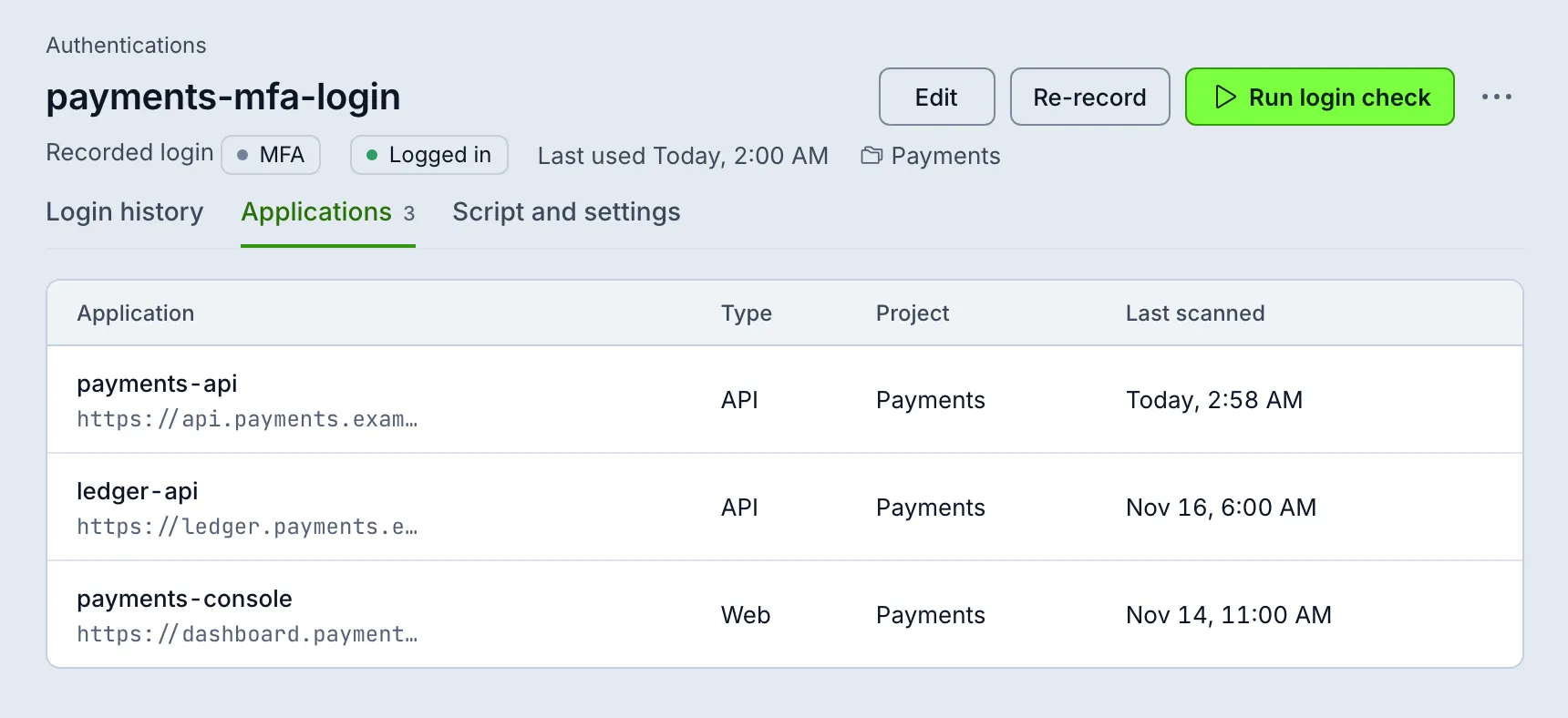
A change to a shared authentication, such as a new recording or a rotated header value, reaches every application that uses it on its next scan. A project’s Authentications tab lists the authentications that project owns. See Projects.
Duplicate a recorded login
Section titled “Duplicate a recorded login”A duplicate copies the script, the stored values behind each placeholder, and the MFA settings including the seed. It is independent of the original: editing one does not change the other.
Only recorded logins can be duplicated. Header and cookie authentications are quick to create again.
-
Select Authentications.
-
Open the row menu of the recorded login and select Duplicate.

Duplicate is in the row menu of a recorded login. -
The Duplicate authentication dialog opens with the source selected and the name set to the original’s name plus
-copy. Change the Authentication name and Description if you want. The name must be unique in the project. -
Set the Login URL for the copy. Leave it as it is for an exact copy, or enter the other environment’s login page.
-
Select Copy. NightVision creates the copy and opens it.
You can start from New authentication instead: keep Recorded authentication (Playwright), choose Copy from existing under How would you like to set this up?, and pick the source in Authentication to copy from.
The copy stays in the same project as the original.
What is copied
Section titled “What is copied”| Item | Copied | Notes |
|---|---|---|
| Script | Yes | The first page.goto() is rewritten to the new login URL when it matched the original’s login URL. Otherwise the script is left alone |
Stored values behind {{0}}, {{1}} and so on |
Yes | Saved again for the copy |
| MFA settings | Yes | Same seed, algorithm, digits, period and placeholder |
| Description | Yes | Editable before you copy |
| Applications, scans and schedules of the original | No | The copy starts unassigned |
| Saved login validation rules | No | The copy signs in at a different address. Save rules for it on Login check |
Check the copy before you scan
Section titled “Check the copy before you scan”- Other URLs in the script. Only the first
page.goto()is rewritten. If later steps name the old environment, edit the script. - A different account. If the other environment uses another username or password, re-record the copy. Stored values cannot be edited directly.
- A different MFA enrollment. If the account there has its own seed, select Edit MFA on the copy and enter it. See MFA and TOTP.
Then assign the copy to its application and select Run login check to confirm the login reaches Script complete.
From the API
Section titled “From the API”| Task | Endpoint |
|---|---|
| Duplicate a recorded login | POST /api/v1/credentials/{id}/copy/ with name, script_first_url and an optional description |
| Assign to applications | POST /api/v1/credentials/{id}/assign-to-targets/ with {"targets": ["<id>", "<id>"]} |