

Organization and access
Members, roles and groups
Access in NightVision has three parts:
- A member is a person in your organization. Every member has one organization role.
- A role decides what a person can do: Org Admin, Project Manager, Scan Operator or Read-Only.
- A group is a set of members. You give a group a role on a project, and everyone in the group gets it.
In the dashboard: SettingsMembers
Open Members (opens in a new tab)Org Admins manage all three in Settings > Members. Other roles do not see that section.
The four roles
Section titled “The four roles”| Role | What it is for |
|---|---|
| Org Admin | Full administrative access to the organization. Manages members, groups, roles, billing and all projects. |
| Project Manager | Creates and manages projects, applications and authentications. Runs and manages scans, and triages findings. |
| Scan Operator | Runs scans against existing projects and applications and views the results. Cannot create or change projects or applications. |
| Read-Only | Views projects, applications, scans and findings. Cannot start scans or change anything. |
A role can apply in two places. An organization role, set on the member, applies across the organization. Project Manager, Scan Operator and Read-Only can also be granted on a single project, directly or through a group. Org Admin is always organization-wide.
The same summary is in the dashboard: on Settings > Members, select What each role can do.
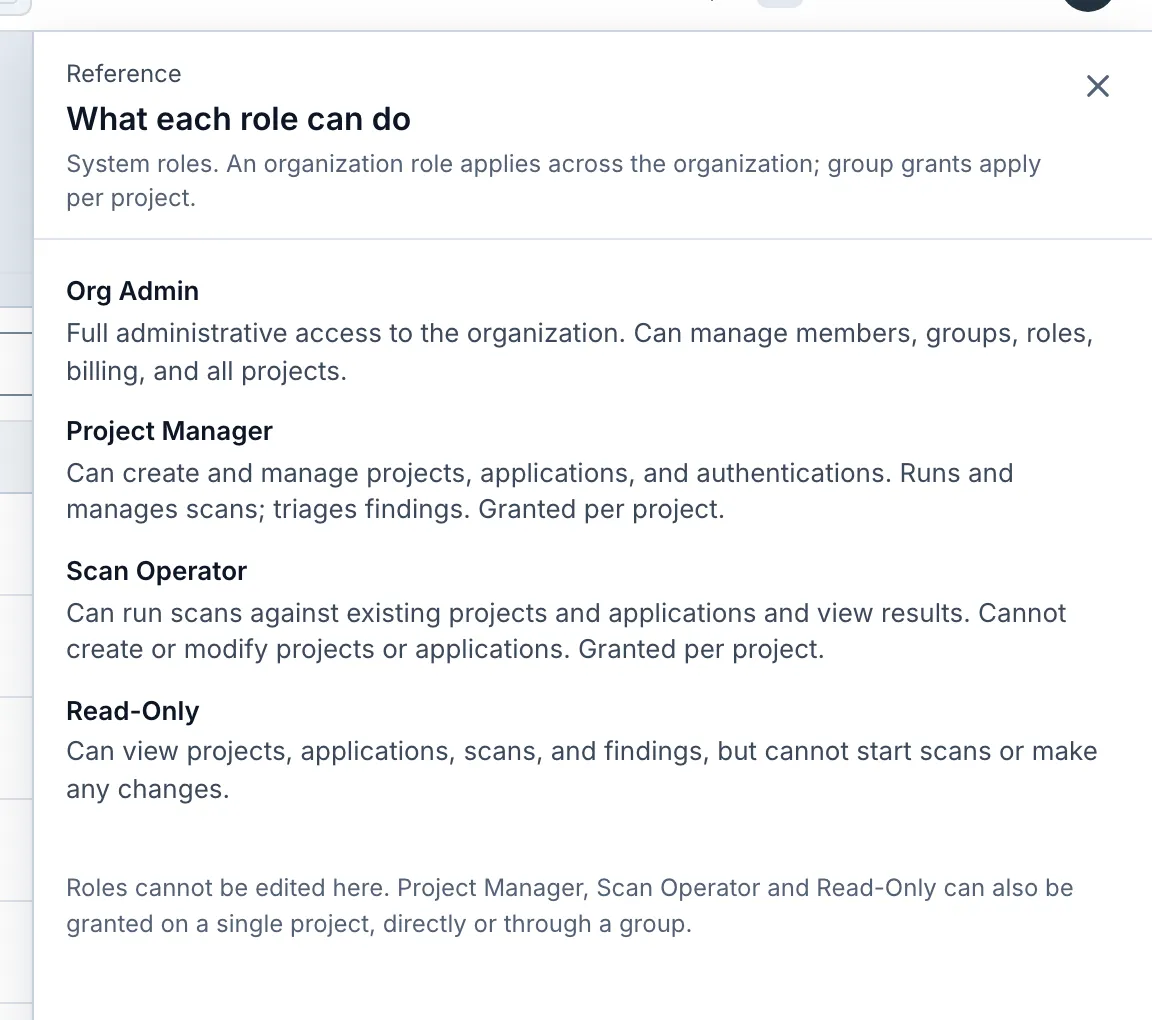
What each role can do
Section titled “What each role can do”| Action | Org Admin | Project Manager | Scan Operator | Read-Only |
|---|---|---|---|---|
| View projects, applications, scans, findings and tags | Yes | Yes | Yes | Yes |
| View app discovery results | Yes | Yes | Yes | Yes |
| Start a scan, rescan, or schedule a scan | Yes | Yes | Yes | No |
| Stop a running scan | Yes | Yes | Yes | No |
| Run or cancel an app discovery | Yes | Yes | Yes | No |
| Edit or disable a schedule, archive or delete a scan | Yes | Yes | No | No |
| Create, edit, move or delete applications | Yes | Yes | No | No |
| Add tags to an application, and create new tags | Yes | Yes | No | No |
| Create or edit authentications | Yes | Yes | No | No |
| Change a finding’s status or assignee | Yes | Yes | No | No |
| Create or rename projects | Yes | Yes | No | No |
| Delete an app discovery domain | Yes | Yes | No | No |
| Rename or delete tags | Yes | No | No | No |
| Change the SLA policy, issue trackers and the OpenAI API key | Yes | No | No | No |
| Manage members and groups | Yes | No | No | No |
| Manage billing | Yes | No | No | No |
A role granted on one project applies only in that project. A Scan Operator on the Payments project can start scans there and nowhere else.
Some project actions belong to the project’s owner, whatever their role: sharing, removing collaborators, transferring, deleting and freeze windows. See Projects.
See your members
Section titled “See your members”Select Settings in the left rail, then Members.
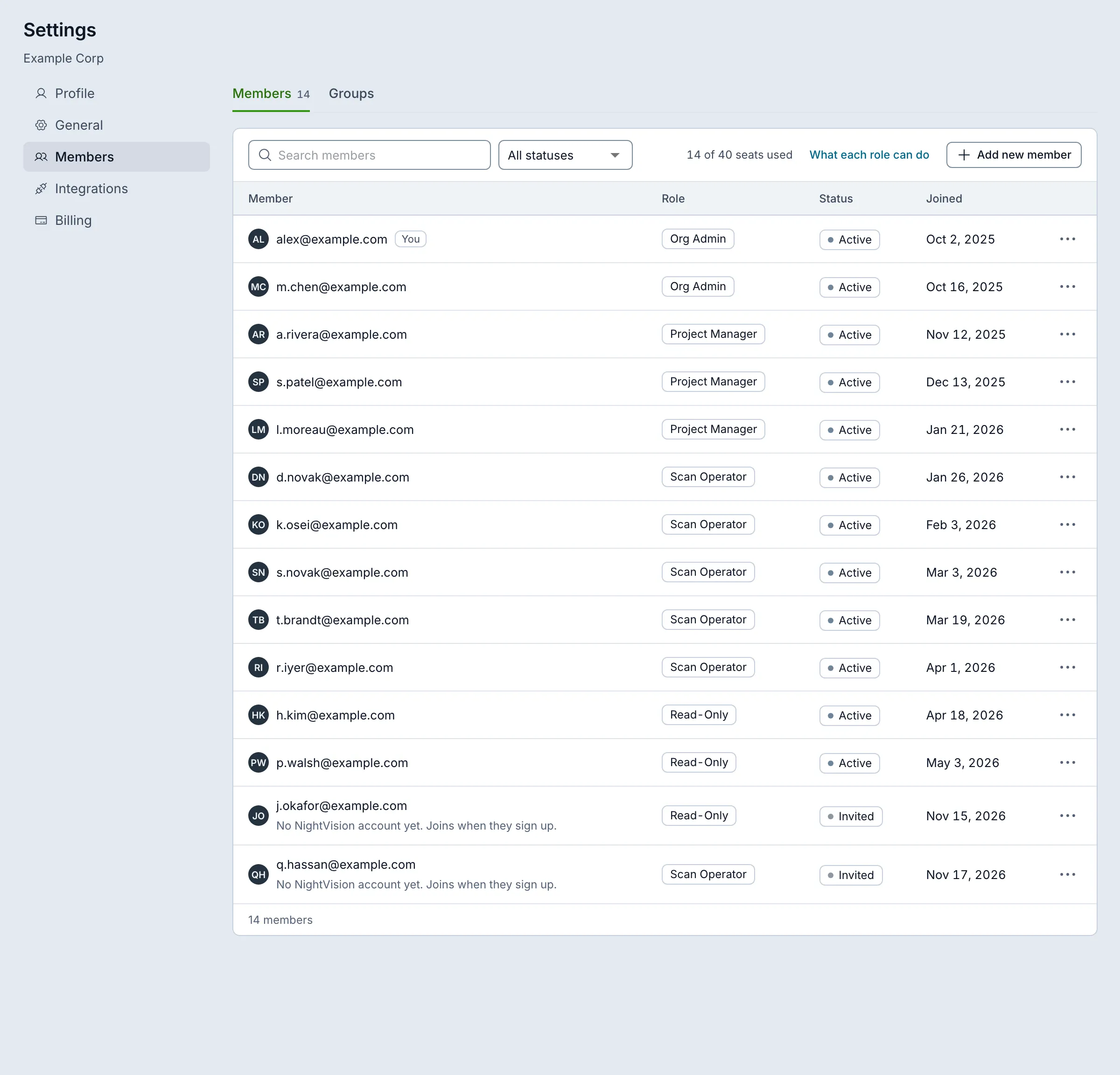
Each row shows the member’s email, role, status and the date they joined. Search by email or name, or filter by status. The seat count shows how many seats are used, and the limit when your plan has one.
| Status | Meaning |
|---|---|
| Active | The person has a NightVision account and is a member. |
| Invited | You added the address, and the person has not signed up yet. They join when they do. |
Someone who only has a project shared with them is a collaborator on that project, not a member. If you add them here, their role is saved and they keep their project access.
Add a member
Section titled “Add a member”- On Settings > Members, select Add new member.
- Enter the person’s email.
- Choose a role. Read-Only is selected to start with.
- Select Add.
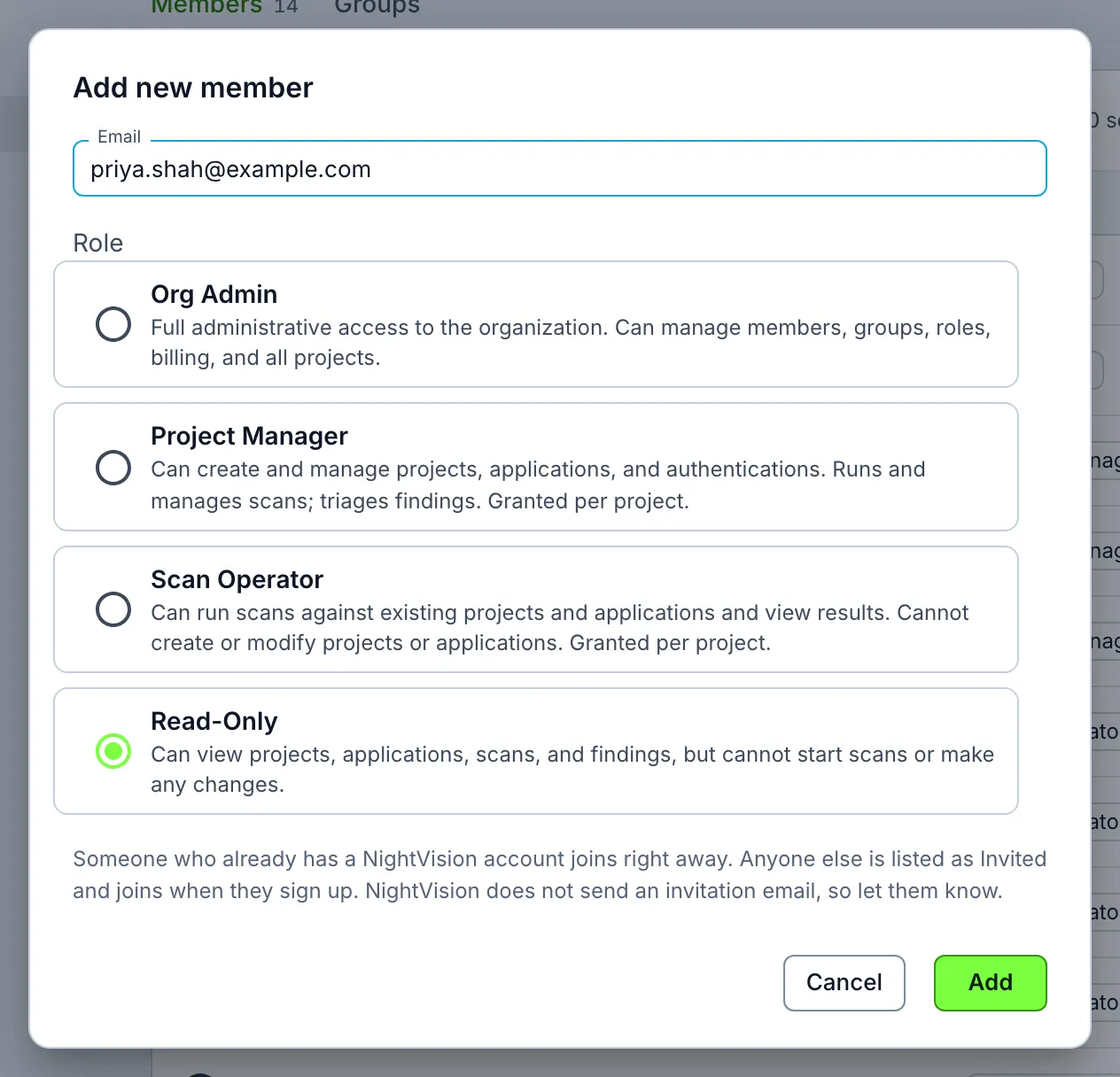
To invite a user, add their email address here. Someone who already has a NightVision account joins right away. Anyone else is listed as Invited and joins when they sign up with that email.
Add new member is disabled when every seat is used. Remove a member or contact sales@nightviz.ai to add seats.
Change a member’s role
Section titled “Change a member’s role”- Open the … menu on the member’s row and select Edit role.
- Choose the new role and select Update role.
The organization always keeps at least one Org Admin, so you cannot change the role of the last one. If you change your own role away from Org Admin, you lose access to Settings > Members.
Remove a member
Section titled “Remove a member”Open the … menu on the member’s row, select Remove from organization and confirm. The person loses access to the organization’s projects, including access that came from groups.
You cannot remove the last Org Admin. If you remove yourself, you leave the organization at once.
Groups
Section titled “Groups”A group lets you give a whole team the same access in one step. Open Settings > Members and select the Groups tab.
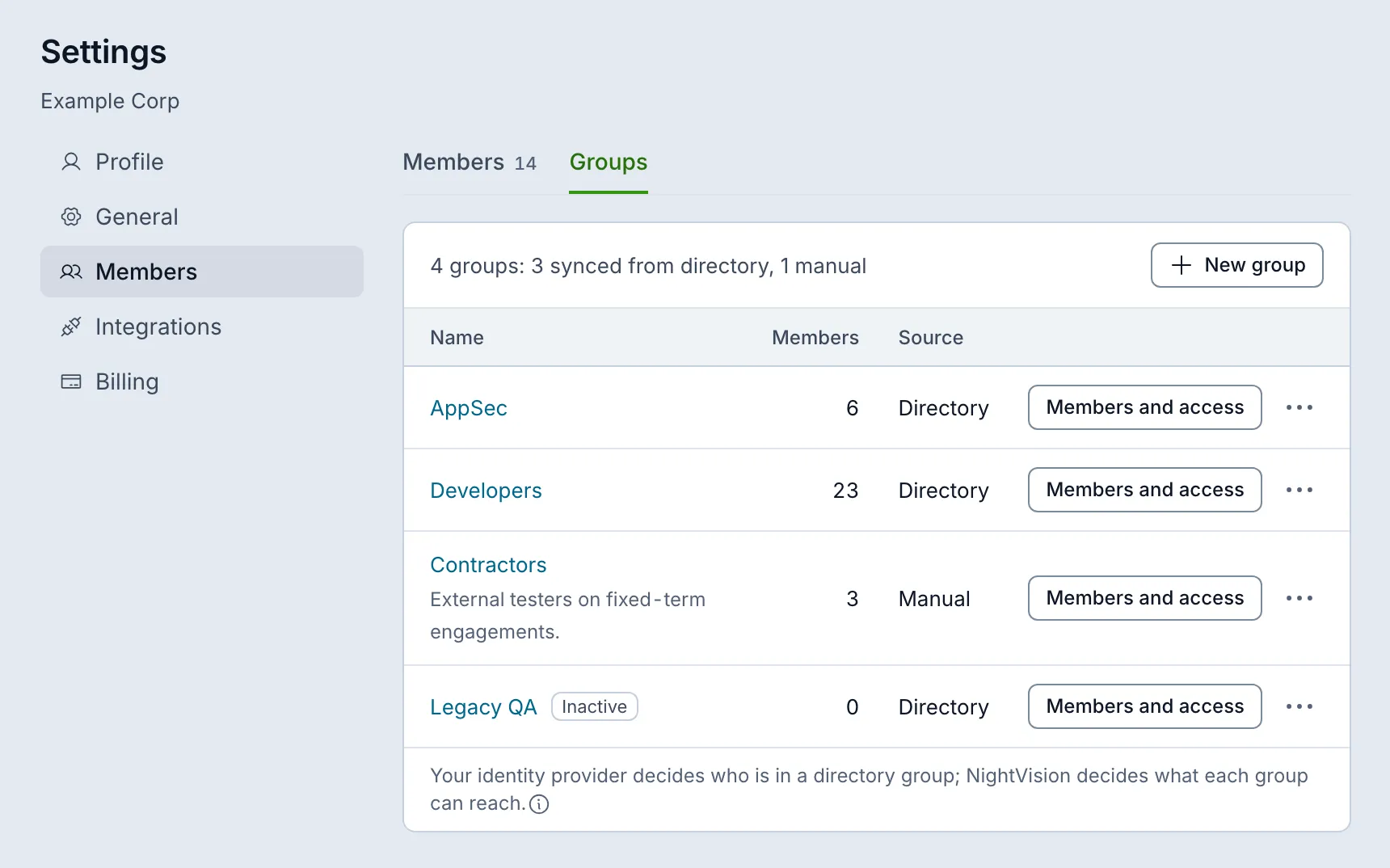
There are two kinds of group:
- Manual: you create it in NightVision and choose its members.
- Directory: it is mirrored from your identity provider. Its name and members are managed there. See Enterprise SSO.
Create a group and add members
Section titled “Create a group and add members”- On the Groups tab, select New group.
- Enter a name and, if you like, a description. Select Create.
- On the group’s row, select Members and access.
- Under Members, search for a member by email and select Add member.
Only people who are already members of the organization can be added to a group. To remove someone, select the X next to their email. They keep their organization membership and lose only the access the group grants.
Give a group a role on a project
Section titled “Give a group a role on a project”- On the group’s row, select Members and access.
- Under Project access, choose a Project and a Role: Project Manager, Scan Operator or Read-Only.
- Select Grant access.
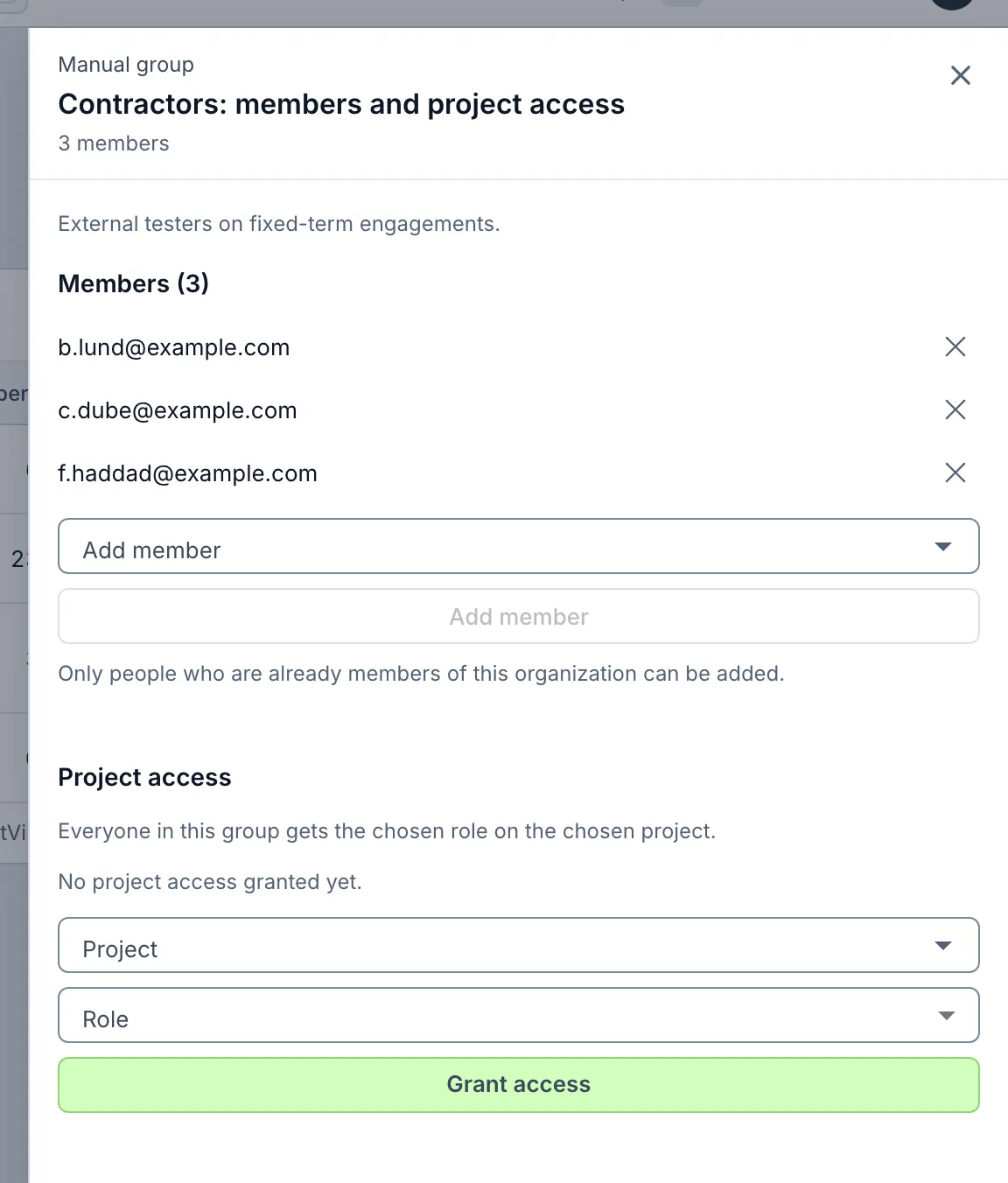
Everyone in the group gets that role on that project. To take it back, select the trash icon next to the grant. People keep any access they hold another way, for example through their own role or a direct share.
The Project access column on the Groups tab shows each group’s grants at a glance.
Rename or delete a group
Section titled “Rename or delete a group”Open the … menu on the group’s row. Delete removes the group and every project grant it holds, so its members lose that access. Directory groups cannot be renamed or deleted here. Change them in your identity provider.
Give one person access to one project
Section titled “Give one person access to one project”You do not need a group for a single person. A project’s owner can share it by email, which gives that person the Project Manager role on that project. See Share a project.
To give one person Scan Operator or Read-Only on a project, put them in a group and grant the group that role.
When members come from your identity provider
Section titled “When members come from your identity provider”If your organization uses directory sync, your identity provider decides who is a member. On Settings > Members, Add new member is not shown, the row actions are disabled, and a note explains why.
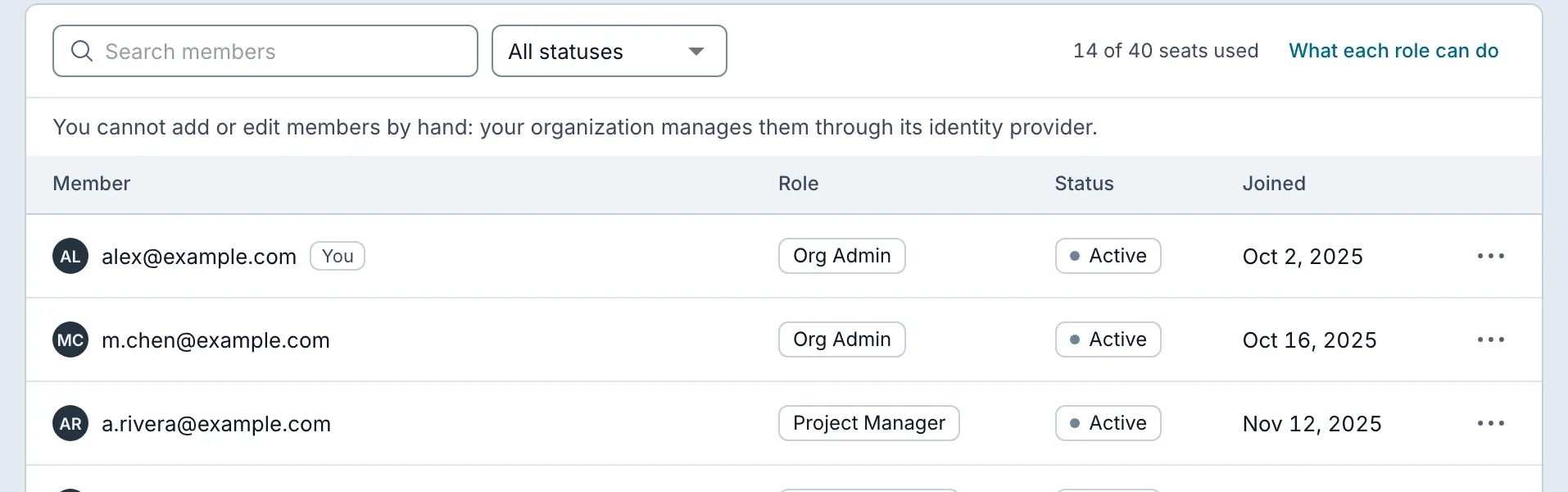
You still decide what people can reach. Directory groups appear on the Groups tab, and you grant each one a role on the projects it needs. See Enterprise SSO.
Why a control is hidden or disabled
Section titled “Why a control is hidden or disabled”The dashboard follows one rule everywhere:
- A control your role does not allow is hidden.
- A control your plan, a trial limit or your identity provider blocks is shown disabled. Hover over it, or focus it with the keyboard, to read the reason.
| Reason shown | What to do |
|---|---|
| Your role does not allow this. | Ask an Org Admin for a different role, or for a role on that project. |
| Your role does not allow this in this project. | Your role on that project is narrower than elsewhere. Ask the project owner or an Org Admin. |
| Only the project owner can do this. | Ask the owner, or ask them to transfer the project. |
| Your organization’s plan does not include this. | See Billing. |
| Your trial has used all its scans. Upgrade to run more. | See Trial limits and banners. |
| Members of this organization are managed by its identity provider. | Make the change in your identity provider. |
Check your own access
Section titled “Check your own access”In the dashboard, the Your access column on Projects shows how you reach each project.
From the CLI, nightvision whoami prints who you are signed in as, your role and permissions in each organization, and your effective permissions on a project.
# The current projectnightvision whoami
# A named projectnightvision whoami --project Payments
# Every project you can seenightvision whoami --all
# Machine-readablenightvision whoami --all --format json
The project list is the one to trust for a single project. It includes access from groups, which the organization line does not. An API token acts as the person who created it, so whoami run with a token shows that person’s access. See API tokens.